Appearance
Configure AI Builder Plugin
Follow the steps to configure the AI Builder Plugin.
OpenAI Configuration
Follow the below steps to create an OpenAI API Key and configure it in the AI Builder Plugin.
Step 1: Open the OpenAI Dashboard
Go to the OpenAI API Dashboard:
https://platform.openai.com/account/api-keysClick your Profile icon in the top-right corner.

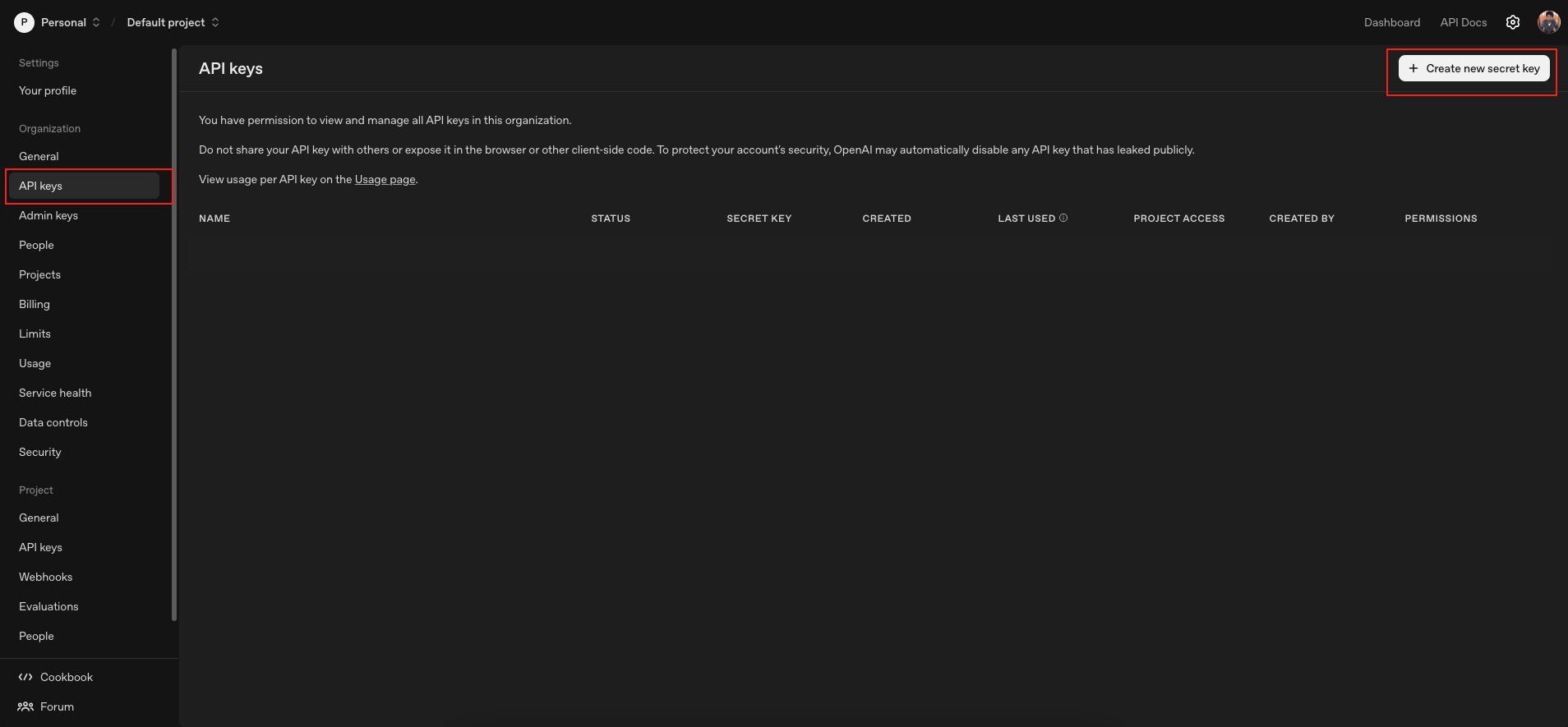
Step 2: Navigate to API Keys
- From the left sidebar, click API Keys.
- Click Create new secret key.
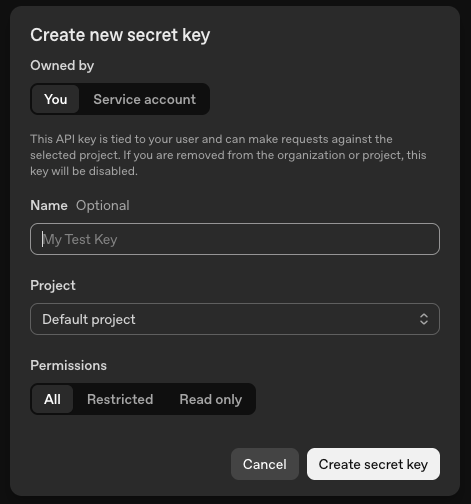
Step 3: Create a Secret Key
- Enter a Name for your key.
- Select the Project (for example: Default Project).
- Set Permissions if needed.
- Click Create Secret Key.
Important: Copy the API key and store it securely. You will not be able to view it again.
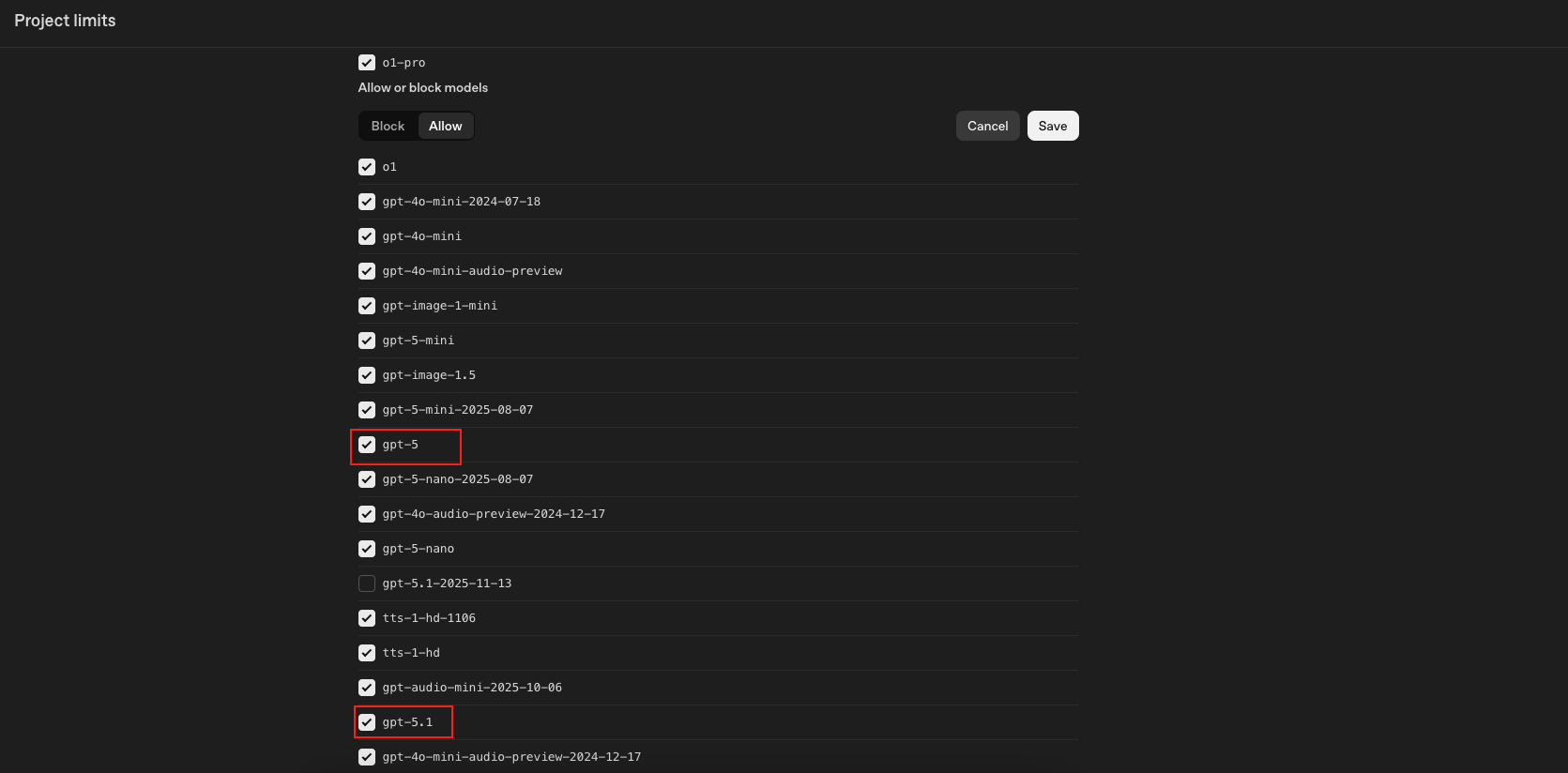
Step 4: Configure Model Limits
- Go to Limits in the sidebar.
- Click Edit under Allowed Models.
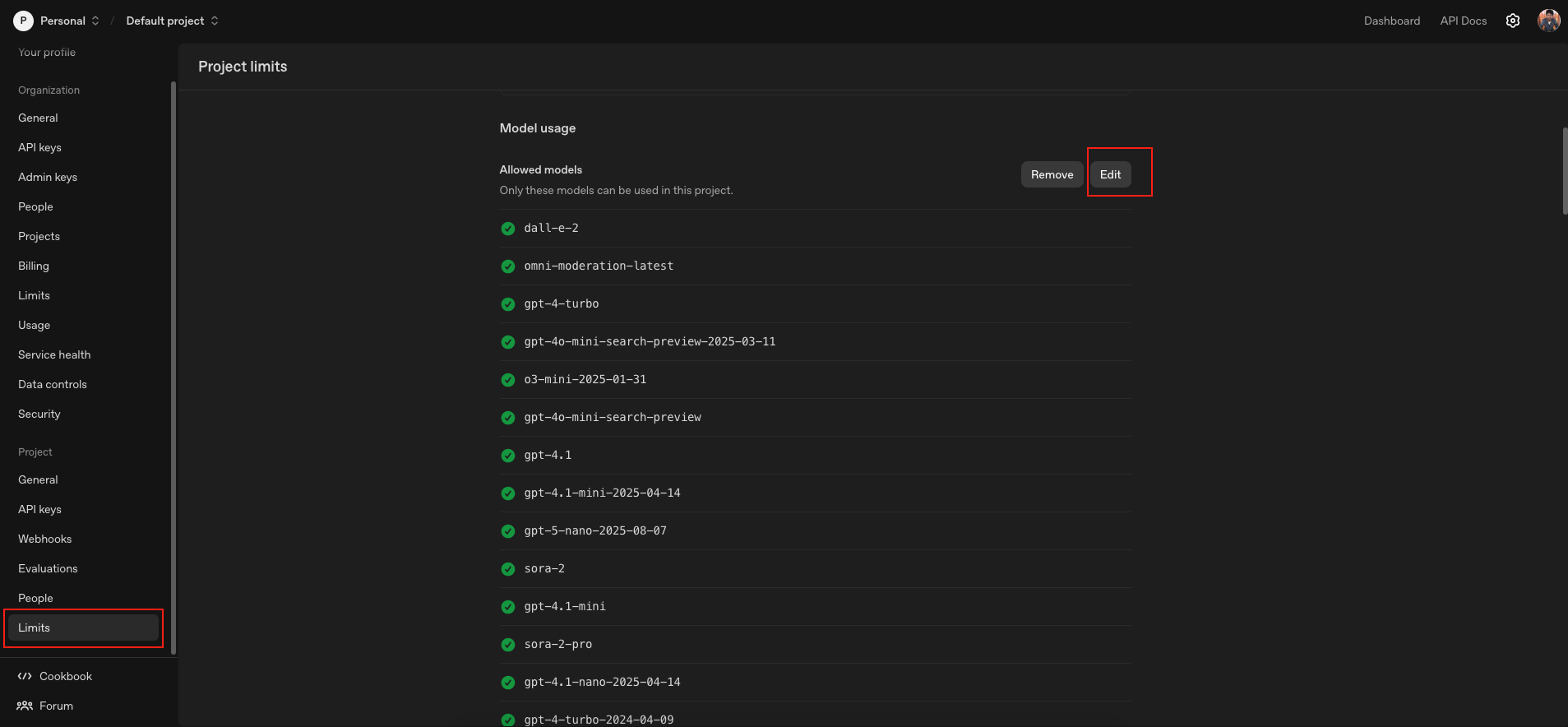
- Enable the following models:
- GPT-5.2
- GPT-5.1
- GPT-5
- GPT-4.1
- GPT-4o
- GPT-4o Mini
- Click Save.
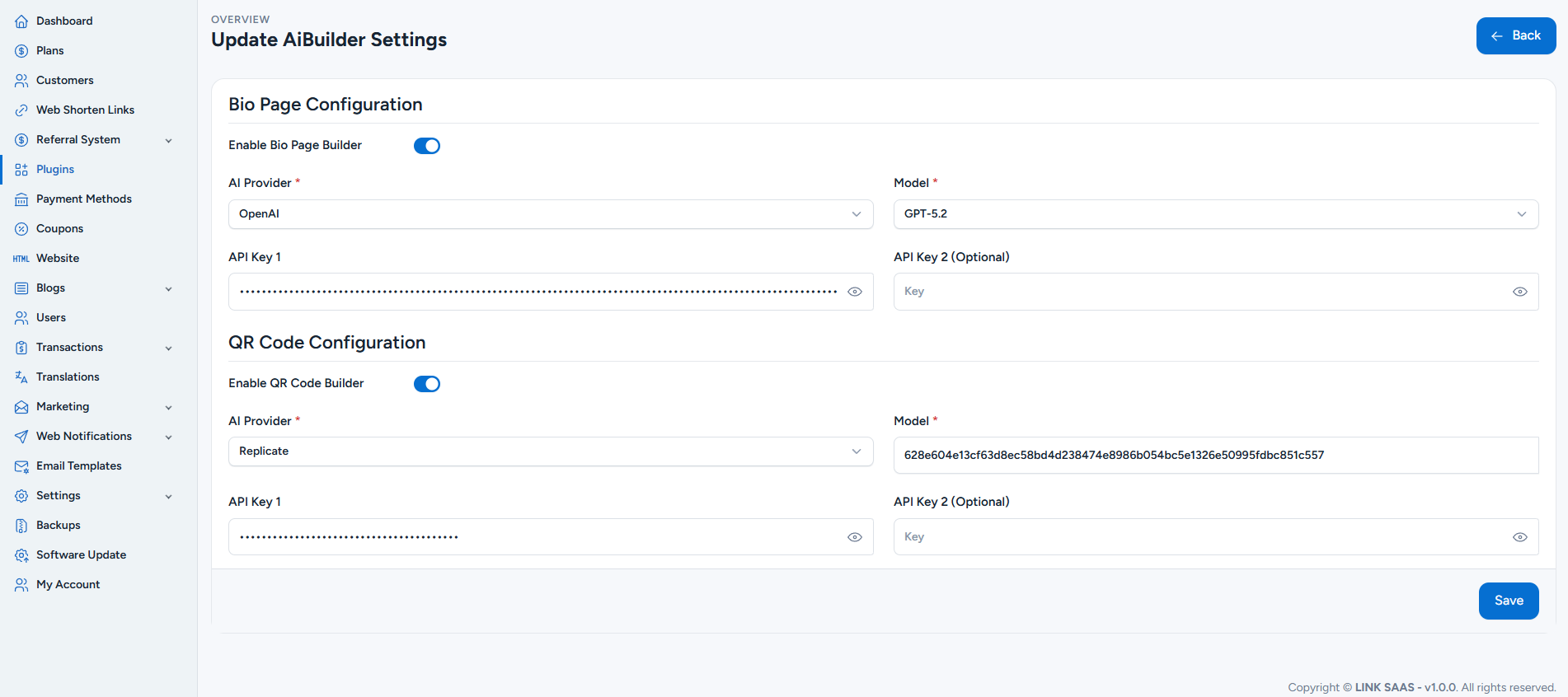
Step 5: Add API Key to AI Builder Plugin
- Open your AI Builder Plugin Dashboard.
- Enable AI Builder.
- Select OpenAI as the AI Provider.
- Choose the required Model.
- Paste the API Key you created.
- Click Save.
Replicate Configuration
Follow the steps below to create a Replicate API Token and configure it in the AI Builder Plugin.
Step 1: Open the Replicate Dashboard
- Go to the Replicate Dashboard:
https://replicate.com/account/api-tokens
Step 2: Navigate to API Tokens
Click on API Tokens in the sidebar.
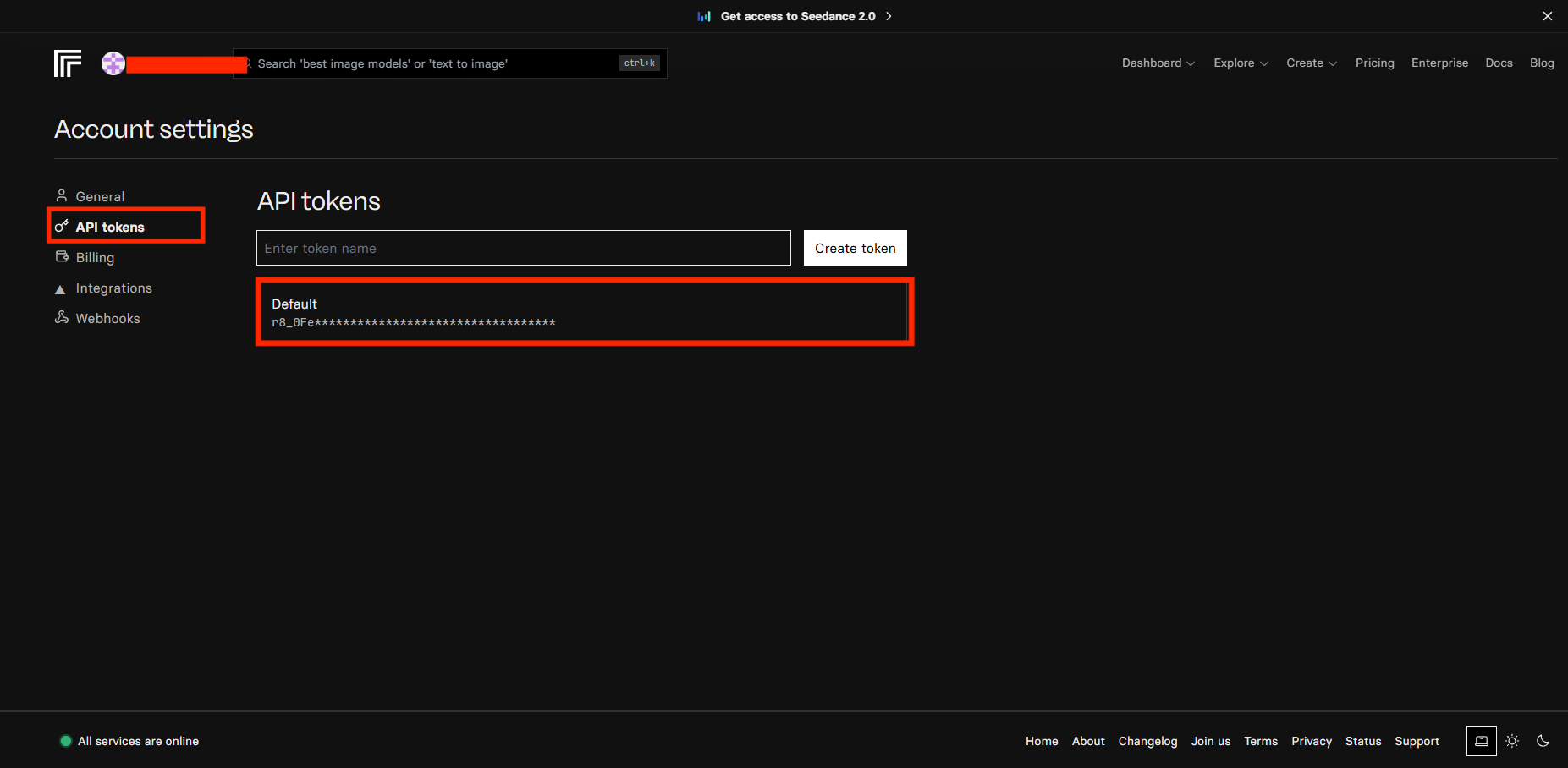
Step 3: Create a Token
- Enter a token name.
- Click the Create Token button to generate your API token.
Step 4: Configure the API Token in AI Builder Plugin
Copy the generated token.
Paste it into the AI Builder Plugin settings.
Step 5: Get Replicate Model ID
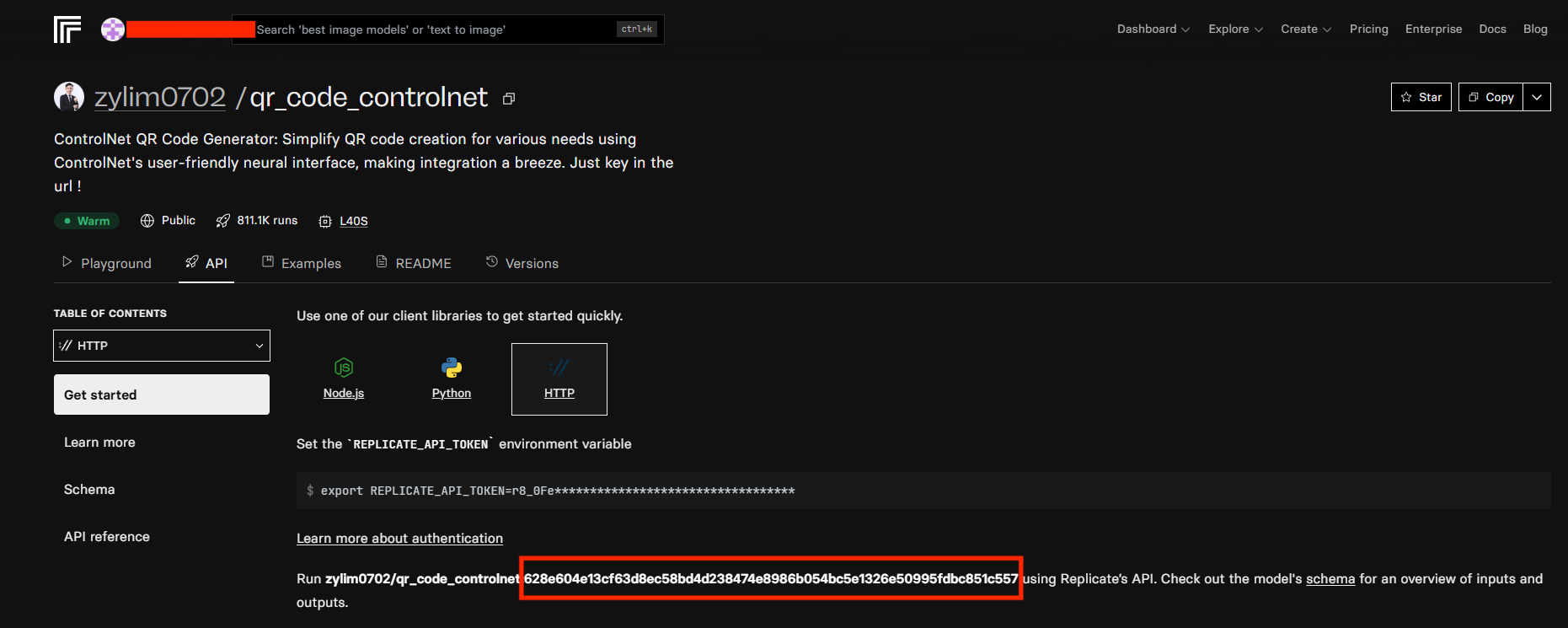
Click here to get the Replicate Model ID.