
Appearance
MSG91 WhatsApp Notification Plugin Configuration
Follow the steps below to configure the MSG91 WhatsApp Notification plugin and enable WhatsApp notifications.
Step 1: Generate an Auth Key
Sign in to your MSG91 Dashboard.
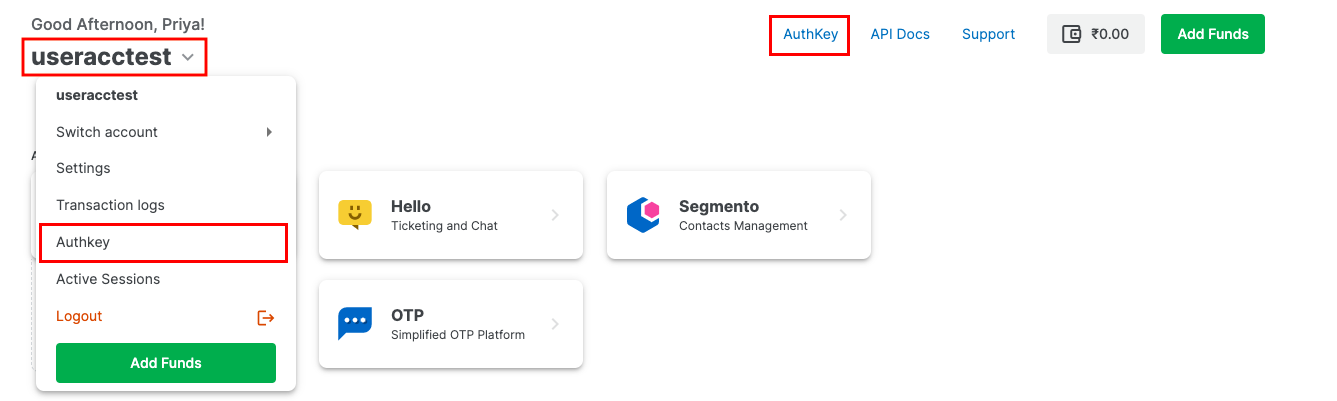
Open Authkey from the top navigation or from the user menu.
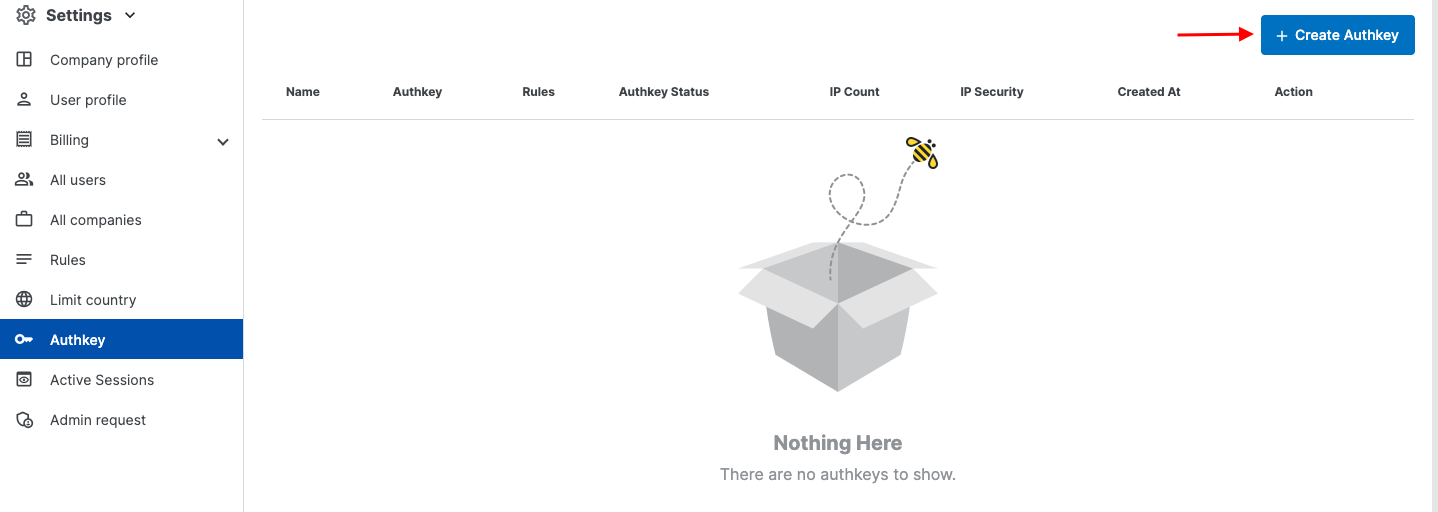
Click Create New.
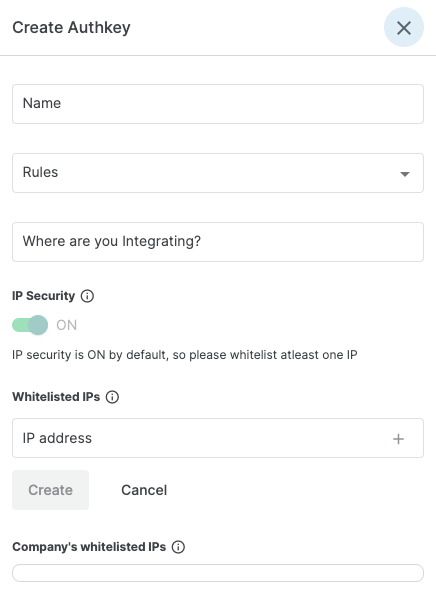
Fill in the required details:
- Authkey Name
- Use Case
- Rule
- IP Security (optional)
Click Create to generate the Auth Key.
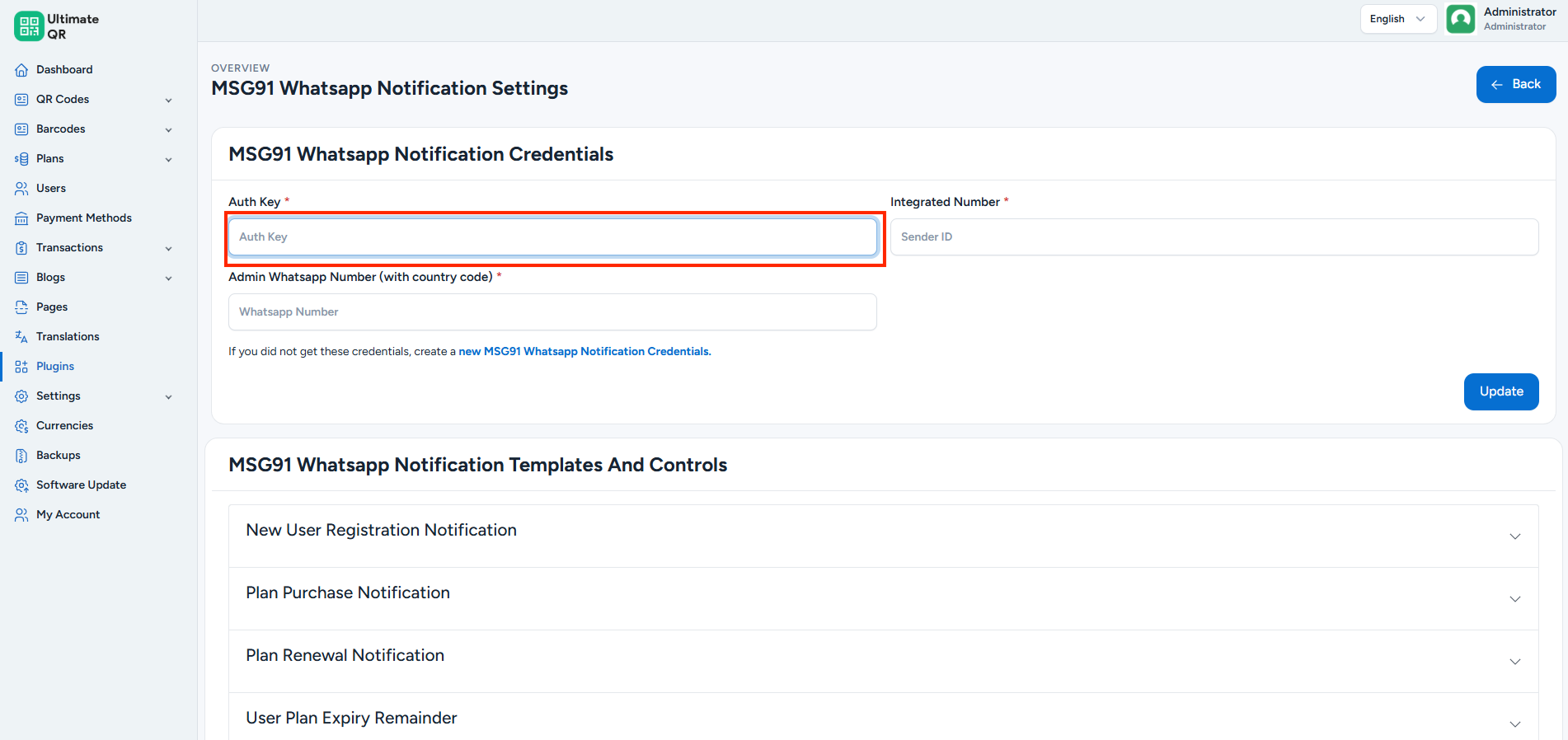
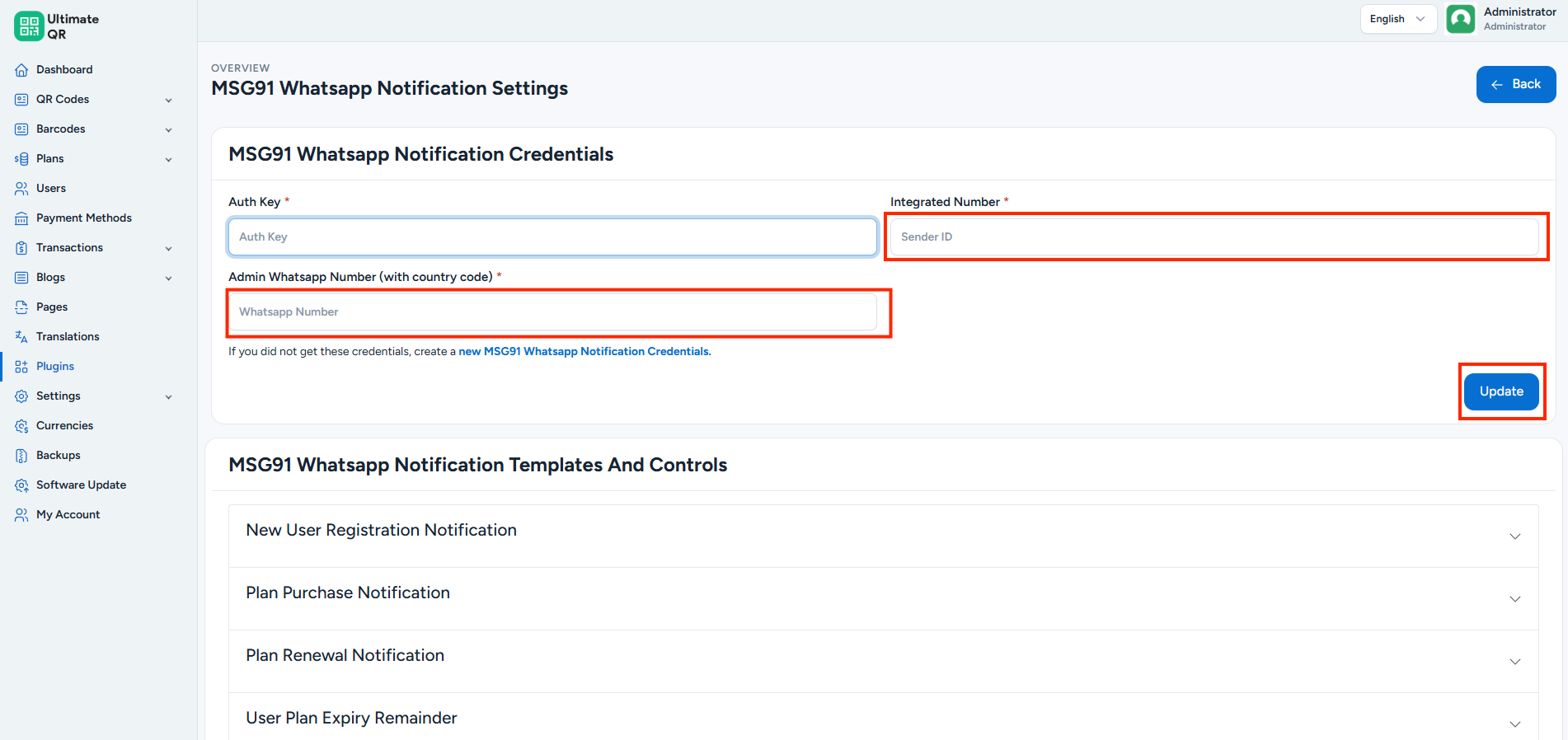
Copy the generated Auth Key and paste it into the MSG91 WhatsApp Notification plugin settings.
Step 2: Create a WhatsApp Number
In the MSG91 Dashboard, open the WhatsApp section.
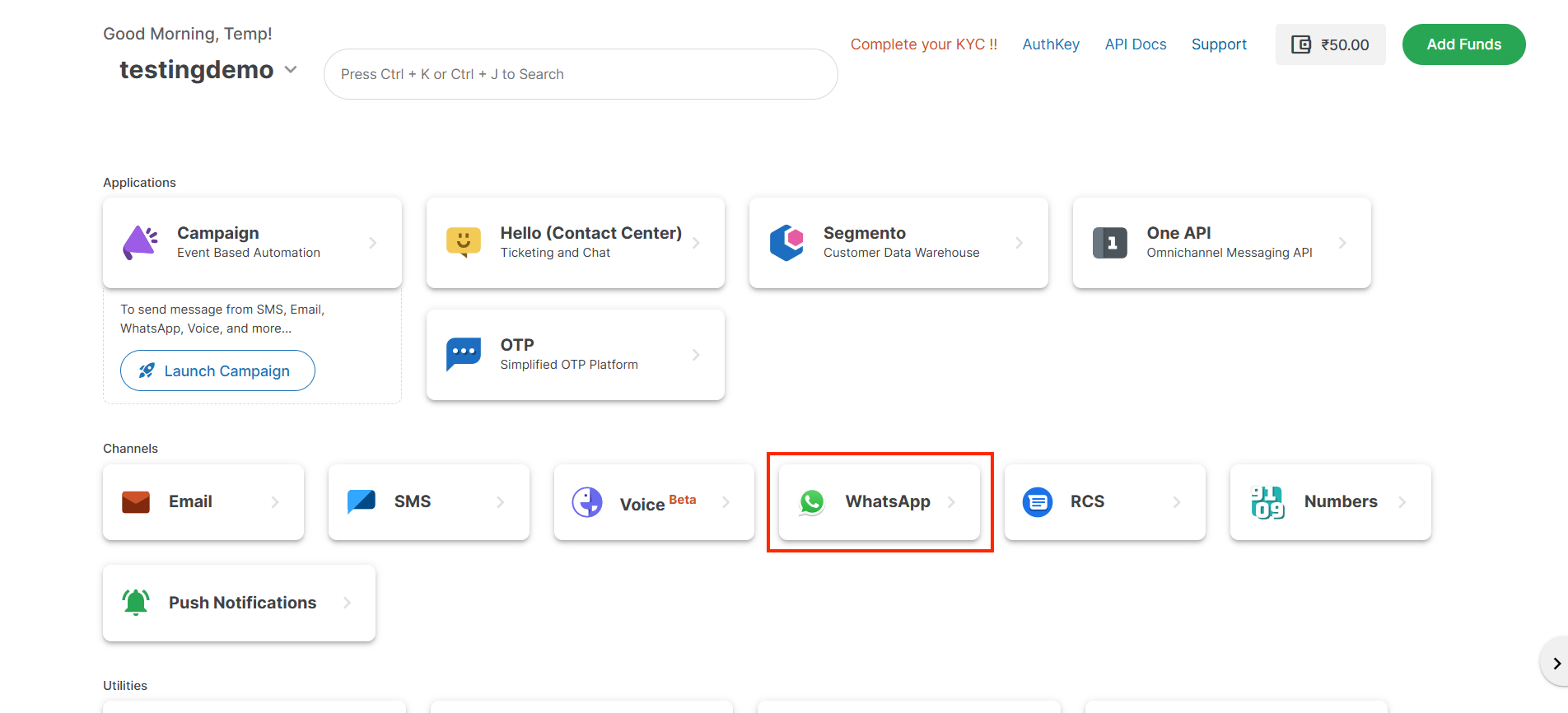
Click Add Number and create a WhatsApp number.
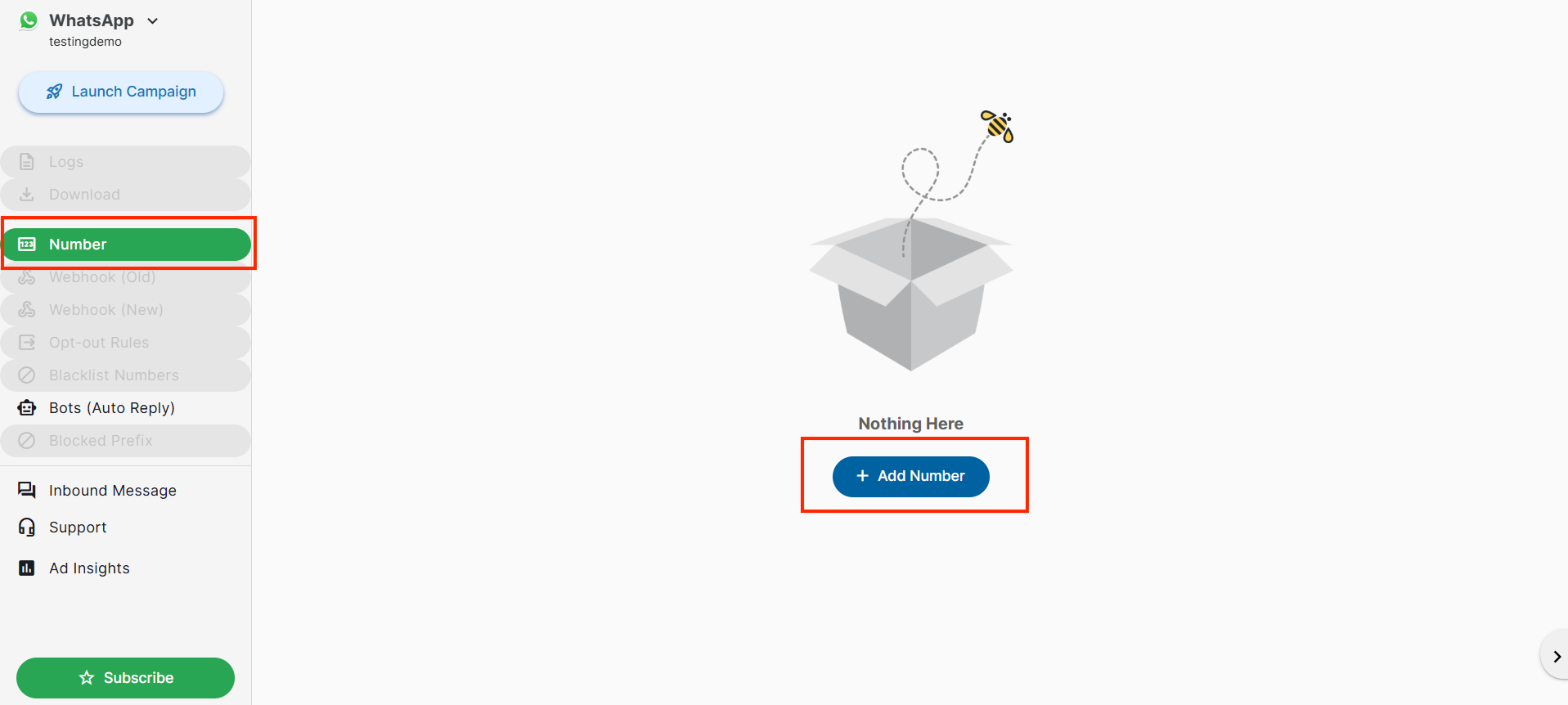
Copy the generated WhatsApp Number and paste it into the plugin settings.
Step 3: Create a WhatsApp Notification Template
Create a WhatsApp message template by following the video below.
After the template is created, copy the following details:
- Template Name
- Template Namespace
Paste them into the MSG91 WhatsApp Notification plugin settings.
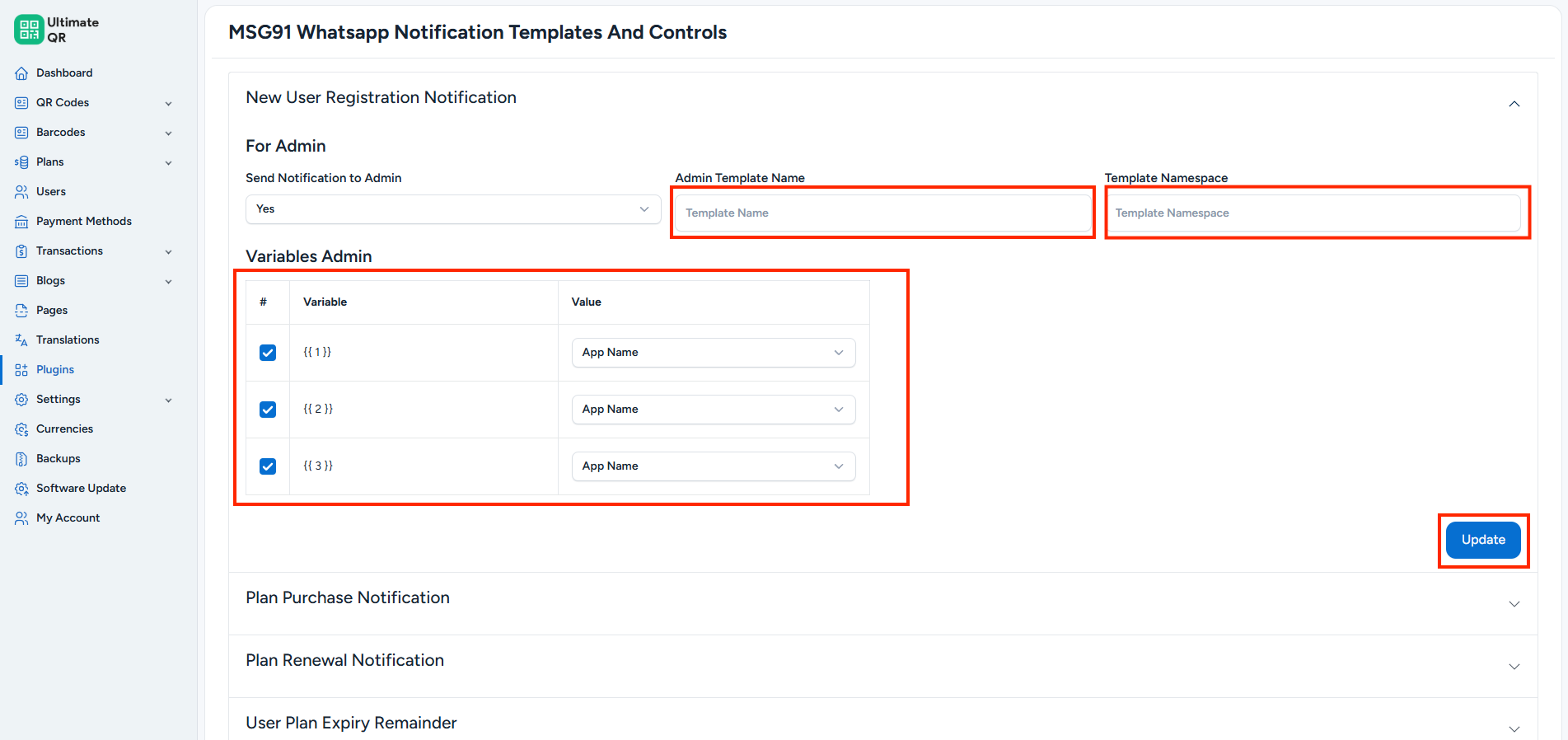
Note: If your template contains variables such as
1, enable the corresponding checkbox in the plugin and map each variable to the appropriate value.