Appearance
How to Configure PayPal
Last update: 18 Apr 2025
Follow the steps below to configure PayPal as a payment gateway in UltimateQR.
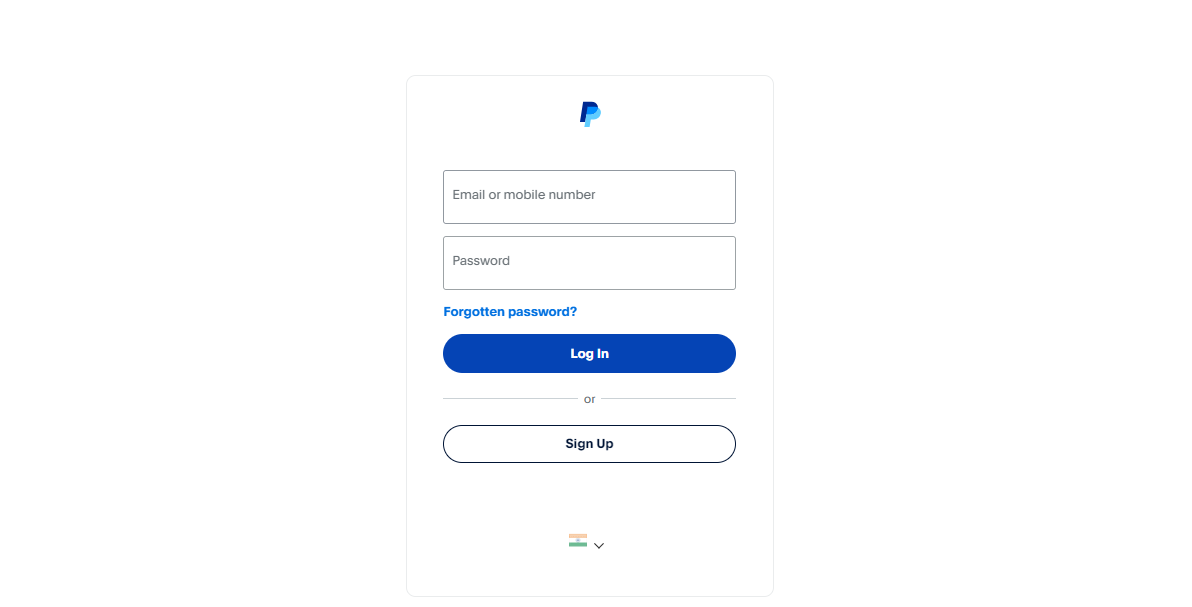
Step 1: Sign In to PayPal
Go to:
If you already have a PayPal account, sign in. Otherwise, create a new account.
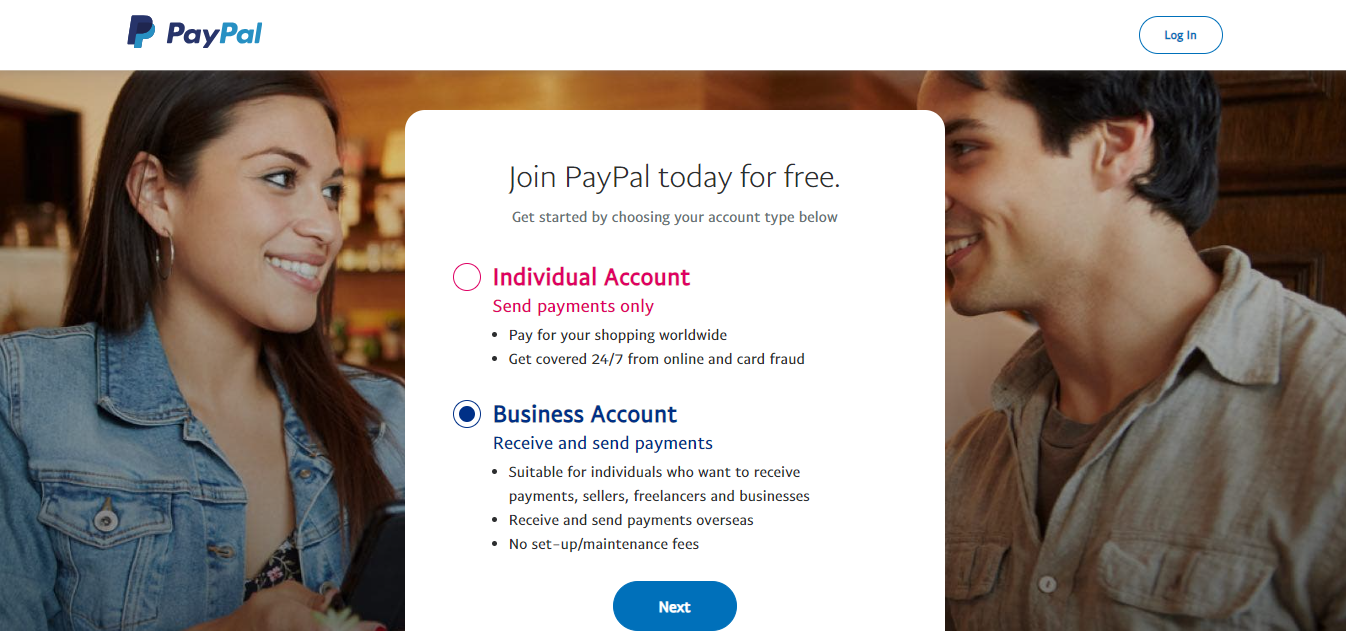
Step 2: Set Up Your PayPal Account
Choose either a Personal or Business account based on your requirements.
Complete the account verification process before using PayPal for payment processing.
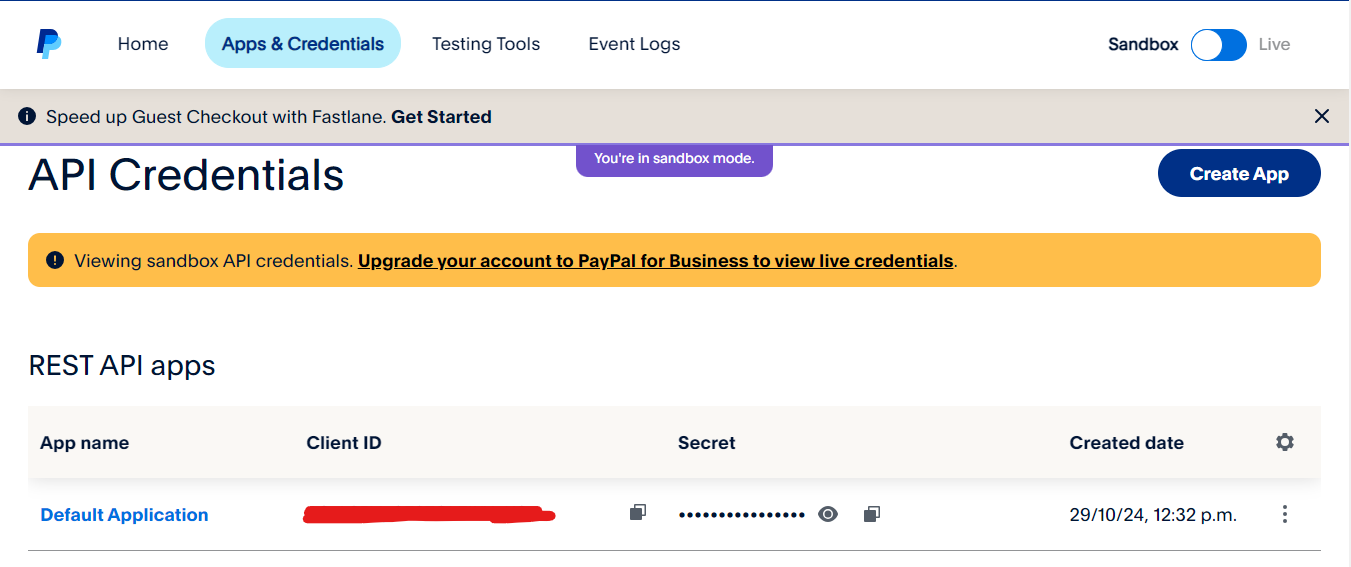
Step 3: Generate API Credentials
Sign in to the PayPal Developer Dashboard.
Create a new application in:
- Sandbox mode for testing, or
- Live mode for production.
Copy the following credentials:
- Client ID
- Secret Key
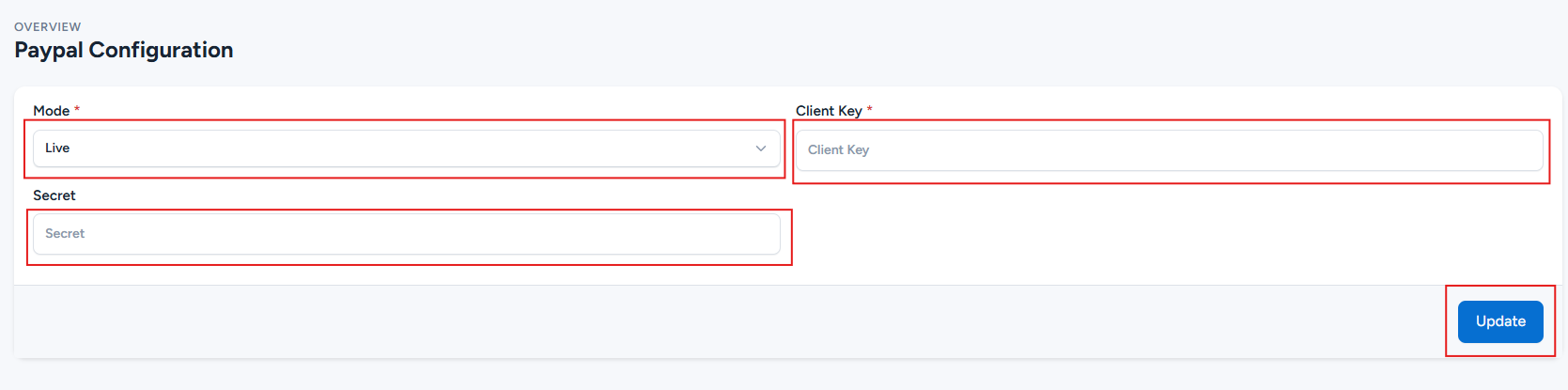
Step 4: Configure PayPal in the Admin Panel
Log in to your UltimateQR Admin Panel and navigate to:
Payment Methods -> PayPal -> Configure
Paste your Client ID and Secret Key into the corresponding fields.
Click Update to save the configuration.