Appearance
How to Configure Stripe
Last update: 18 Apr 2025
Follow the steps below to configure Stripe as a payment gateway in UltimateQR.
Step 1: Sign In to Stripe
Go to:
https://dashboard.stripe.com/login
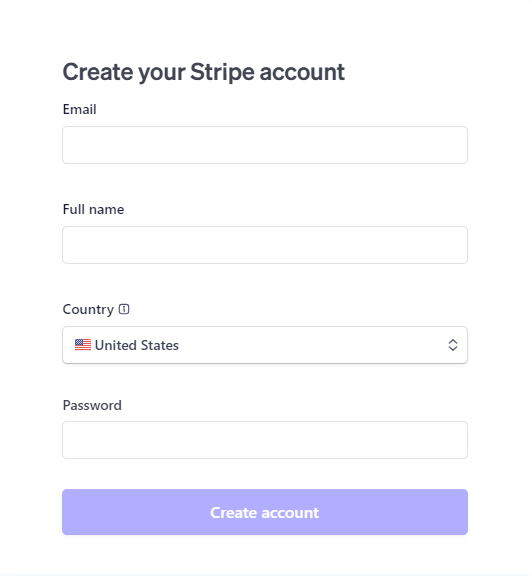
If you already have a Stripe account, sign in. Otherwise, create a new account and complete the account verification process.
Step 2: Generate API Keys
Log in to your Stripe Dashboard.
Navigate to:
Account Settings -> Web/API
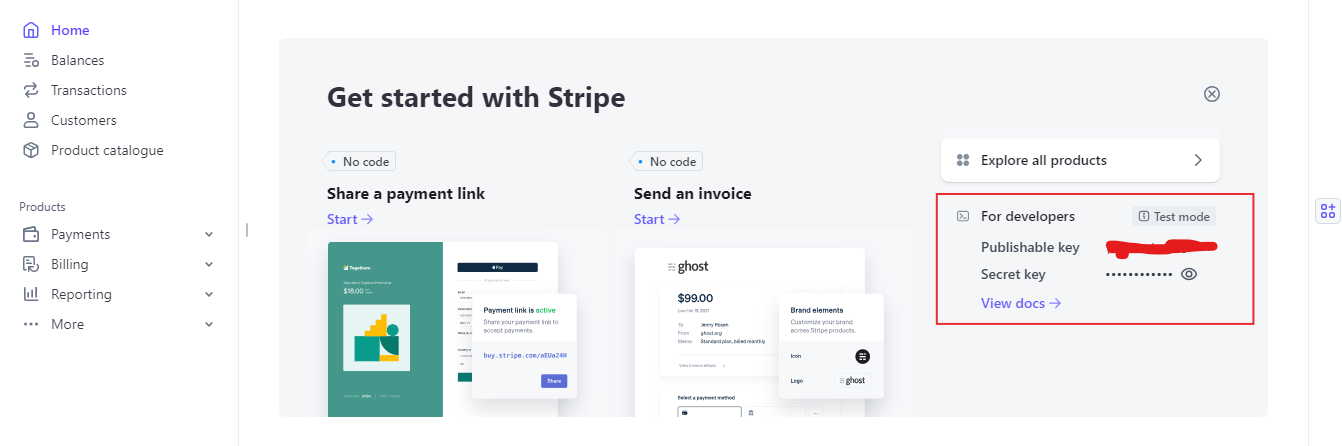
Generate your API credentials and copy the following keys:
- Publishable Key
- Secret Key
Step 3: Configure Stripe in the Admin Panel
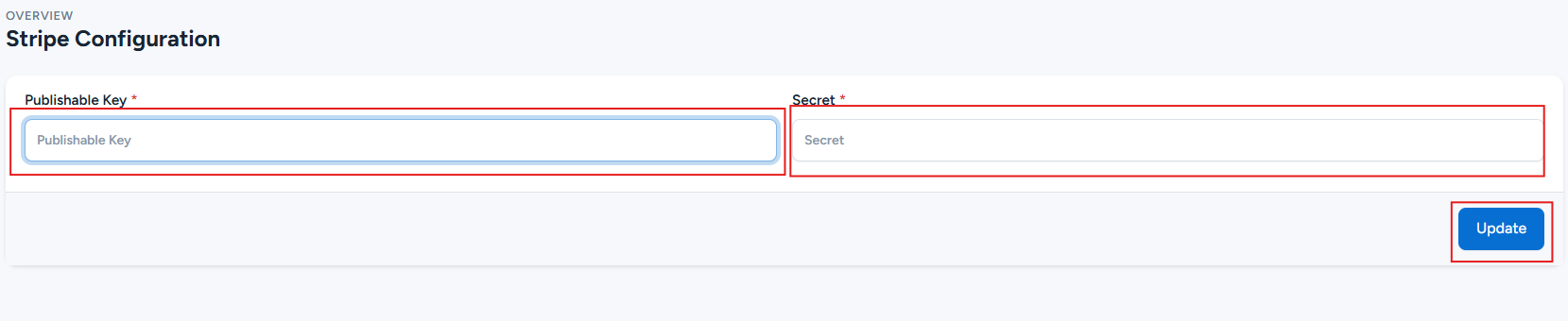
Log in to your UltimateQR Admin Panel and navigate to:
Payment Methods -> Stripe -> Configure
Paste the following credentials into the corresponding fields:
- Publishable Key
- Secret Key
Click Update to save the configuration.