Appearance
How to Configure PhonePe?
Last update: 18 Apr 2025
Step 1: Sign In to PhonePe
Go to PhonePe.
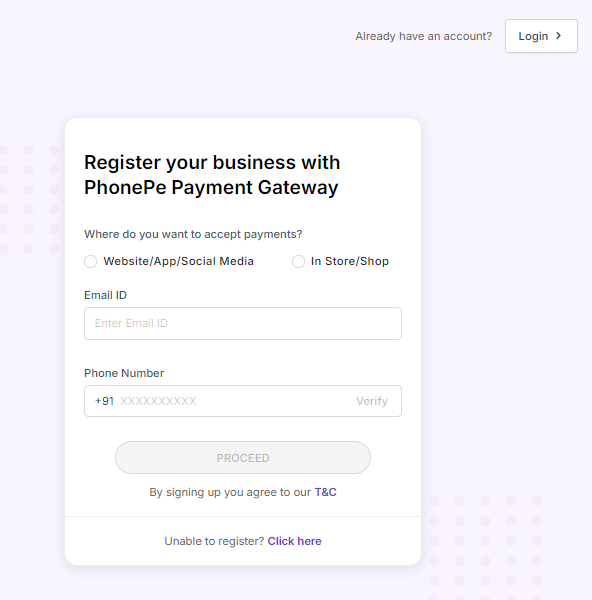
If you already have a PhonePe account, sign in. Otherwise, create a new account.
Step 2: Get the Merchant ID and Salt Key
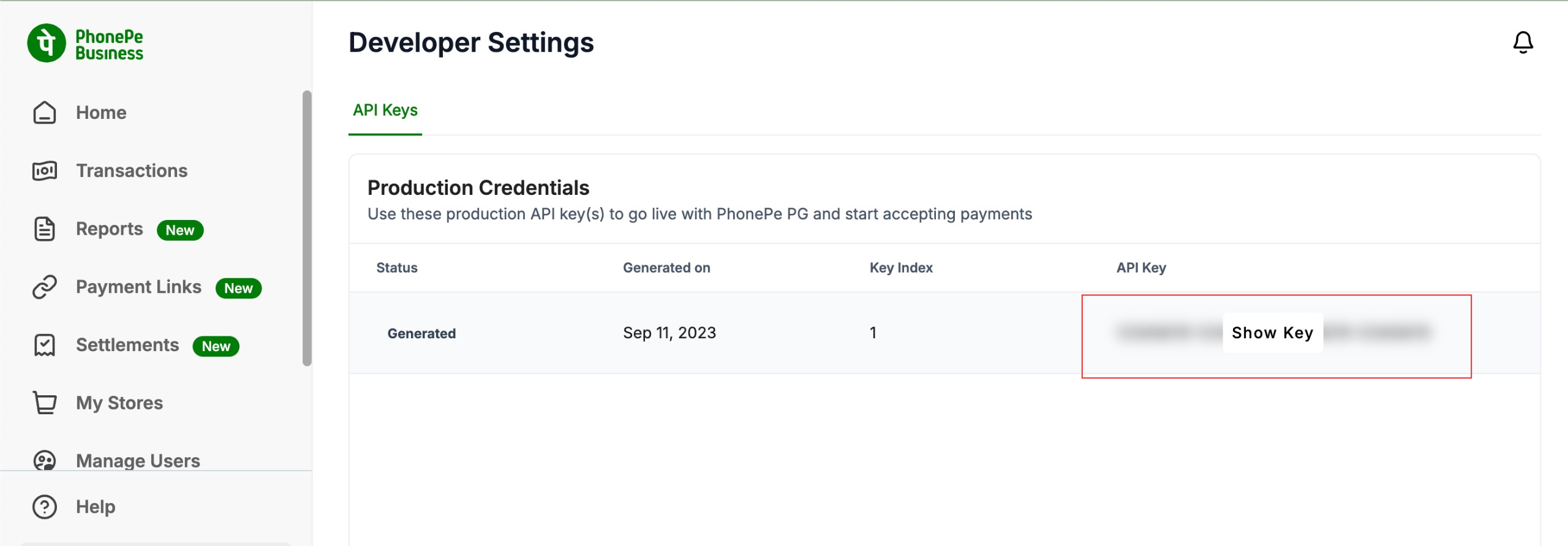
After registering for the PhonePe Payment Gateway, you will receive a Merchant ID and Salt Key. These credentials are required to integrate PhonePe with Link AI.
If you don't have these credentials, contact the PhonePe support team to obtain them.
Configure the following callback URL in your PhonePe dashboard:
Callback URL:
text
https://yourdomain.com/phonepe-payment-statusNote
Replace
yourdomain.comwith your actual domain name.
Step 3: Configure PhonePe in the Admin Panel
Log in to your Link AI Admin Panel and navigate to:
Payment Methods -> PhonePe -> Configure
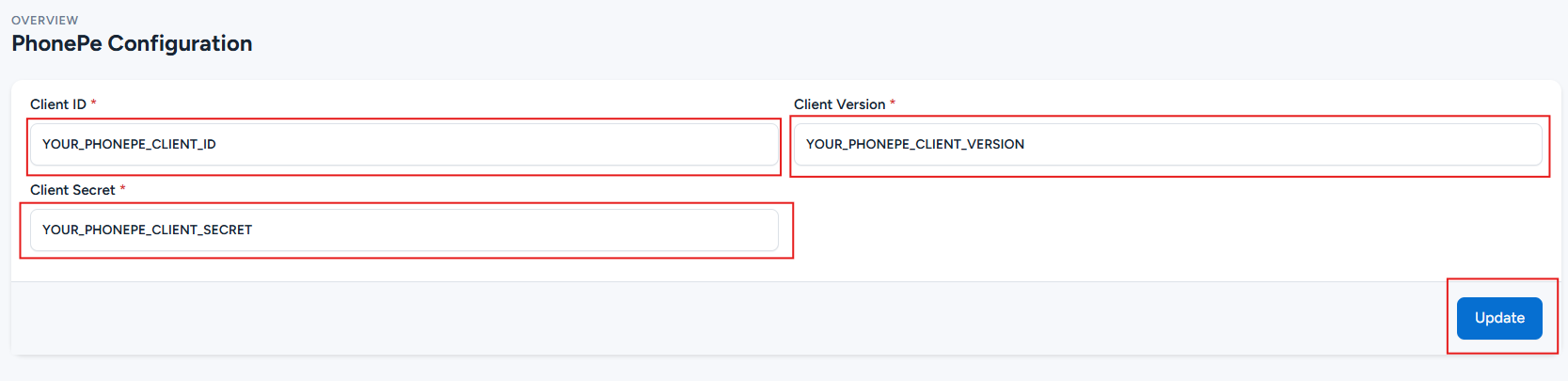
Enter your Merchant ID and Salt Key, then click Update to save the configuration.