Appearance
How to Integrate Google Sign-In
Last update: 02 Nov 2024
Step 1: Create a Project in the Google Developer Console
Go to the Google Developer Console and create a new project.
https://console.developers.google.com/projectcreate
Step 2: Create an OAuth Client ID
After creating the project, make sure it is selected.
Navigate to the Credentials page:
https://console.developers.google.com/apis/credentials
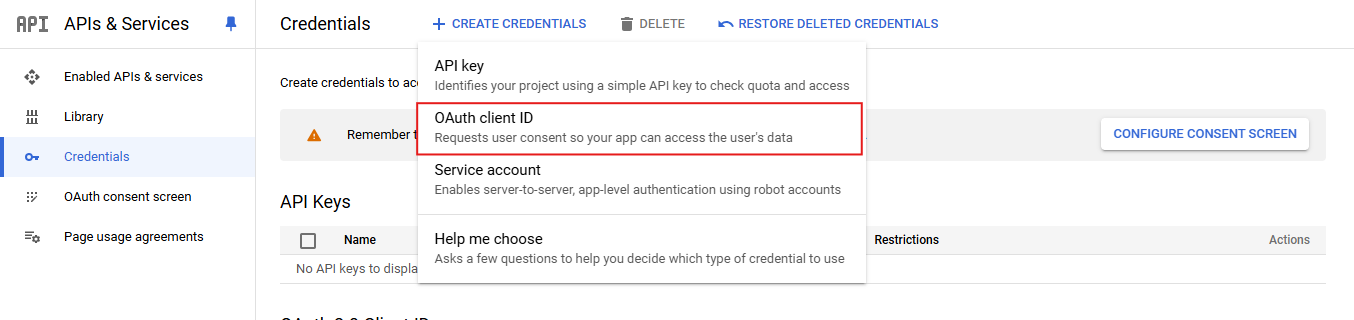
Click Create Credentials and select OAuth Client ID.
Step 3: Configure the OAuth Consent Screen
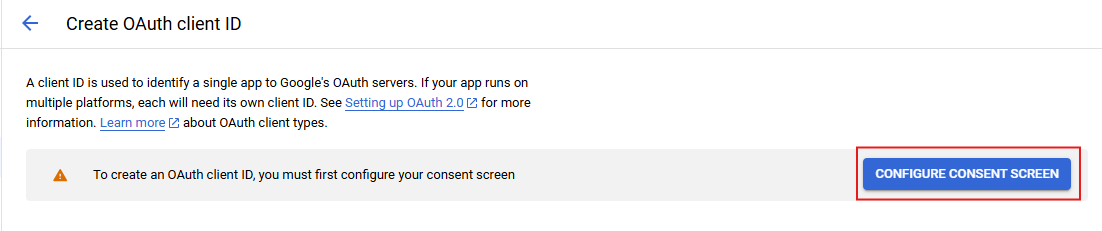
Configure the OAuth Consent Screen.
Select the appropriate User Type (Internal or External), complete the required details, and click Save.
Step 4: Get the Client ID and Client Secret
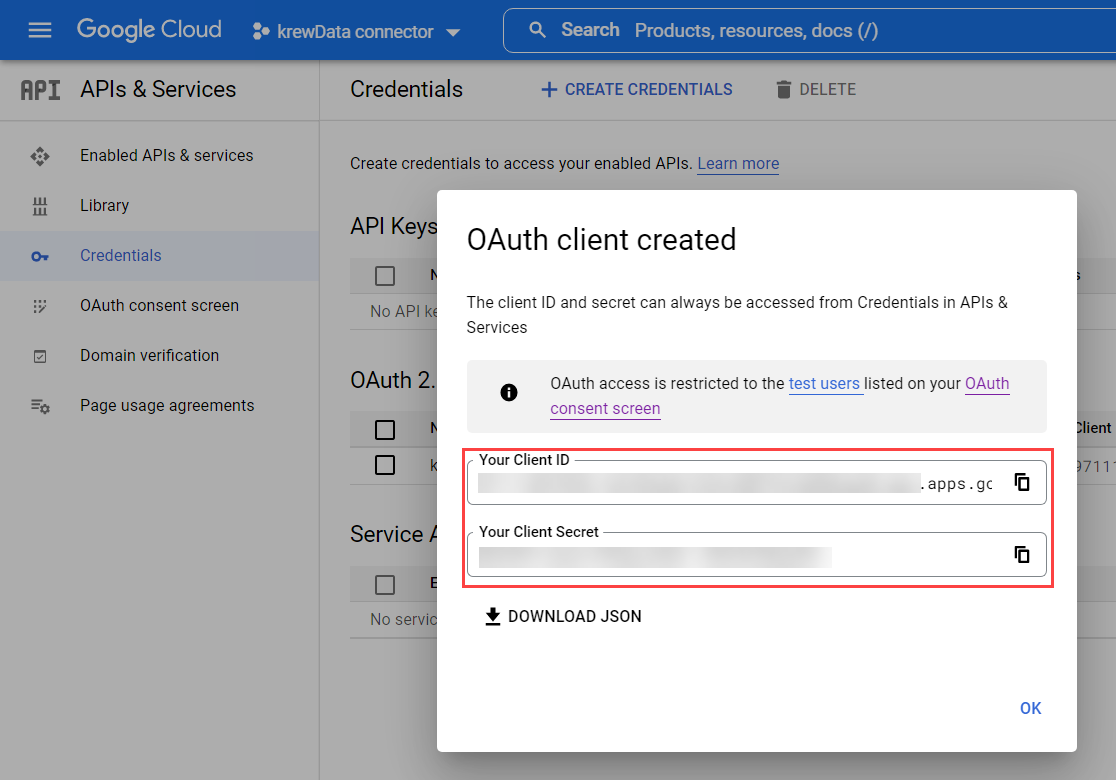
Copy the generated Client ID and Client Secret.
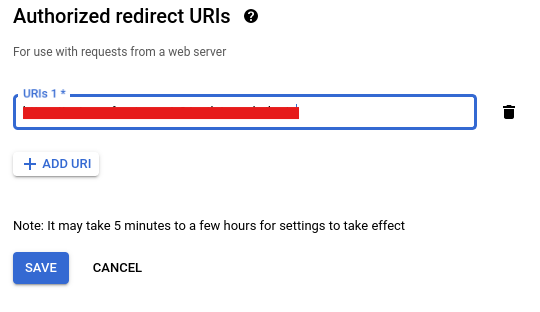
Step 5: Add the Authorized Redirect URI
On the Google Credentials page, add the following redirect URI under Authorized Redirect URIs.
The redirect URI must end with:
text
/auth/google/callbackExample:
text
https://yourdomain.com/auth/google/callbackSave the changes.
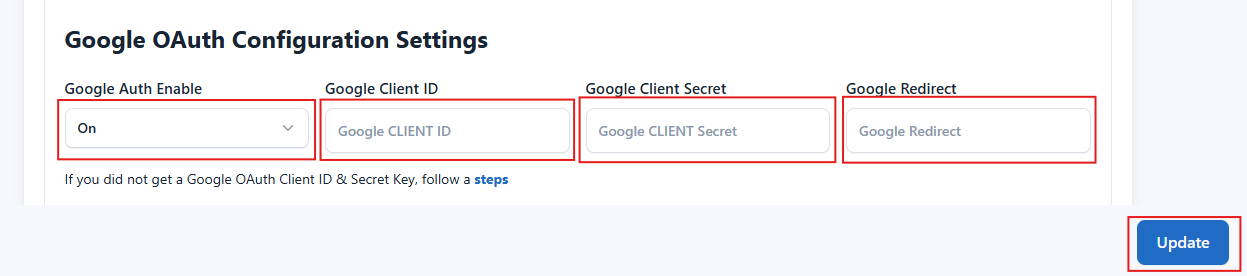
Step 6: Configure Google Sign-In from the Admin Panel
Log in to your Bookin Admin Panel and navigate to:
Settings -> General Settings -> Webtools and Google Configuration Settings
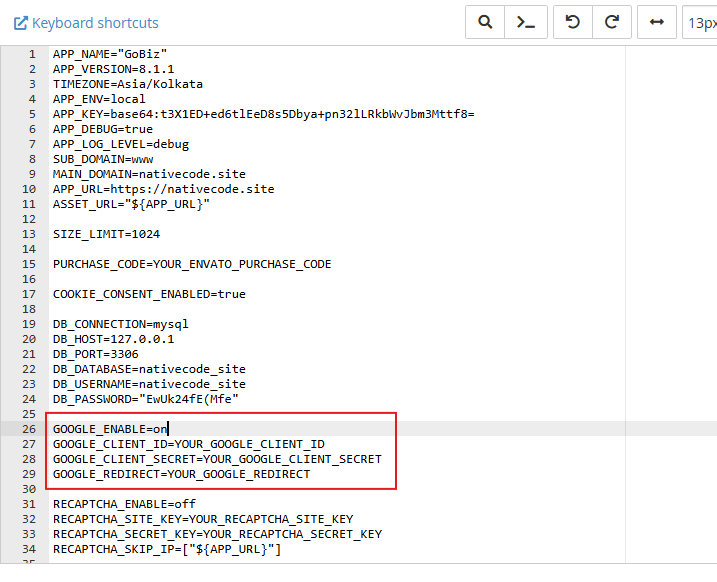
Enter your Client ID and Client Secret, enable Google Auth, and click Update Changes.