
Appearance
How to integrate Google Sign-in?
Last update: 13/Dec/2025
1. Open Gobiz Admin Panel
In Gobiz Admin Panel, go to Plugins->Google OAuth Mobile then Enable Google Sign-in
2. Google Developer Console (Optional)
First, go to Google Developer Console and create a project.
3. Select OAuth Client ID
After creating the project, make sure you've selected it.
Go to the Credentials page, click Create Credentials, and select OAuth Client ID.
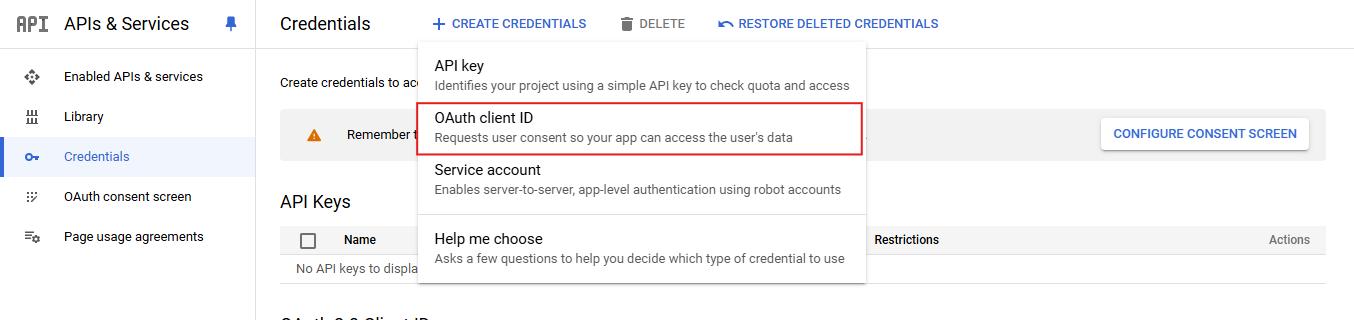
4. Configure Consent Screen
Configure the Consent Screen:
- Select Internal as User Type
- Select External as Application Type
- Click Save

5. Get Client ID & Client Secret
Copy both the generated Client ID and Client Secret.

6. Add Redirect URI
Add your domain URL in the Authorised redirect URIs box on the Google credentials page. It must end with /sign-in-with-google.
Example: https://YOUR-DOMAIN.com/sign-in-with-google
Paste the Redirect URI in the field and click Save.

7. Update ClientID and Client Secret via Admin Panel
Go to Plugins->Google OAuth Mobile and update your ClientID and Client Secret. Set Google Auth Enable to ON and click Update Changes.

Disable Google Sign-in
If you do not want to use Google Sign-in, go to Plugins->Google OAuth Mobile and set Google Auth Enable to OFF.
