
Appearance
Installation
Follow the steps below to install Optimer on your server.
Note
We recommend enabling SSL on your domain before starting the installation.
Step 1: Download the Source Code
After purchasing Optimer, download the ZIP package from Codecanyon and extract it on your computer.
You will find the following installation file:
zip
optimer-source-code.zip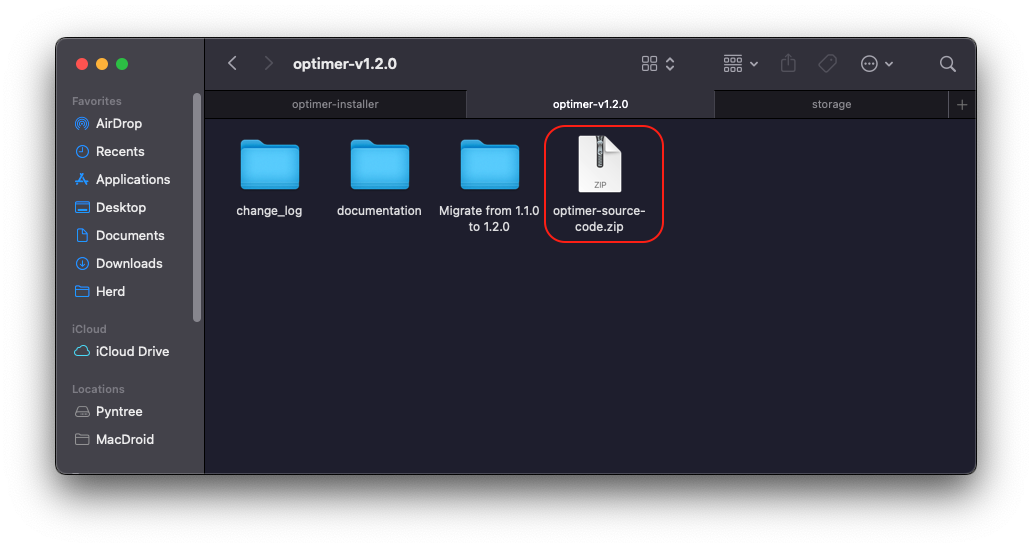
Step 2: Upload and Extract the Source Code
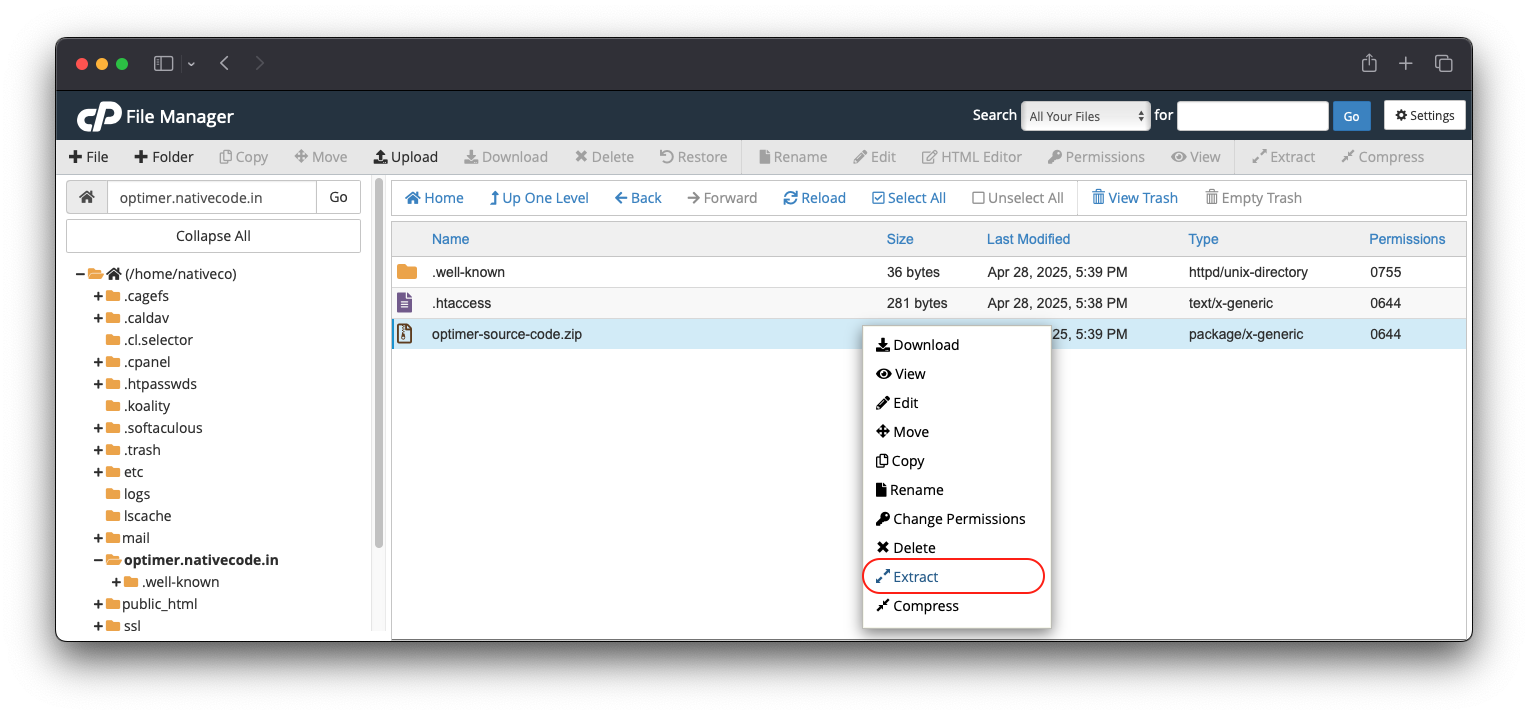
Upload the following file to your server:
zip
optimer-source-code.zipExtract the archive, then delete the ZIP file after the extraction is complete.
Open the installation URL based on where you extracted the files:
- public_html →
https://yourdomain.com - Folder inside public_html →
https://yourdomain.com/folder_name - Subdomain →
https://subdomain.yourdomain.com - Folder inside a subdomain →
https://subdomain.yourdomain.com/folder_name
Step 3: Installation Wizard
Open your website in a browser.
The Optimer Installation Wizard will appear.
Note
If the installation page does not appear, verify your:
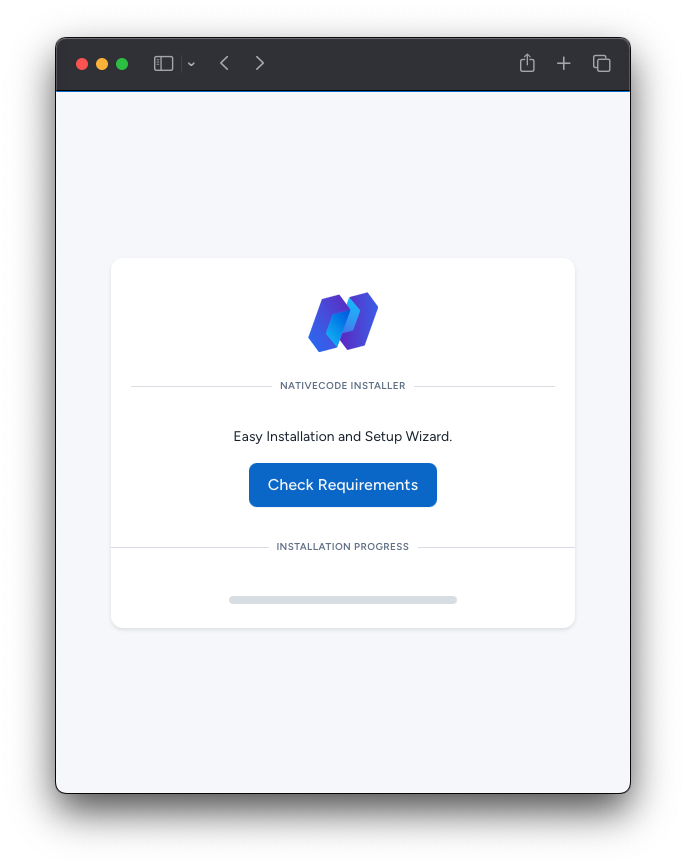
Click Check Requirements to verify that your server meets all installation requirements.
Step 4: Check Server Requirements
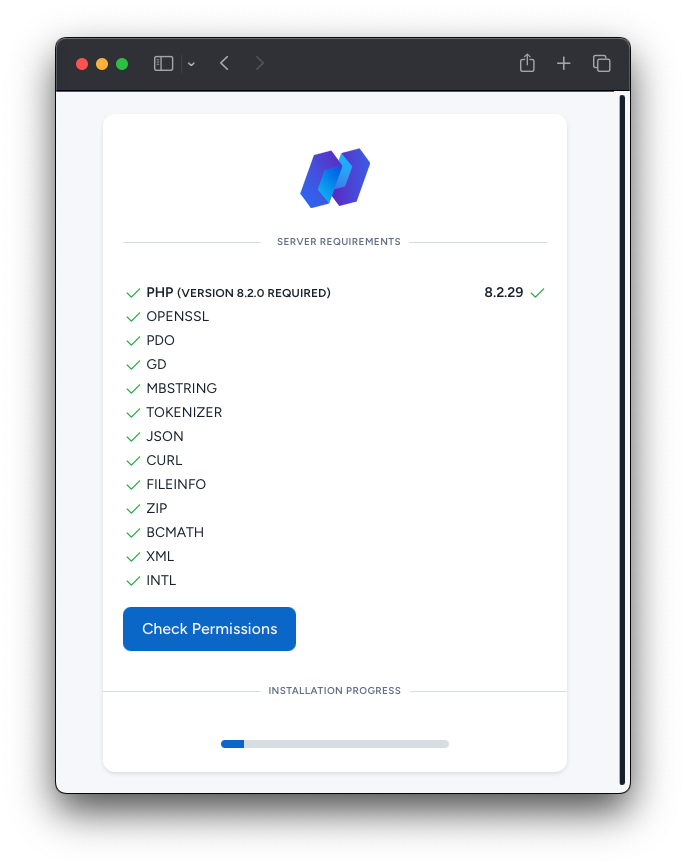
If any requirement fails, enable the missing PHP extension or contact your hosting provider for assistance.
Once all requirements are satisfied, continue to the next step.
Step 5: Check Folder Permissions
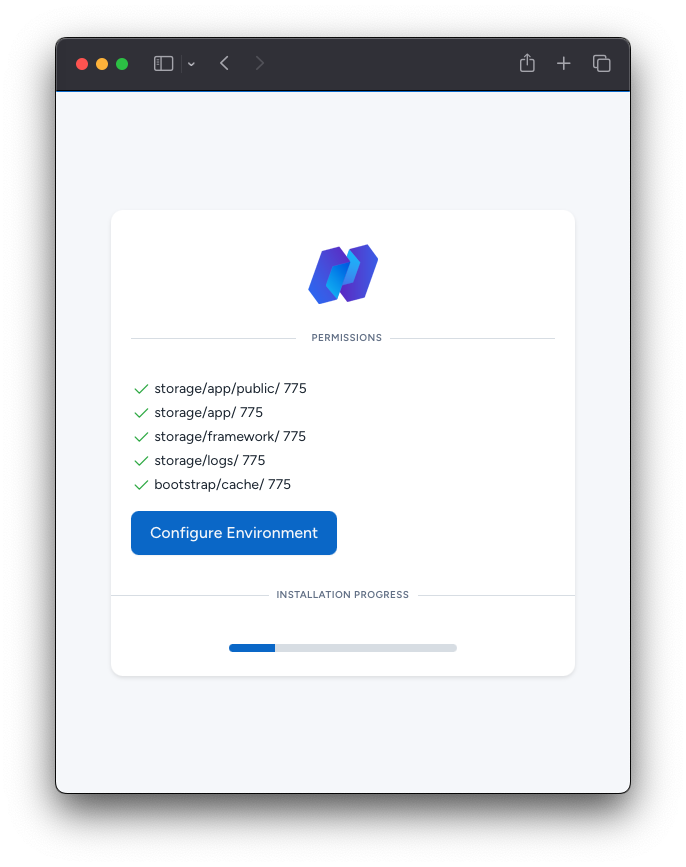
Ensure all required folders have 775 permissions.
If necessary:
- Open File Manager in cPanel.
- Select the storage folder.
- Open Permissions.
- Apply 775 to the folder and all subfolders.
For additional guidance, watch this tutorial:
https://www.youtube.com/watch?v=EhSB9nRToEc
Step 6: Configure the Application
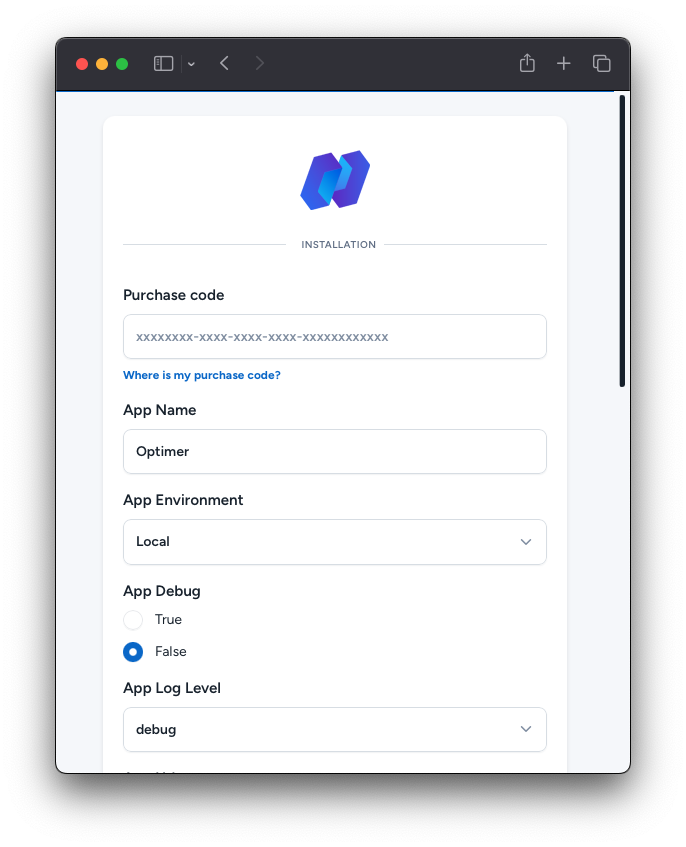
Complete the installation form by entering:
- Purchase Code
- App Name
- App Environment
- Database Name
- Database Username
- Database Password
PHP Configuration
Ensure your php.ini contains the following values:
ini
max_execution_time = 120
memory_limit = 128M
If you're installing on a local environment using the Artisan server, the server may restart during installation.
A connection lost message may appear for 2–3 seconds. Wait until the server restarts and the installation continues automatically.
Choose the appropriate environment:
- Local for local development
- Production for a live website
Recommendation
Enable SSL before installation. Optimer requires HTTPS for certain features.
Click Install to begin the installation.
Step 7: Installation Complete
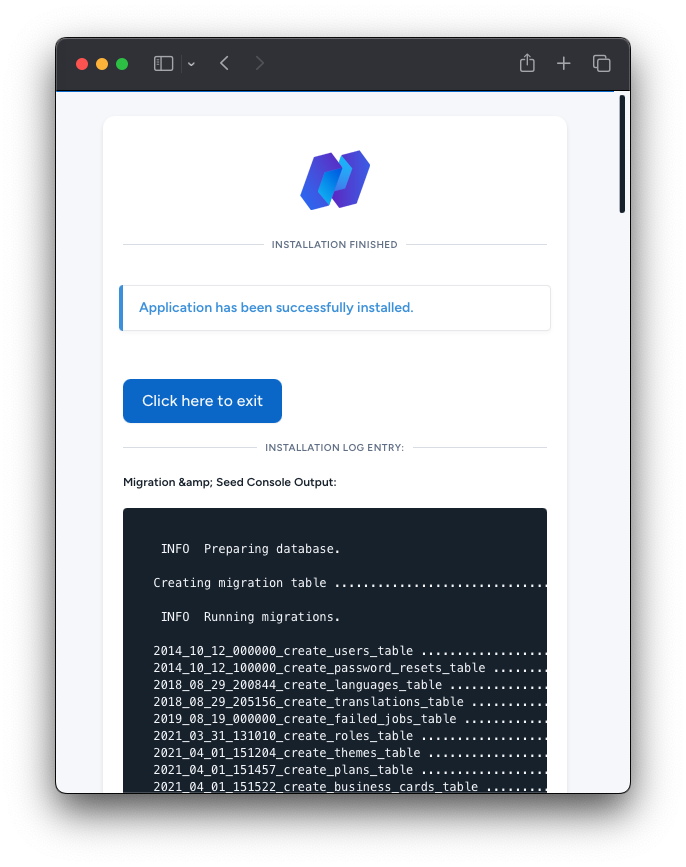
Your installation is now complete.
Click Exit to open your application.
You're Ready!
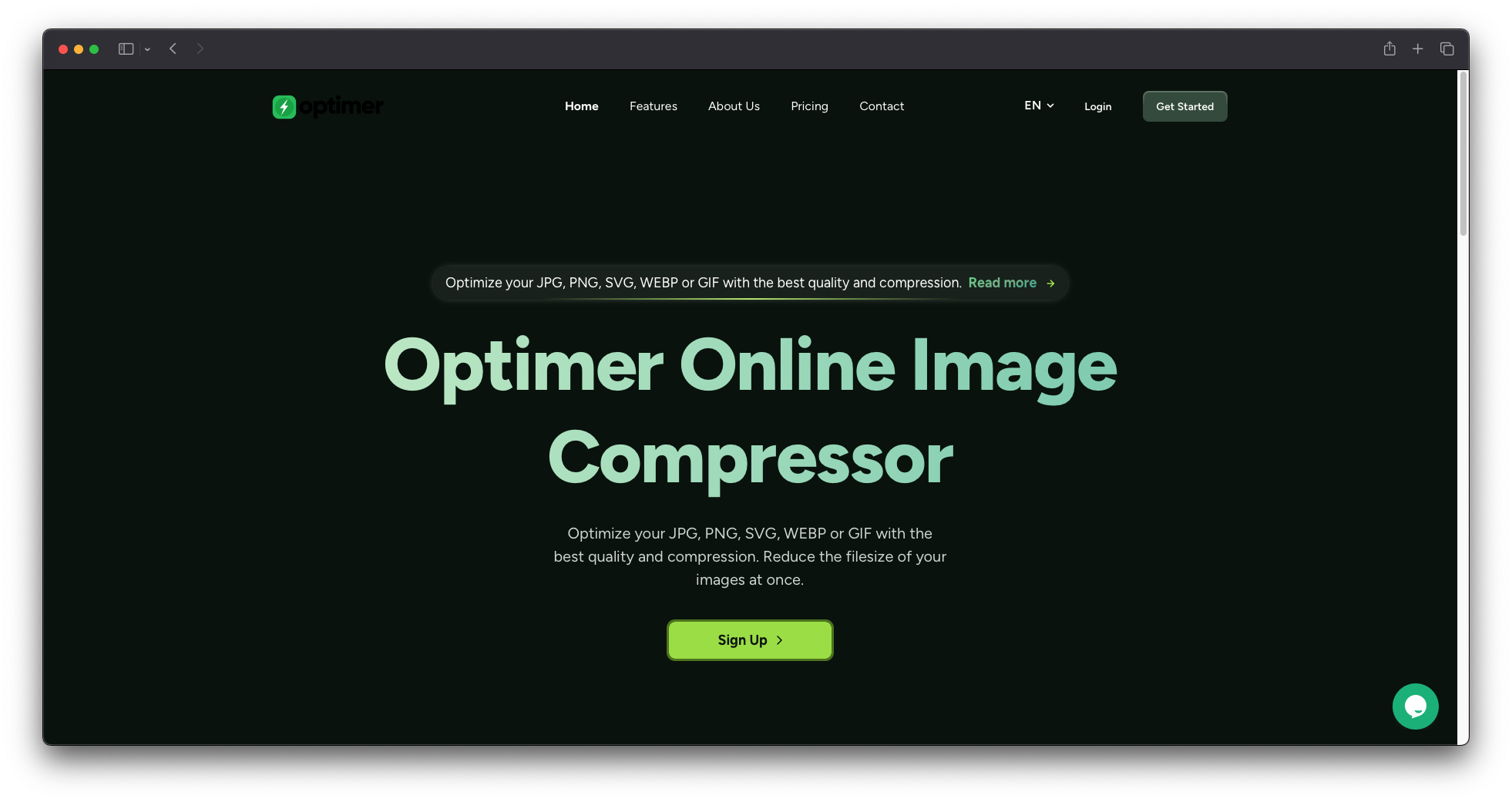
Live Website
Default Login Credentials
Use the following credentials to sign in after installation:
- Login URL
https://yourdomain.com/login - Email:
[email protected] - Password:
admin@admin
Note
For security reasons, change the default administrator password immediately after your first login.