
Appearance
MSG91 SMS Plugin Configuration
Follow the steps below to configure the MSG91 SMS Notification plugin and enable SMS notifications.
Step 1: Generate an Auth Key
Sign in to your MSG91 Dashboard.
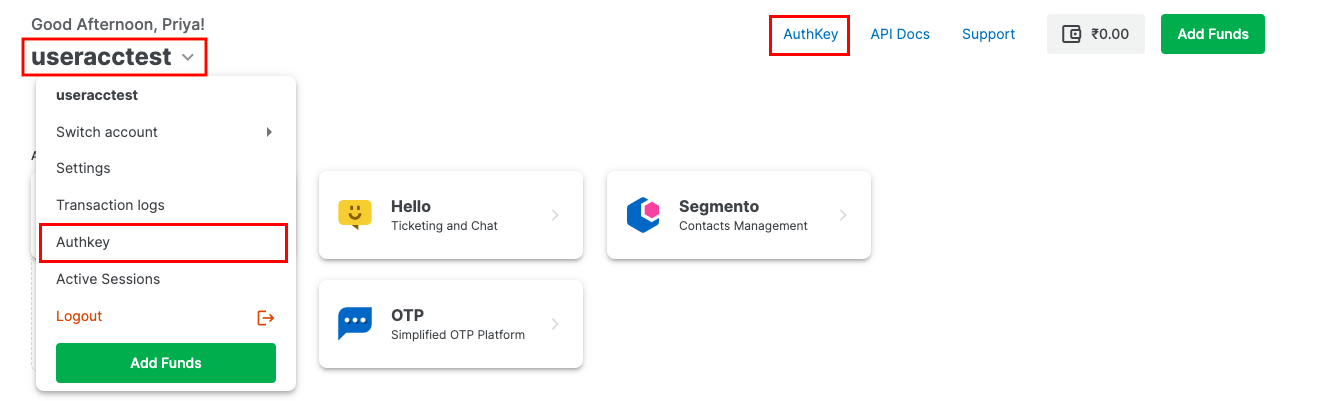
Click Authkey from the top navigation, or access it from the user menu.
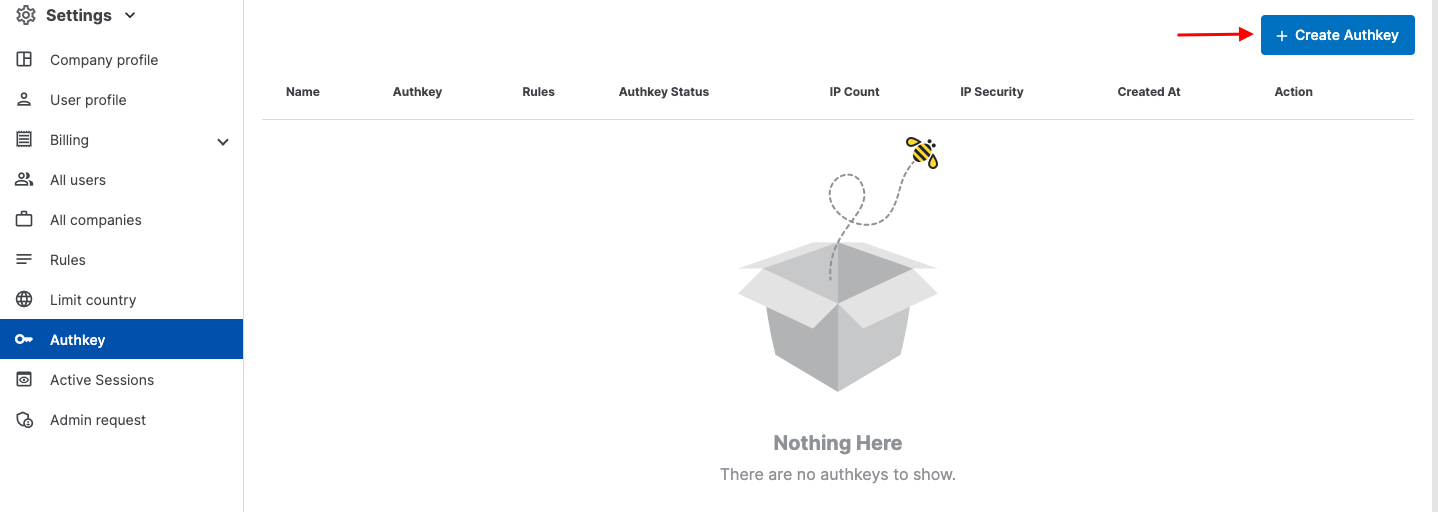
Click Create New.
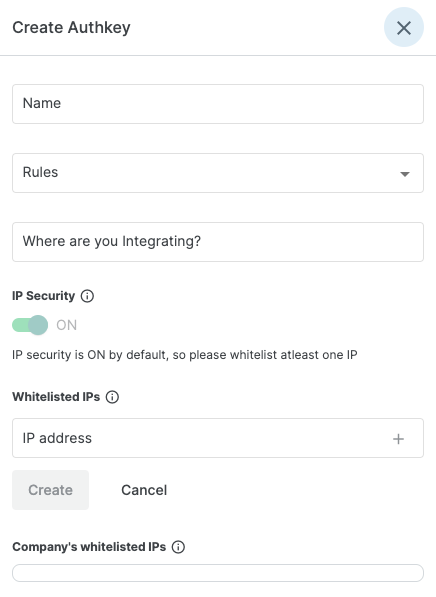
Fill in the required details:
- Authkey Name
- Use Case
- Rule
- IP Security (optional)
Click Create to generate the Auth Key.
Step 2: Configure the Auth Key in the Plugin
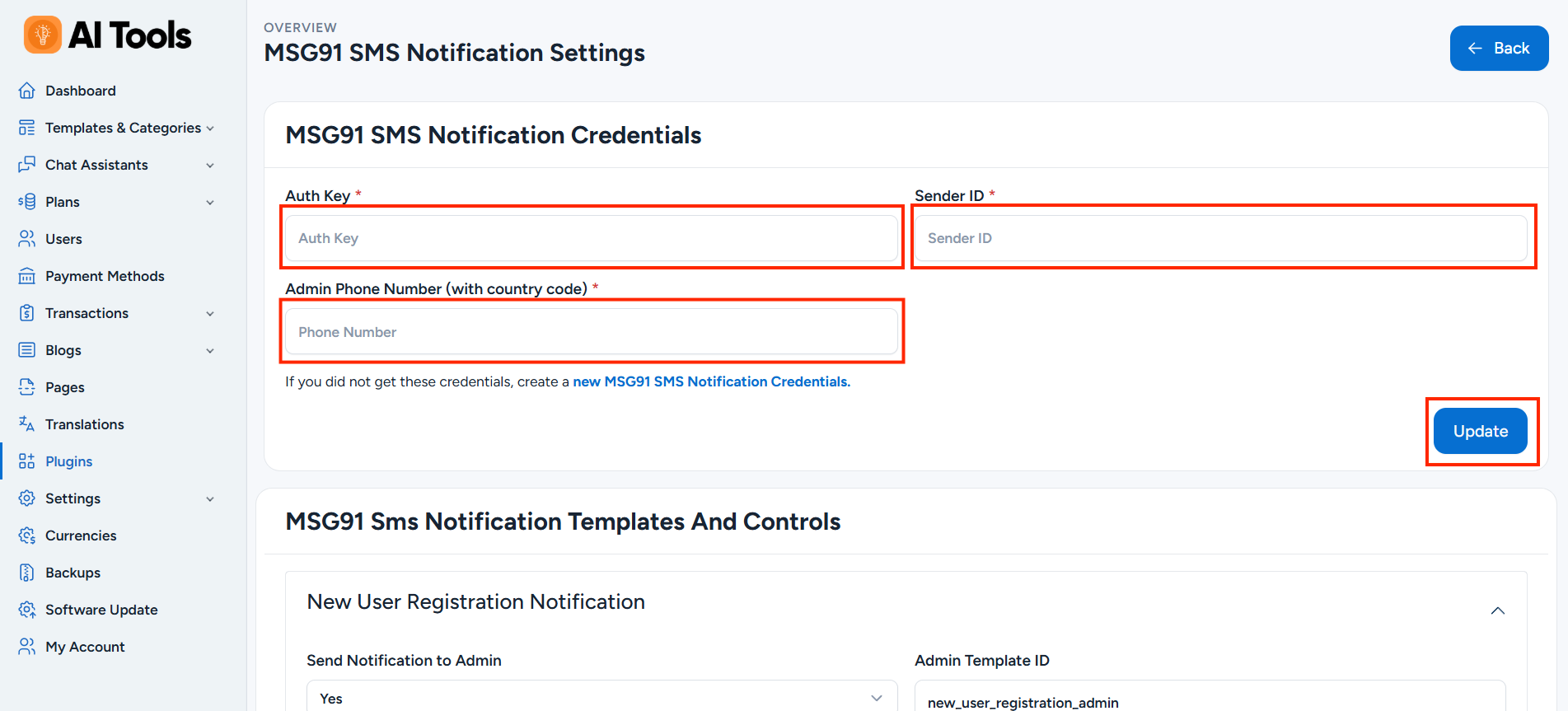
Log in to your AI Tools Admin Panel and open the MSG91 SMS Notification plugin settings.
Paste the generated Auth Key into the Auth Key field.
Step 3: Create a Sender ID
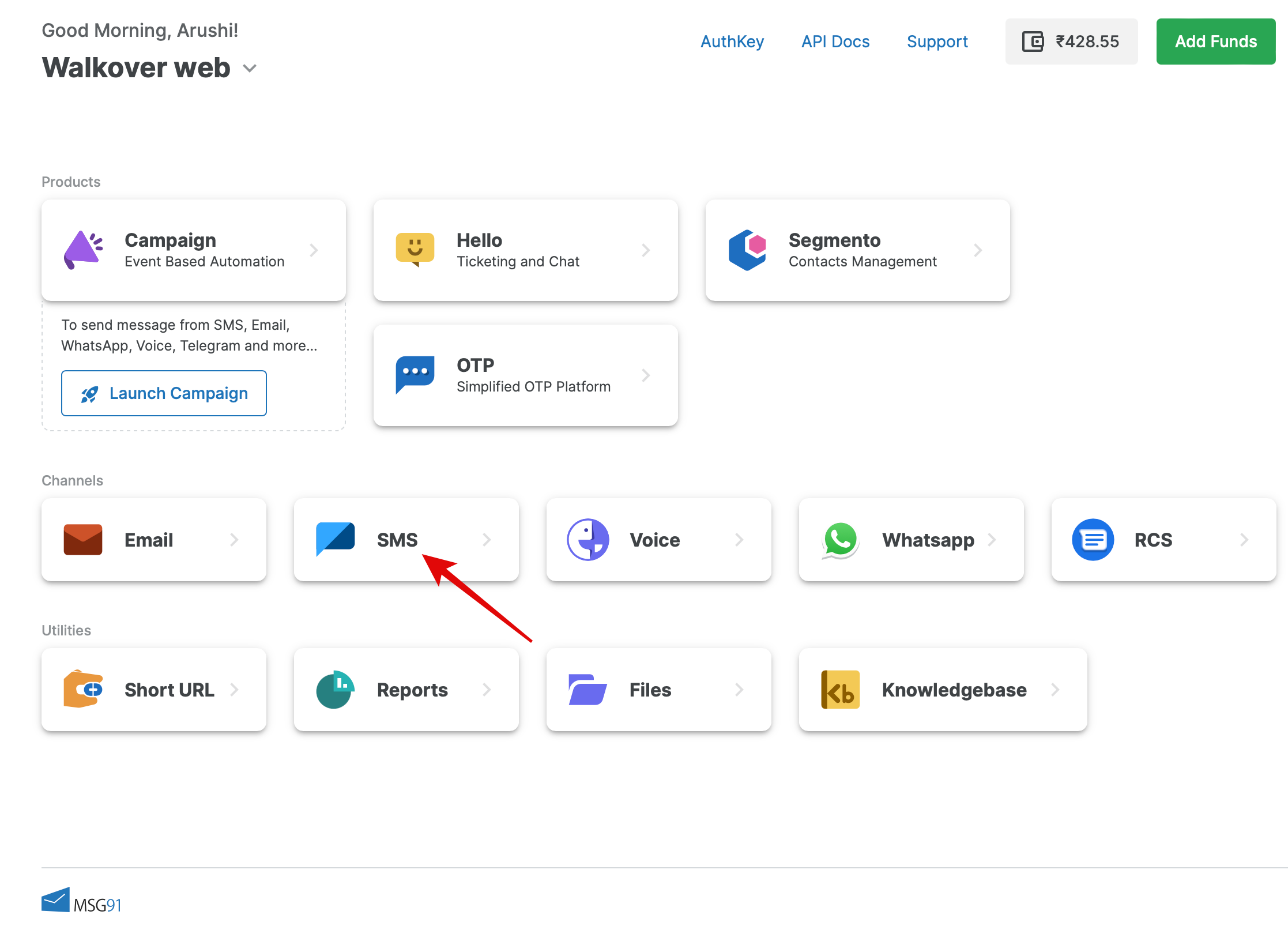
In the MSG91 Dashboard, open the SMS section.
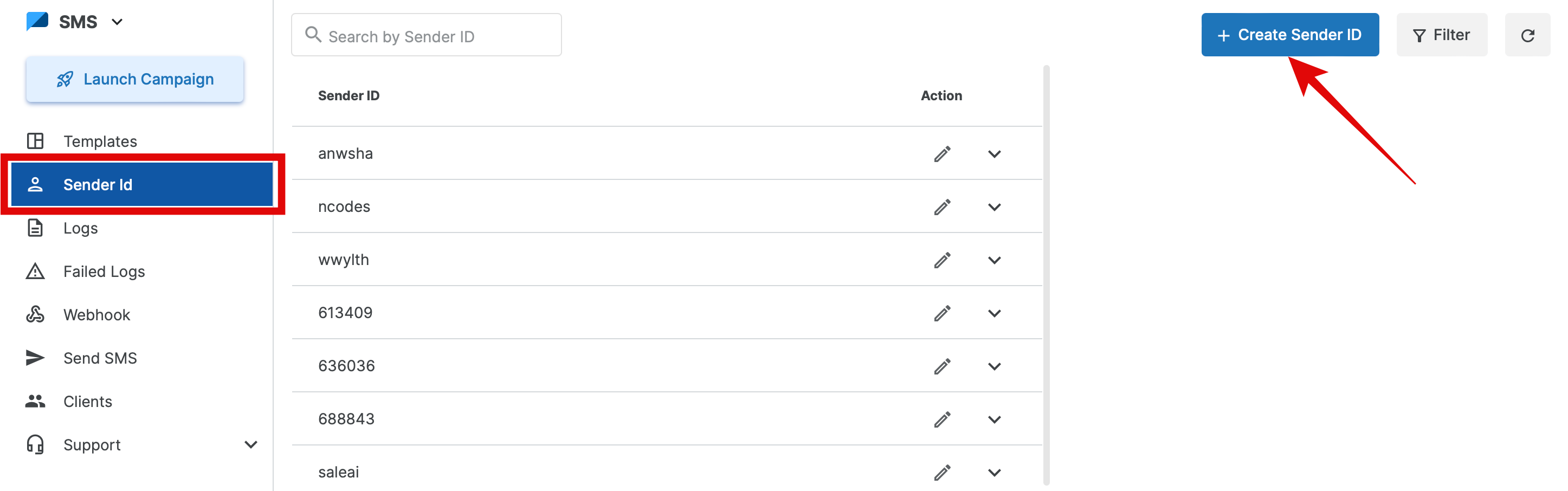
Select Sender ID from the sidebar and click Create Sender ID.
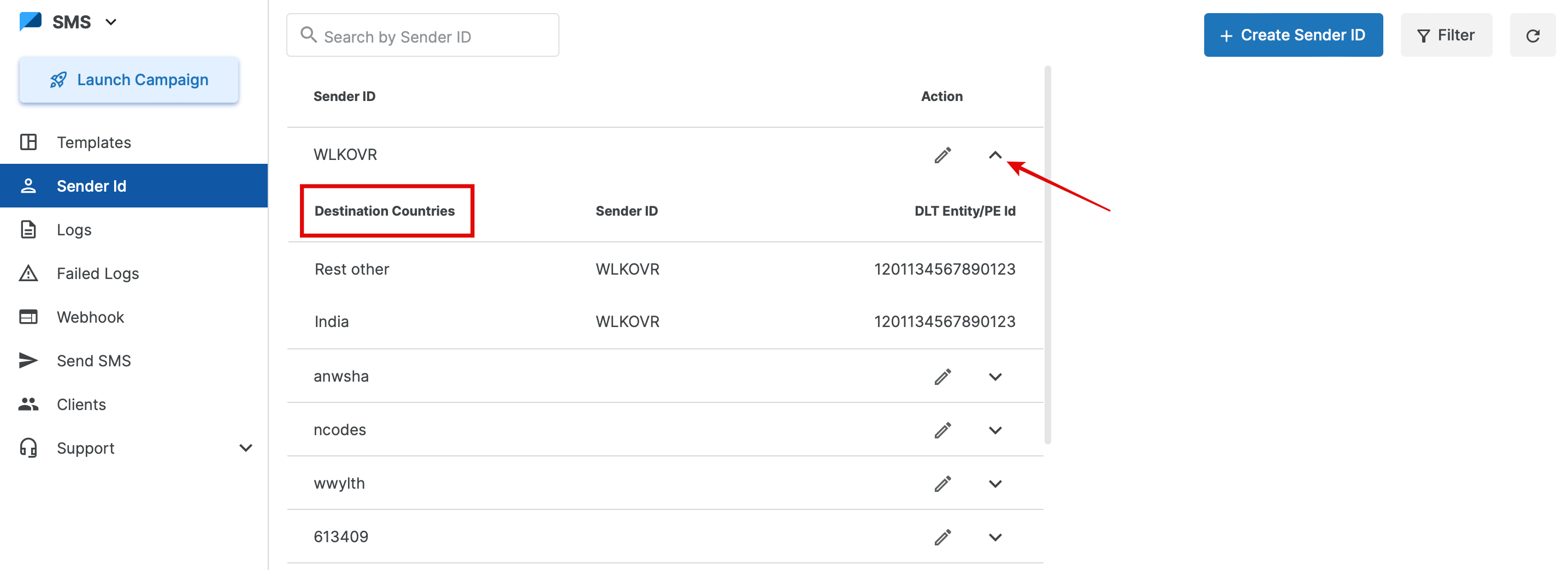
Choose the destination country and complete the required details.
- For India, enter your DLT Entity/PE ID.
- For International destinations, follow the MSG91 verification process.
Click Create.
Your Sender ID will be generated.
Step 4: Complete the Plugin Configuration
Copy the following values from your MSG91 account:
- Sender ID
- Admin Phone Number
Paste them into the MSG91 SMS Notification plugin settings.
Click Update to save the configuration.