Appearance
Twilio WhatsApp Notification Plugin Configuration
Follow the steps below to configure the Twilio WhatsApp Notification plugin and enable WhatsApp notifications.
Step 1: Get the Account SID, Auth Token, and Twilio Number
Sign in to your Twilio Console.
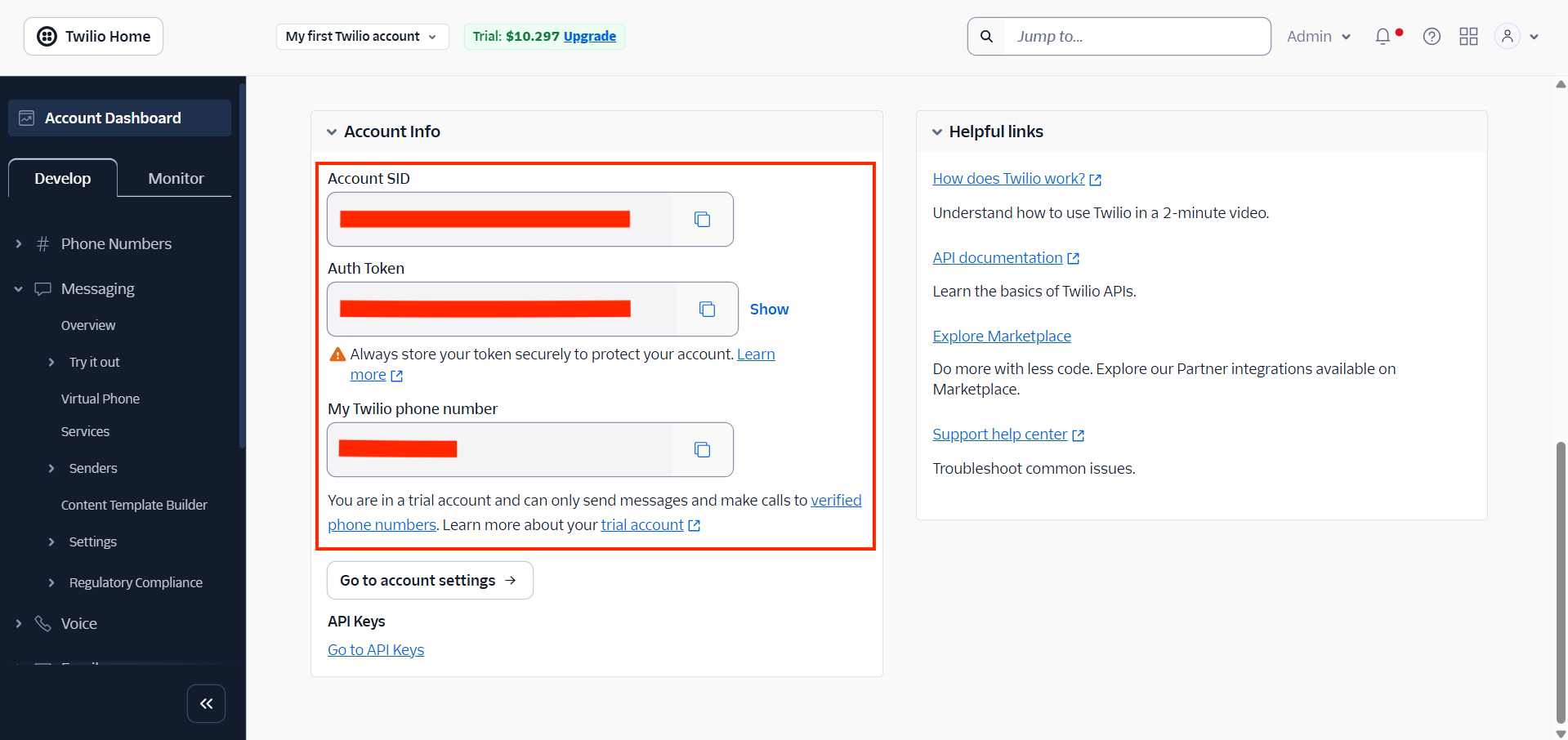
From the Account Info section, copy the following credentials:
- Account SID
- Auth Token
- Twilio Number
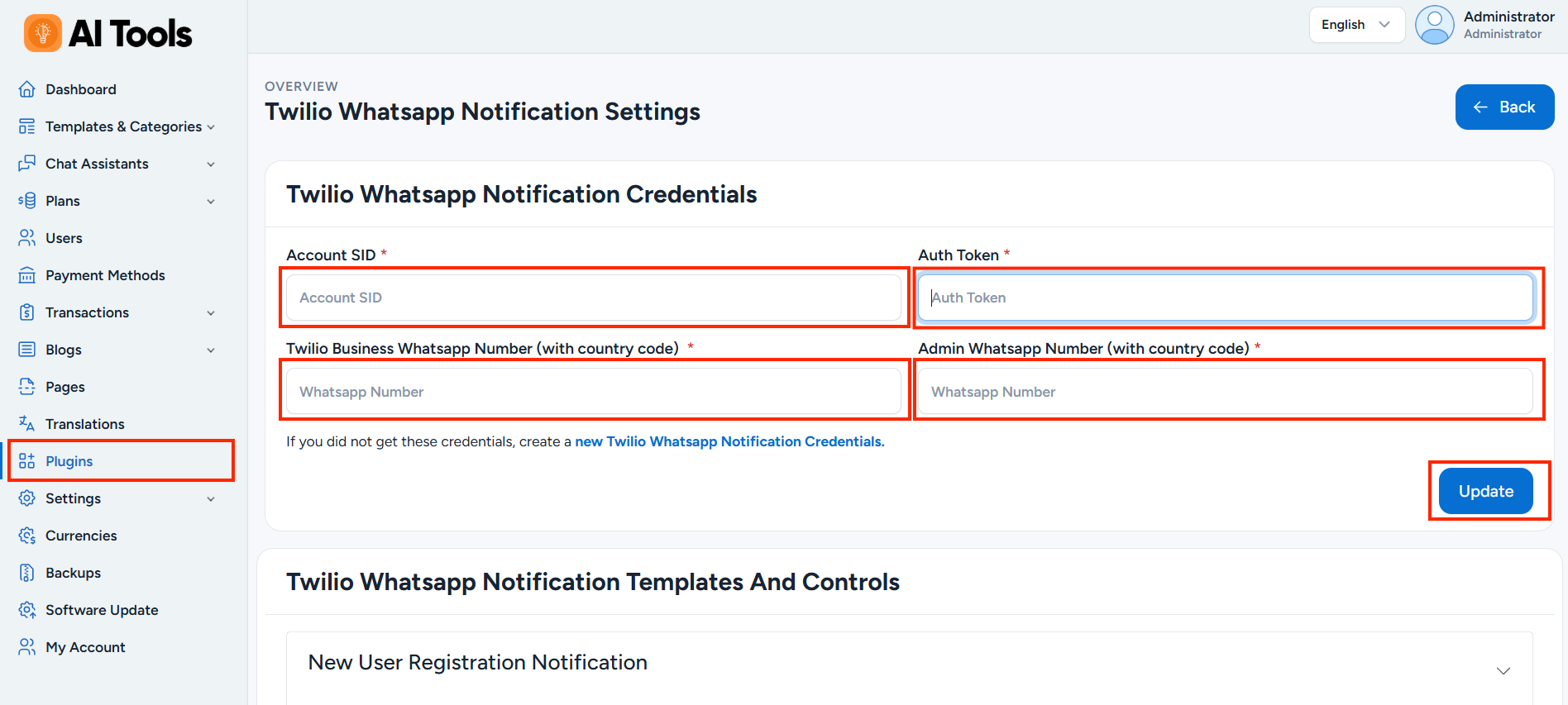
Log in to your AI Tools Admin Panel and open the Twilio WhatsApp Notification plugin settings.
Paste these credentials into the corresponding fields.
Step 2: Create a WhatsApp Notification Template
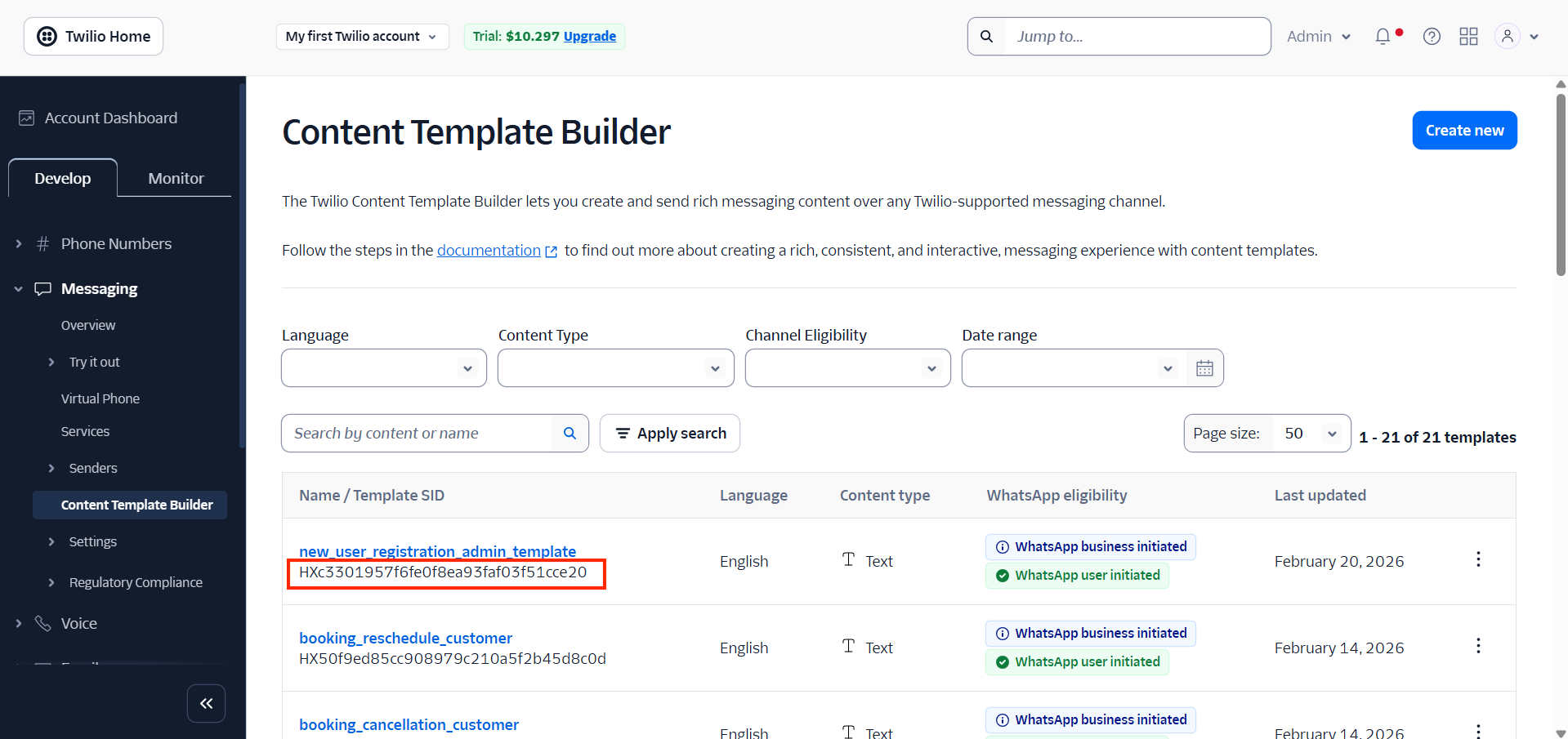
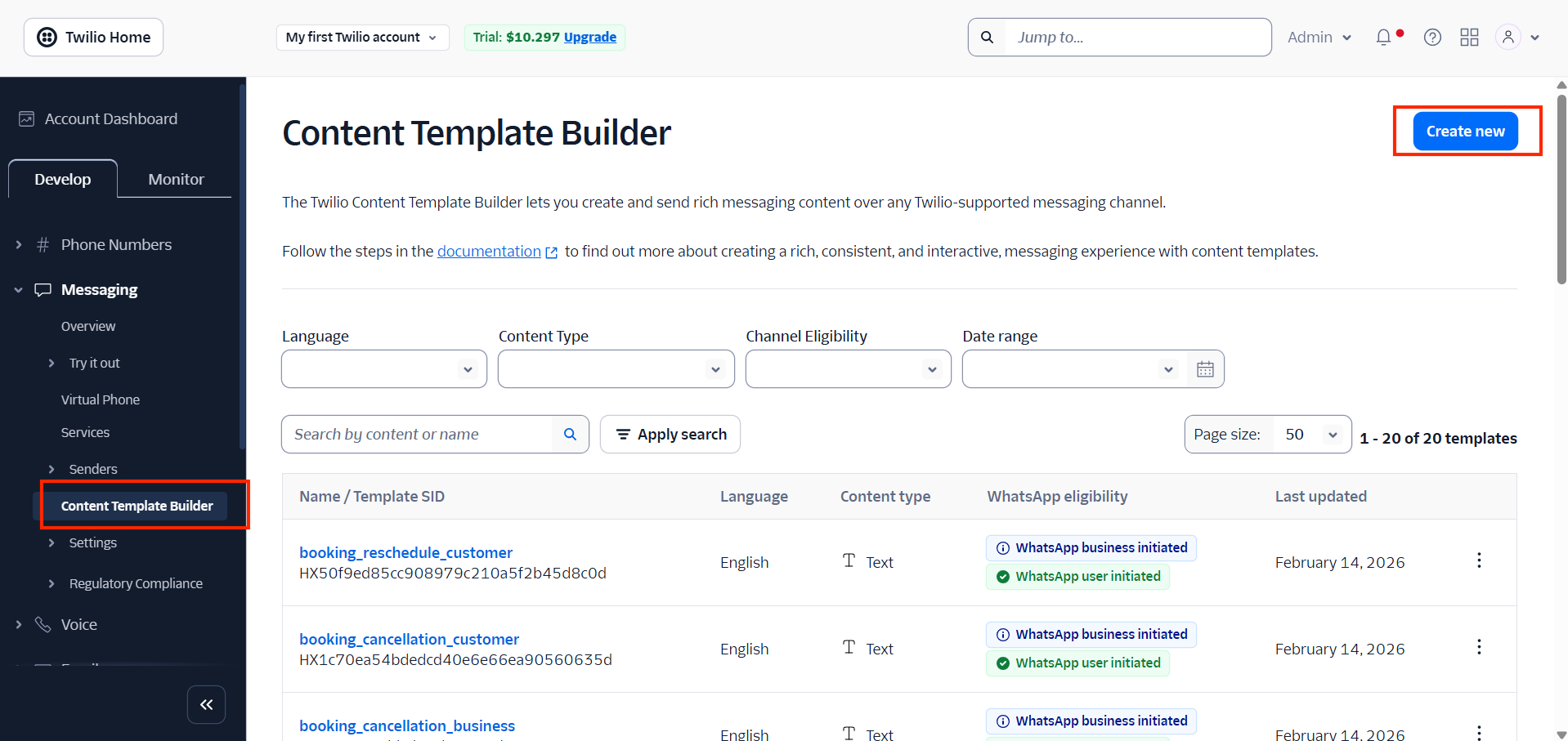
In your Twilio Console, open the Content Template Builder.
Click Create New.
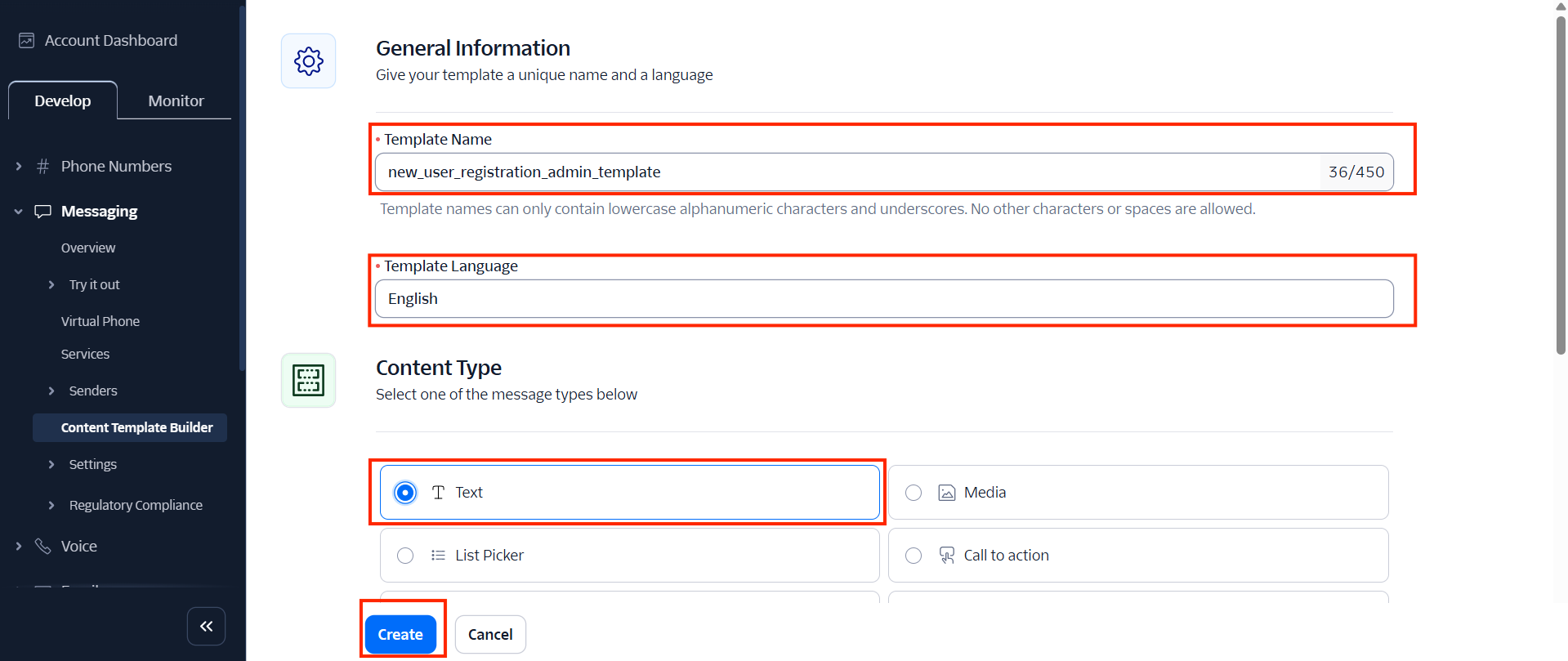
Enter the following details:
- Template Name
- Language
- Content Type: Text
Click Create.
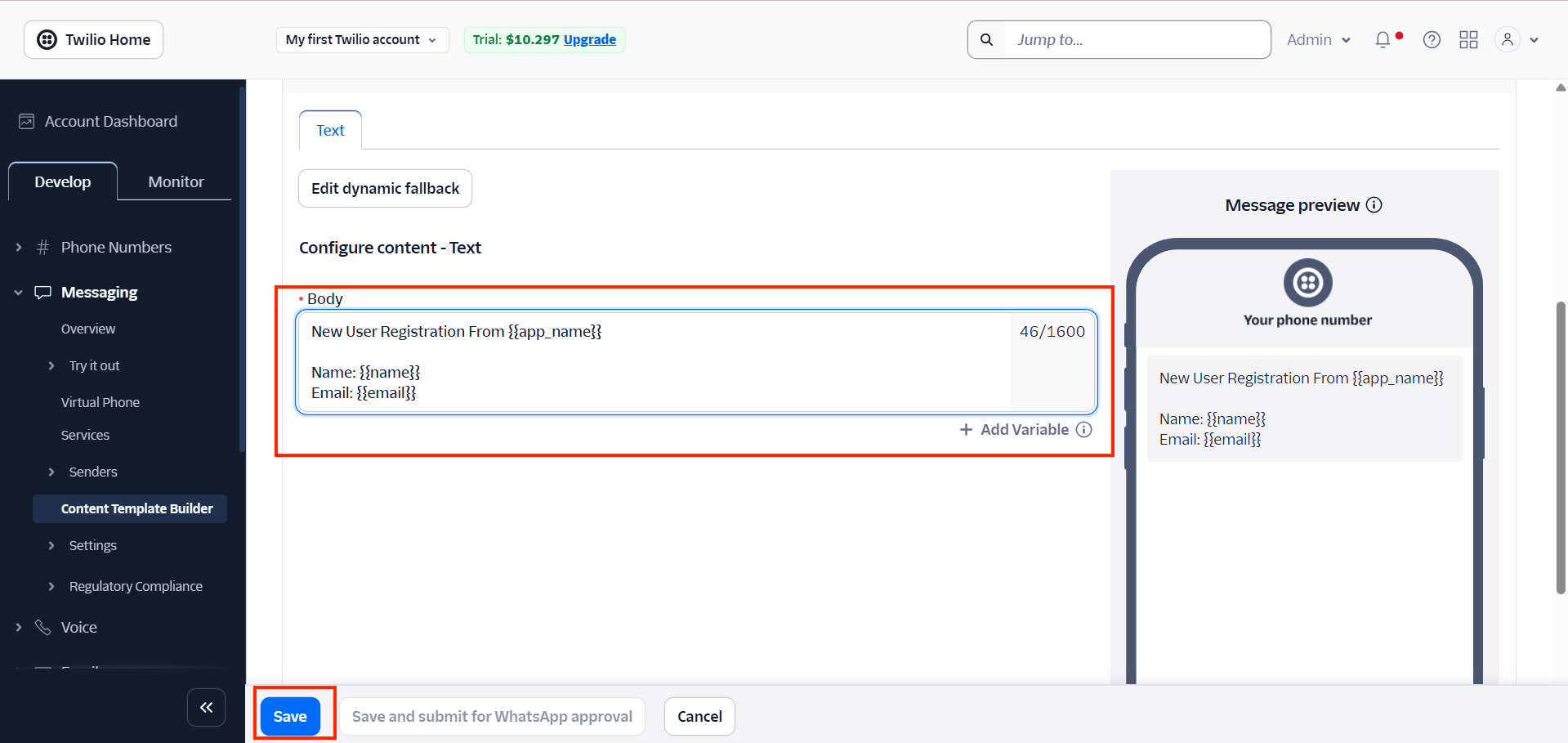
Add your WhatsApp message content and any required variables.
Click Save.
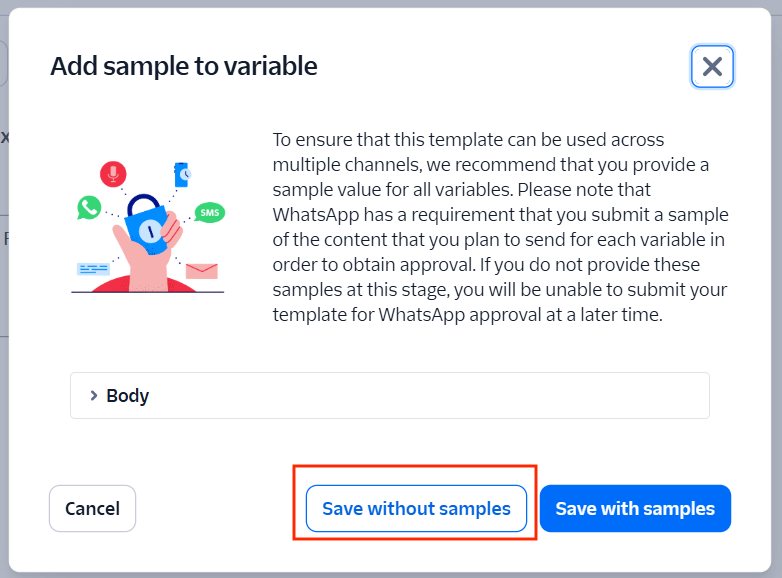
Click Save without samples.
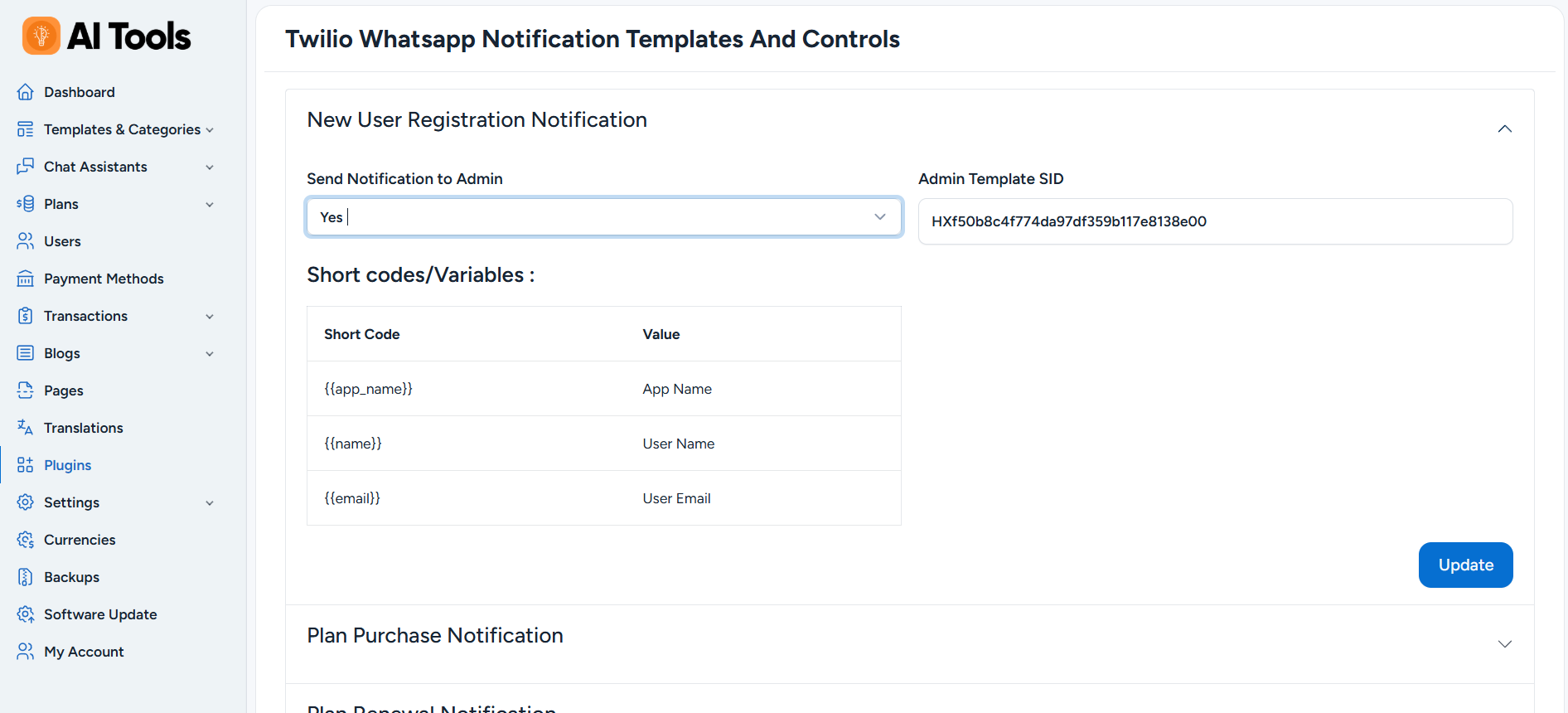
Copy the generated Template SID.
Paste the Template SID into the Twilio WhatsApp Notification plugin settings and click Update to save the configuration.