
Appearance
How to Use Maintenance Mode
Last update: 12 Aug 2026
Maintenance Mode allows you to temporarily take your website offline while performing updates or maintenance. Visitors will see a maintenance page, while administrators can continue accessing the admin panel using a secure access URL.
Enable Maintenance Mode from the Admin Panel (Recommended)
Step 1: Open the Maintenance Mode Plugin
Log in to your Admin Panel and navigate to:
Plugins
Locate the Maintenance Mode plugin and click the Settings icon.
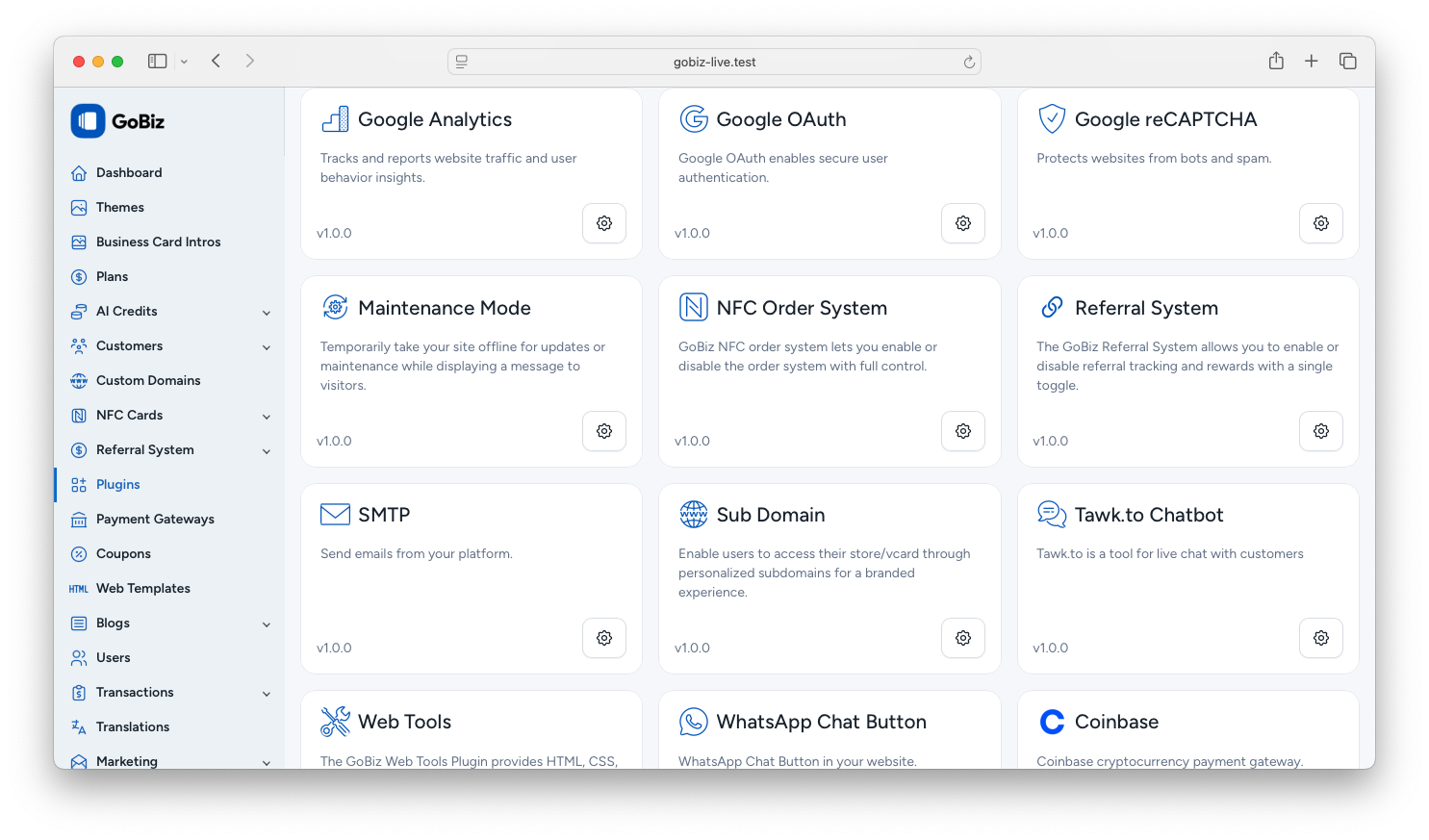
Step 2: Enable Maintenance Mode
Turn on Enable Maintenance Mode and click Update.
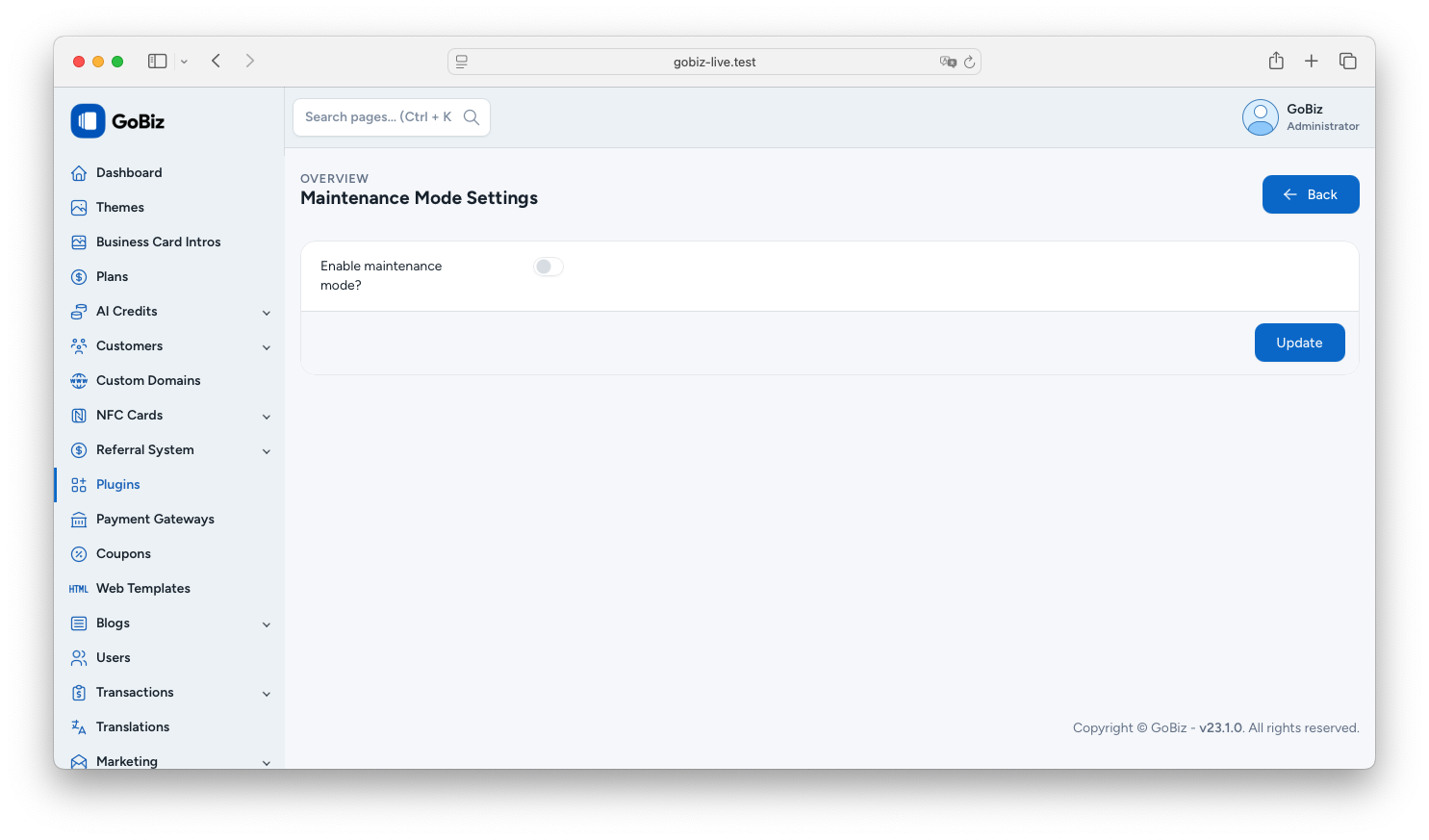
Your website will immediately switch to maintenance mode.
Step 3: Access the Admin Panel During Maintenance
After enabling maintenance mode, the system generates a unique Admin Access Secret Code.
Save this code in a secure place. You can use it to access the admin panel while the website remains under maintenance.
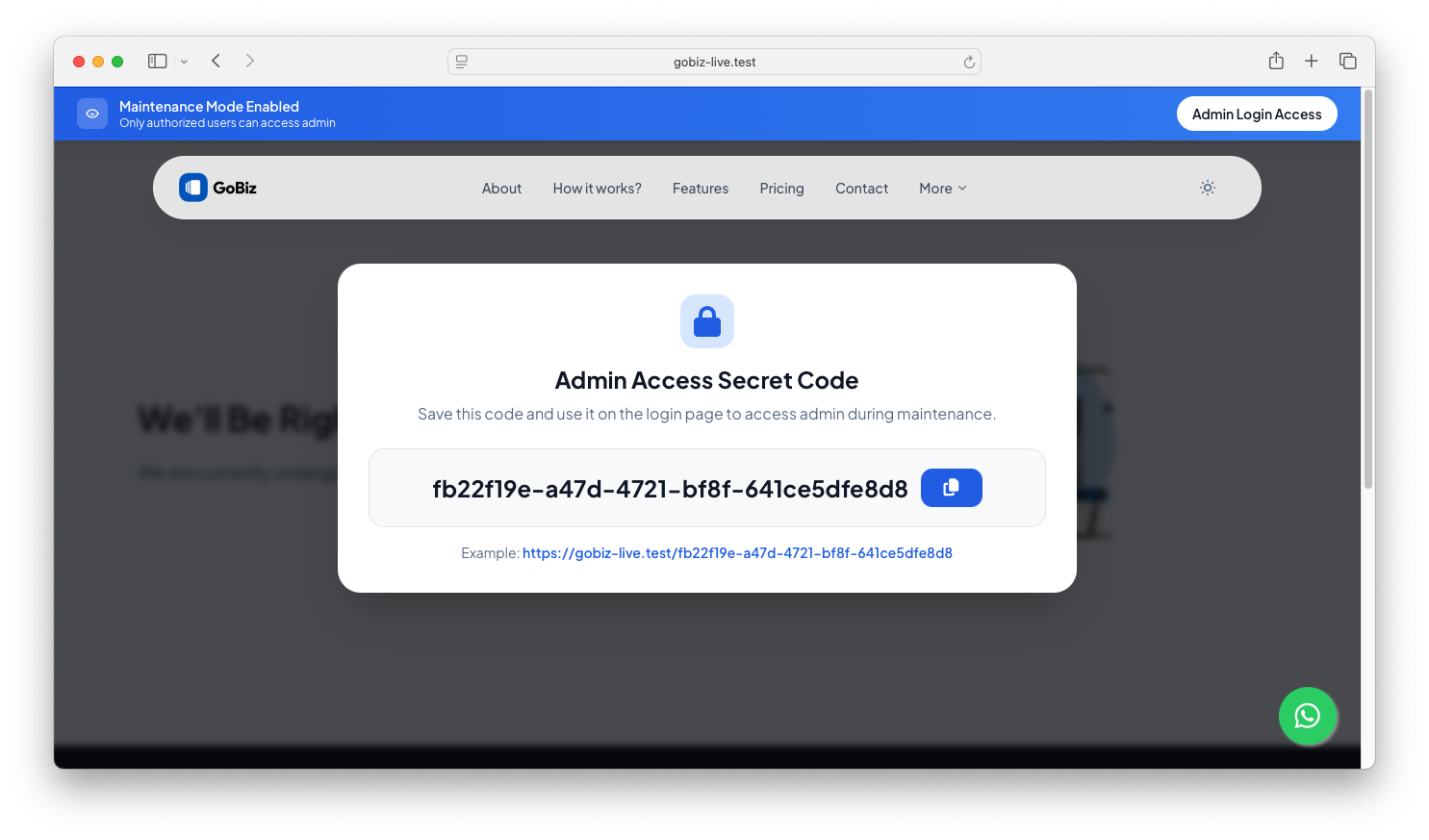
To access the admin panel, visit:
text
https://yourdomain.com/YOUR_SECRET_CODEReplace YOUR_SECRET_CODE with the generated secret code.
Note: Use the generated Admin Access Secret Code to access the admin panel while Maintenance Mode is enabled. After logging in, you can disable Maintenance Mode directly from Plugins → Maintenance Mode without making any manual changes to your server.
Disable Maintenance Mode Manually
If you cannot access the admin panel, you can disable Maintenance Mode manually.
Step 1: Open File Manager
Log in to your your hosting File Manager (or any server file manager)
Navigate to your project root directory.
Step 2: Remove the Maintenance File
Delete the following file:
text
PROJECT-ROOT/storage/down
PROJECT-ROOT/storage/maintenance.php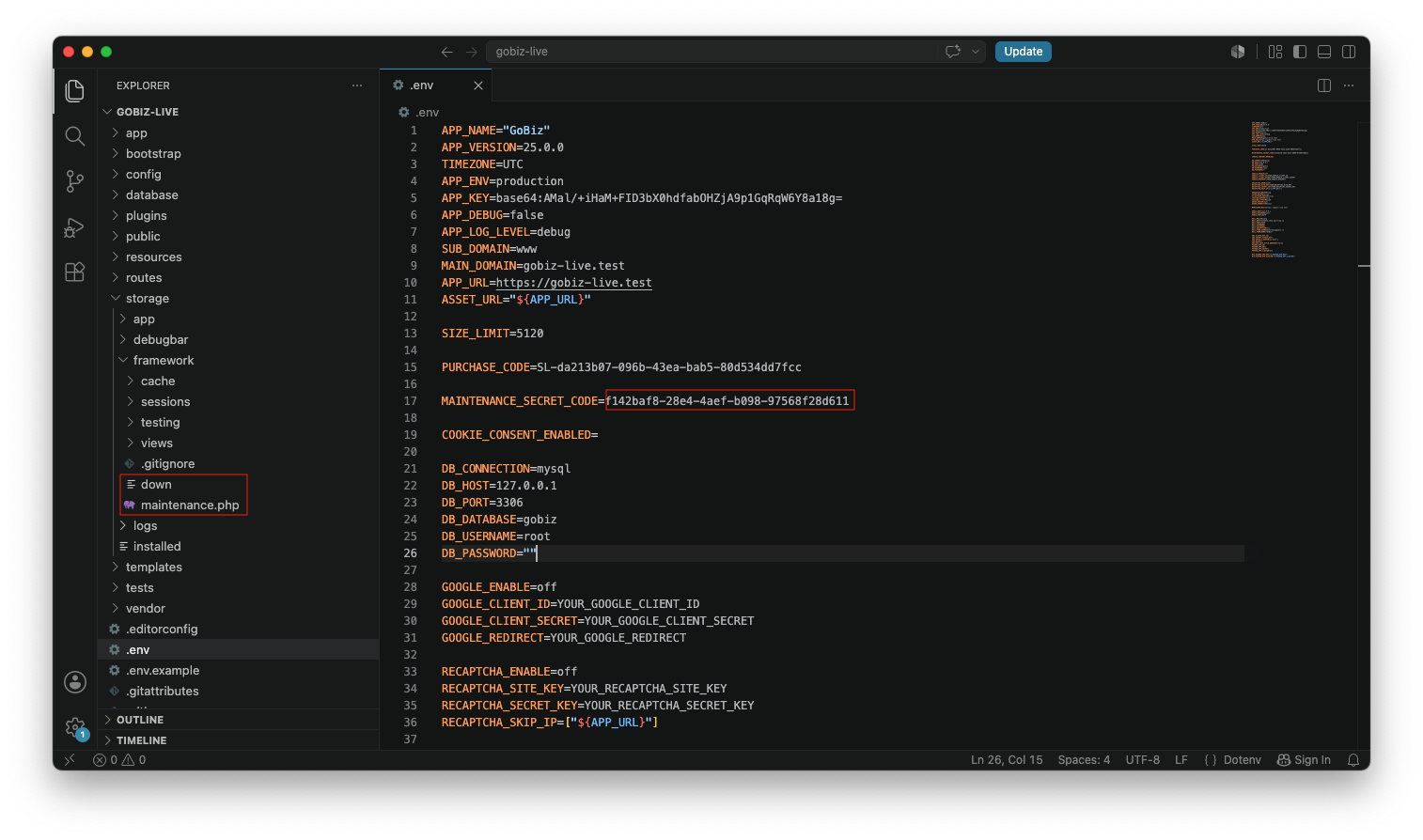
This file enables maintenance mode. Once it is removed, your website will become publicly accessible again.
Step 3: Remove the Secret Code (Optional)
Open the following file:
text
PROJECT-ROOT/.envLocate the following configuration:
env
MAINTENANCE_SECRET_CODE=YOUR_SECRET_CODERemove the value or leave it empty:
env
MAINTENANCE_SECRET_CODE=Save the file.
Your website is now live and accessible to all visitors.