Appearance
How to Configure Razorpay?
Last update: 12 Aug 2026
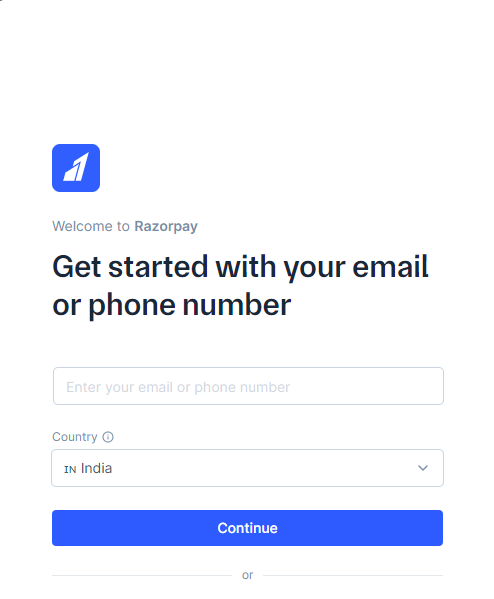
1. Sign In to Razorpay
Go to Razorpay.
If you already have a Razorpay account, sign in. Otherwise, create a new account.
2. Open the API Keys Page
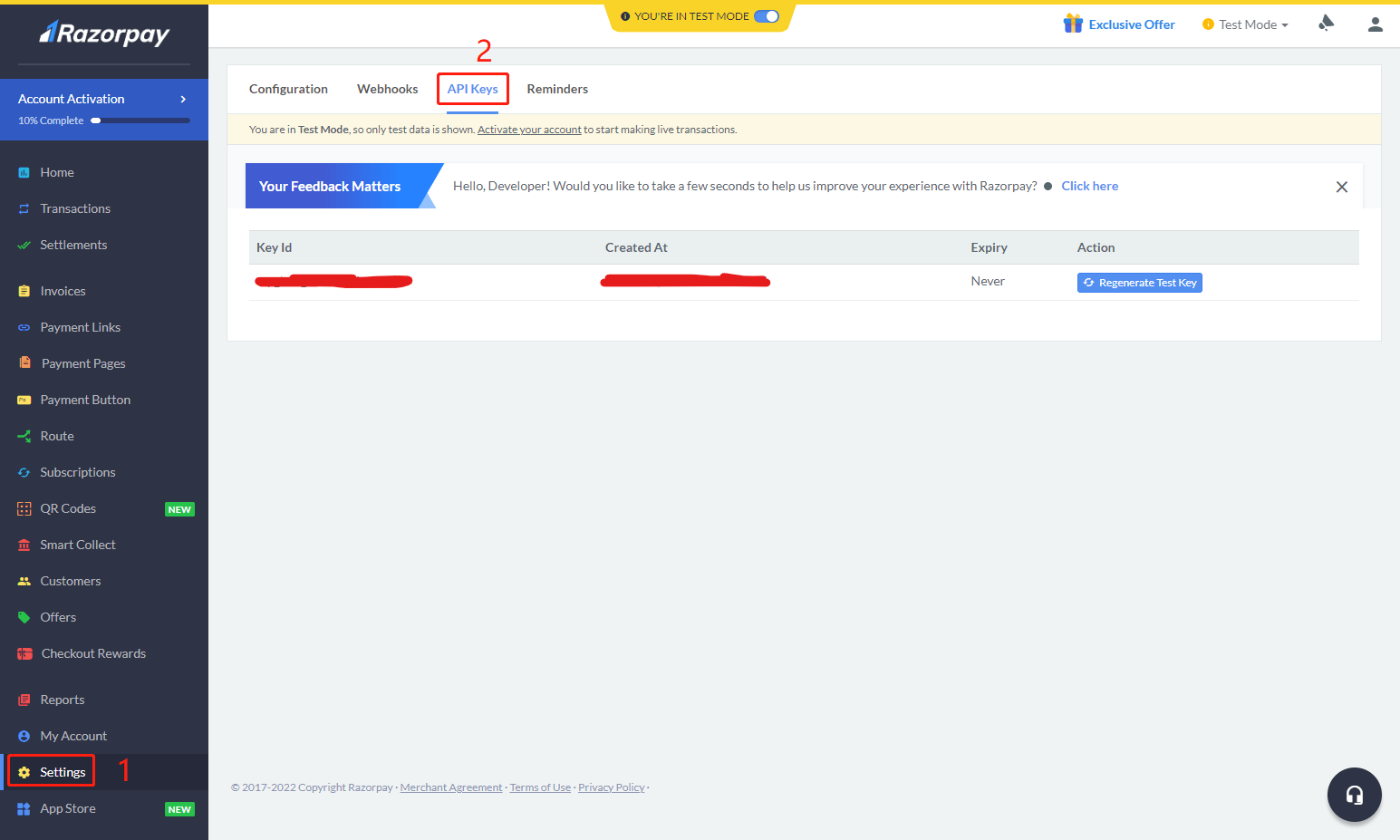
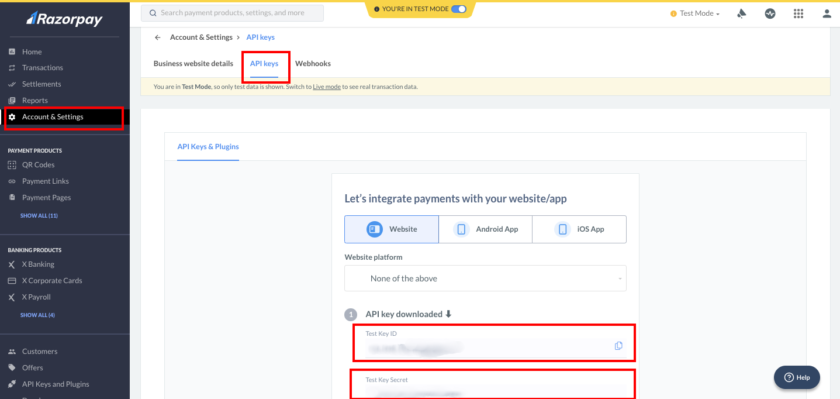
After signing in, navigate to:
Account Settings -> Web/API Keys
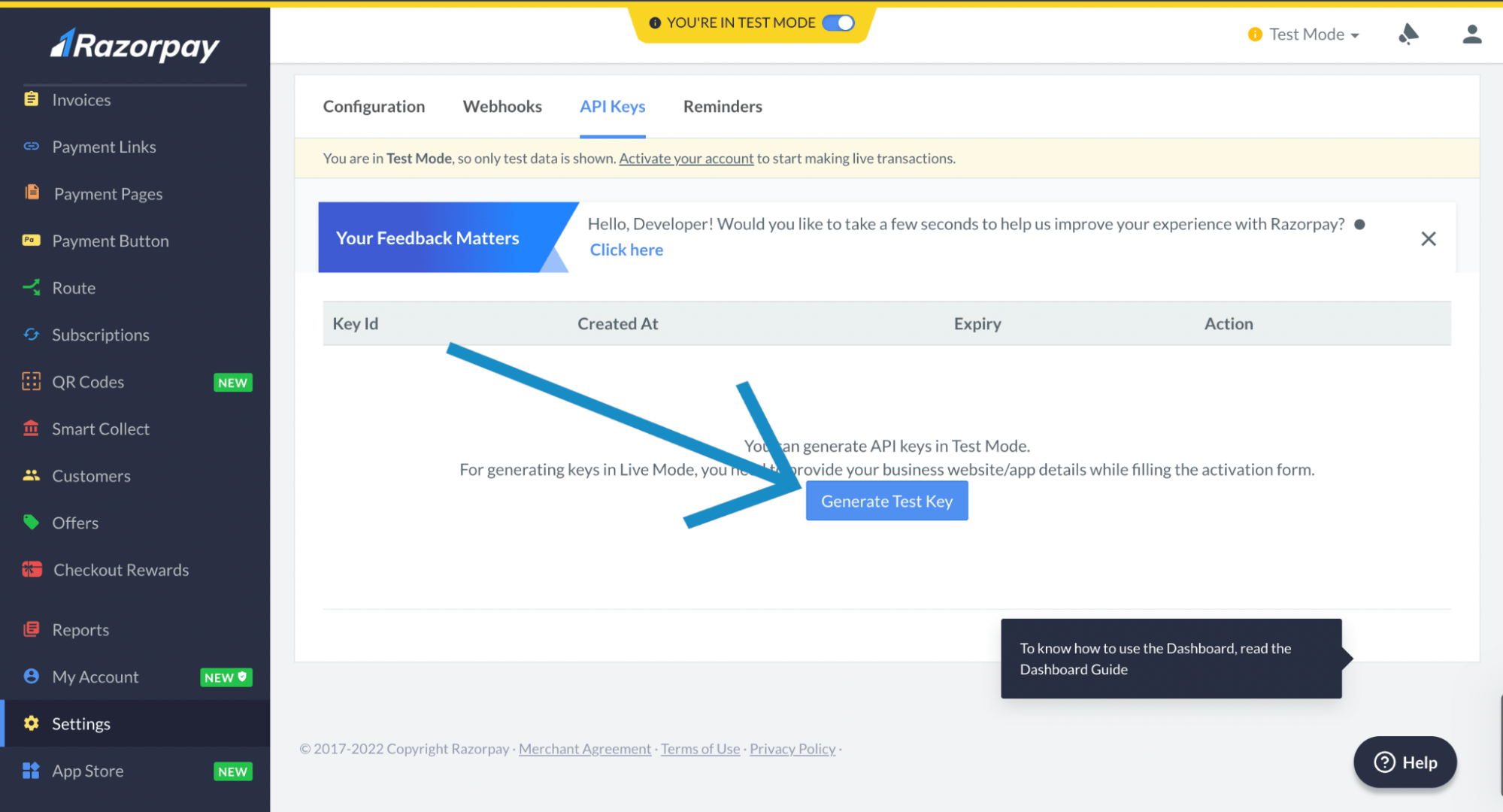
3. Generate API Keys
Click Generate API Keys to create your Key ID and Key Secret.
4. Copy the API Keys
Copy the generated Key ID and Key Secret. You will need these credentials to configure Razorpay in GoBiz.
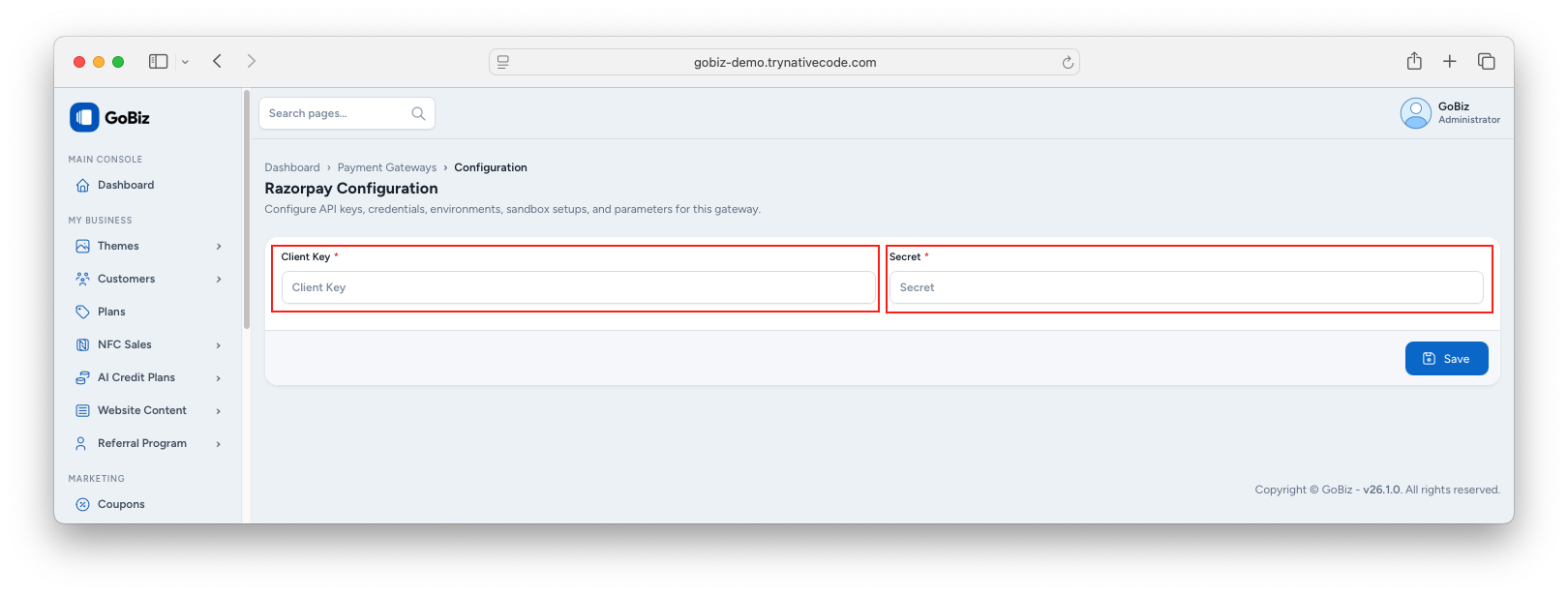
5. Configure Razorpay in the Admin Panel
Log in to your GoBiz Admin Panel and navigate to:
Payment Gateways -> Razorpay -> Configure
Paste the Key ID and Key Secret into the Razorpay configuration, then click Update to save the changes.