
Appearance
Installation
Follow the steps below to install GoBiz on your server.
1. Download the Source Code
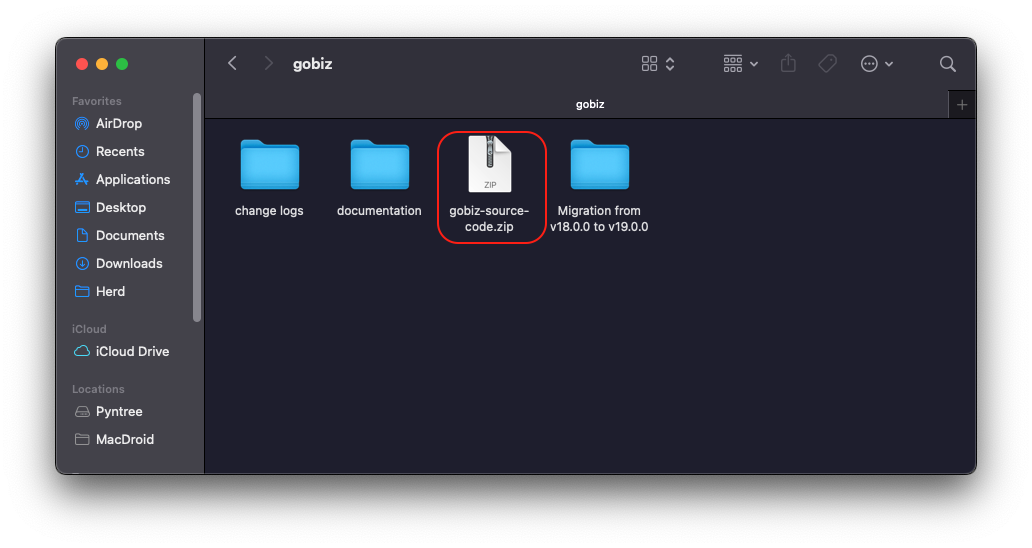
After purchasing GoBiz, download the package from CodeCanyon and extract it on your computer.
Inside the extracted package, you'll find:
text
gobiz-source-code.zipThis is the file you'll upload to your server.
2. Upload and Extract
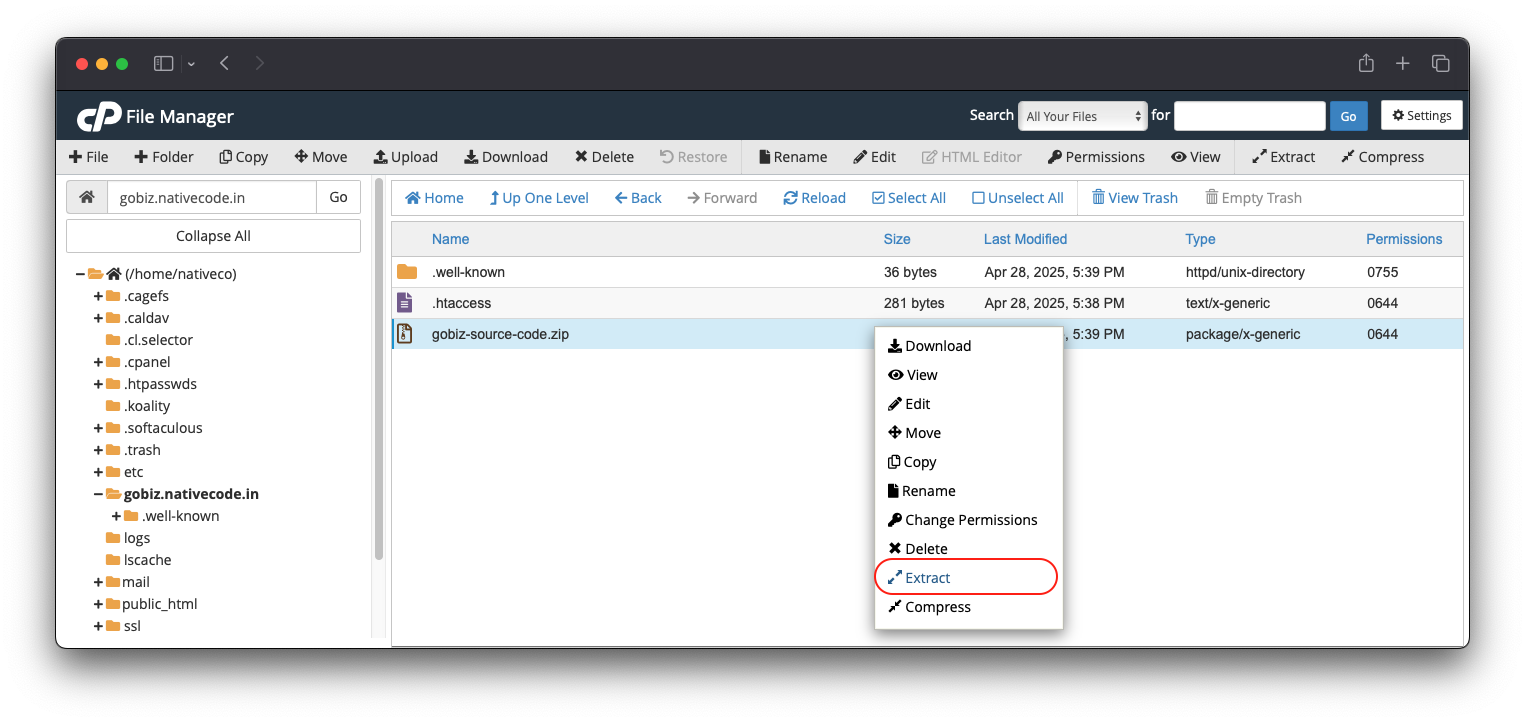
Upload the following file to your server:
text
gobiz-source-code.zipOnce the upload is complete, extract the archive in your desired installation directory. After extraction, delete the ZIP file to free up server space.
Access your installation using the appropriate URL:
| Installation Location | URL |
|---|---|
public_html | https://yourdomain.com |
Inside a folder under public_html | https://yourdomain.com/folder_name |
| Subdomain | https://subdomain.yourdomain.com |
| Folder inside a subdomain | https://subdomain.yourdomain.com/folder_name |
3. Launch the Installation Wizard
Open your installation URL in your browser. The GoBiz Installation Wizard will appear.
Note
If the installer does not load, verify that your server meets all the requirements described in the Server Requirements section.
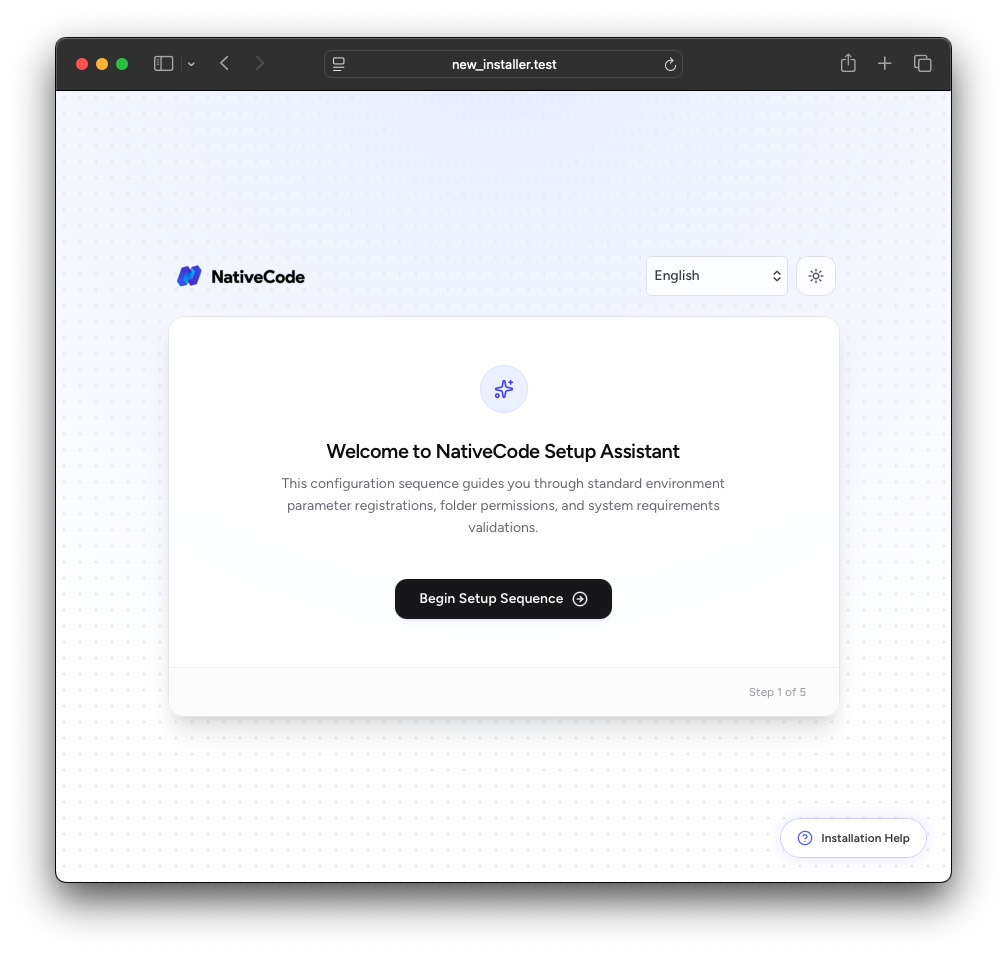
Click Begin Setup Sequence to verify that your server satisfies all installation requirements.
4. Verify Server Requirements
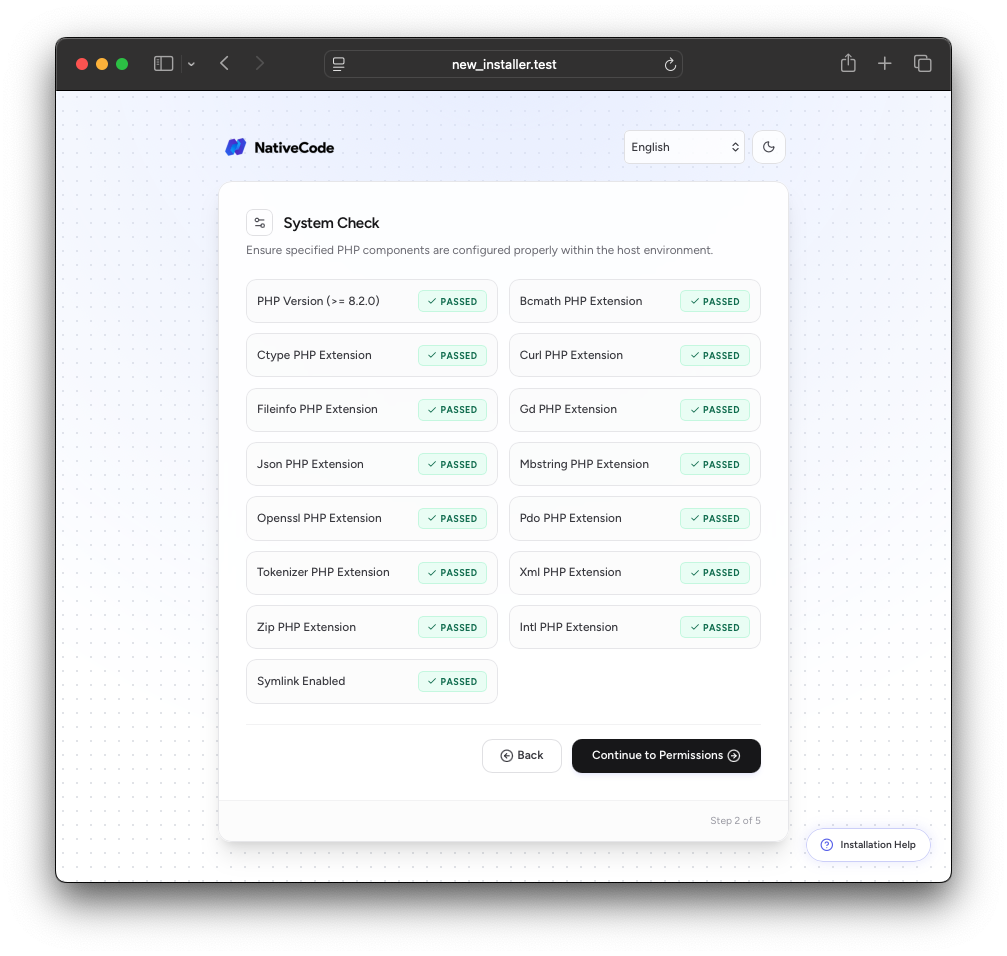
The installer checks your server configuration automatically.
If any requirement fails:
- Enable the missing PHP extension.
- Contact your hosting provider if you do not have access to your PHP configuration.
- Refresh the page after making the required changes.
Once all requirements pass, continue to the permission check.
5. Verify Folder Permissions
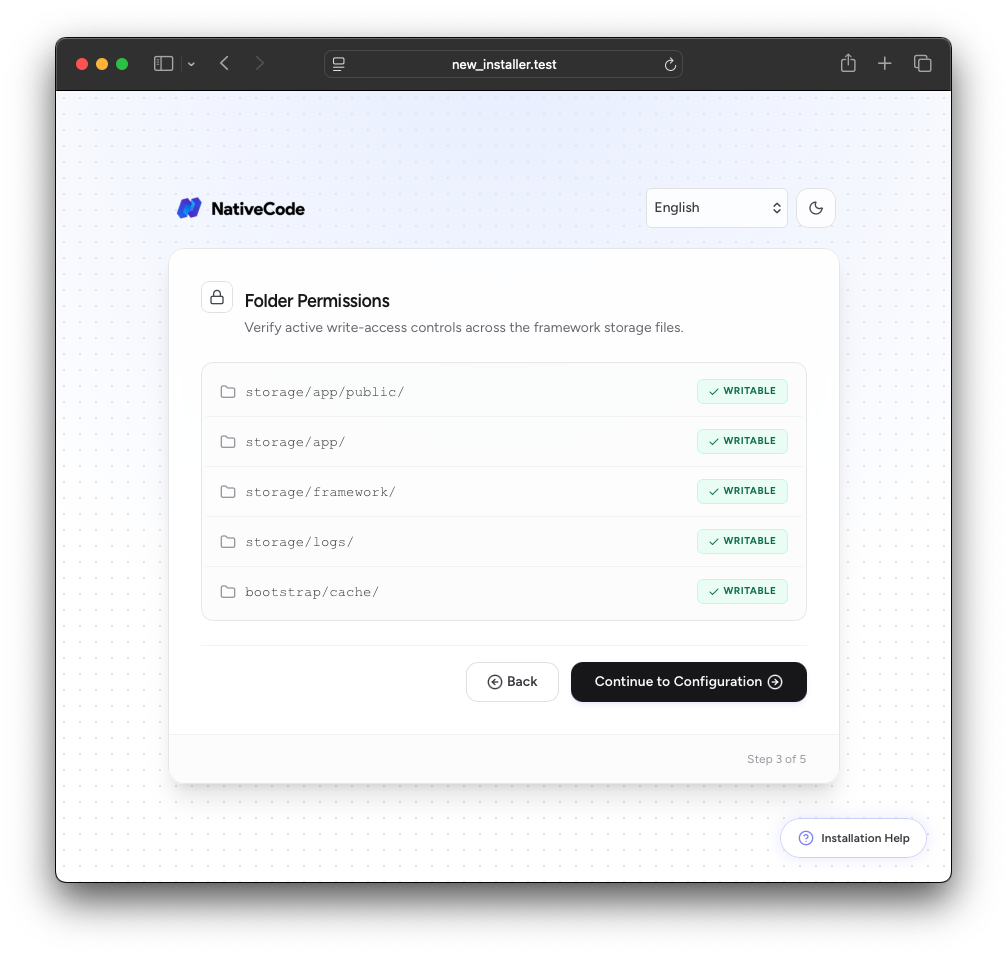
GoBiz requires write permission for the storage directory.
Ensure the required folders have 775 permissions.
To update permissions in cPanel:
- Open File Manager.
- Navigate to the
storagefolder. - Right-click the folder and select Permissions (or Change Permissions).
- Set the permission to 775 and apply the changes.
If you're unsure how to change folder permissions, watch this tutorial:
https://www.youtube.com/watch?v=EhSB9nRToEc
6. Configure the Application
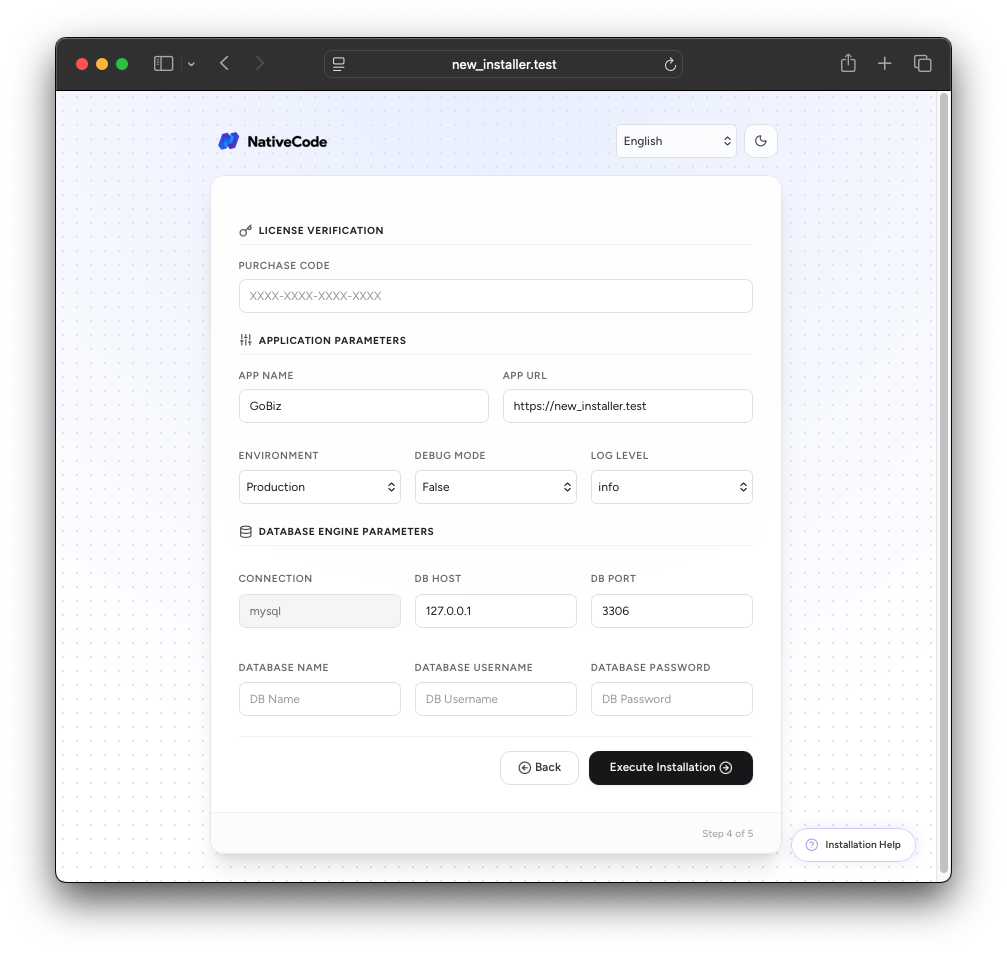
Complete the installation form with the following information:
- Purchase Code
- Application Name
- Application Environment
- Database Name
- Database Username
- Database Password
Recommended PHP Configuration
For a smooth installation, use the following PHP settings:
ini
max_execution_time = 600
memory_limit = 512M
Application Environment
- Select Local when installing on your local machine.
- Select Production when installing on a live server.
Note
During a local installation using
php artisan serve, the development server may restart automatically. You may briefly see a connection error for a few seconds. Refresh the page if necessary and continue with the installation.
After verifying all information, click Install.
7. Installation Complete
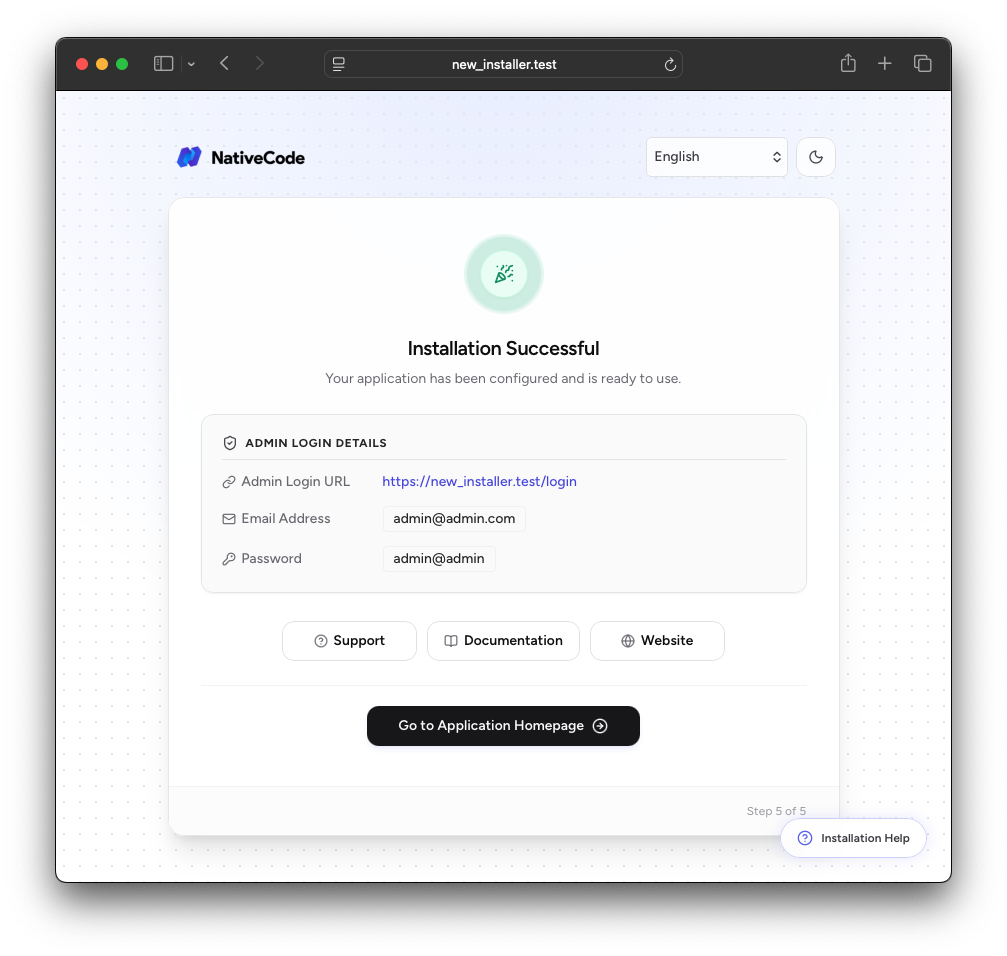
Congratulations! GoBiz has been installed successfully.
Click Exit to access your application.
Welcome to GoBiz
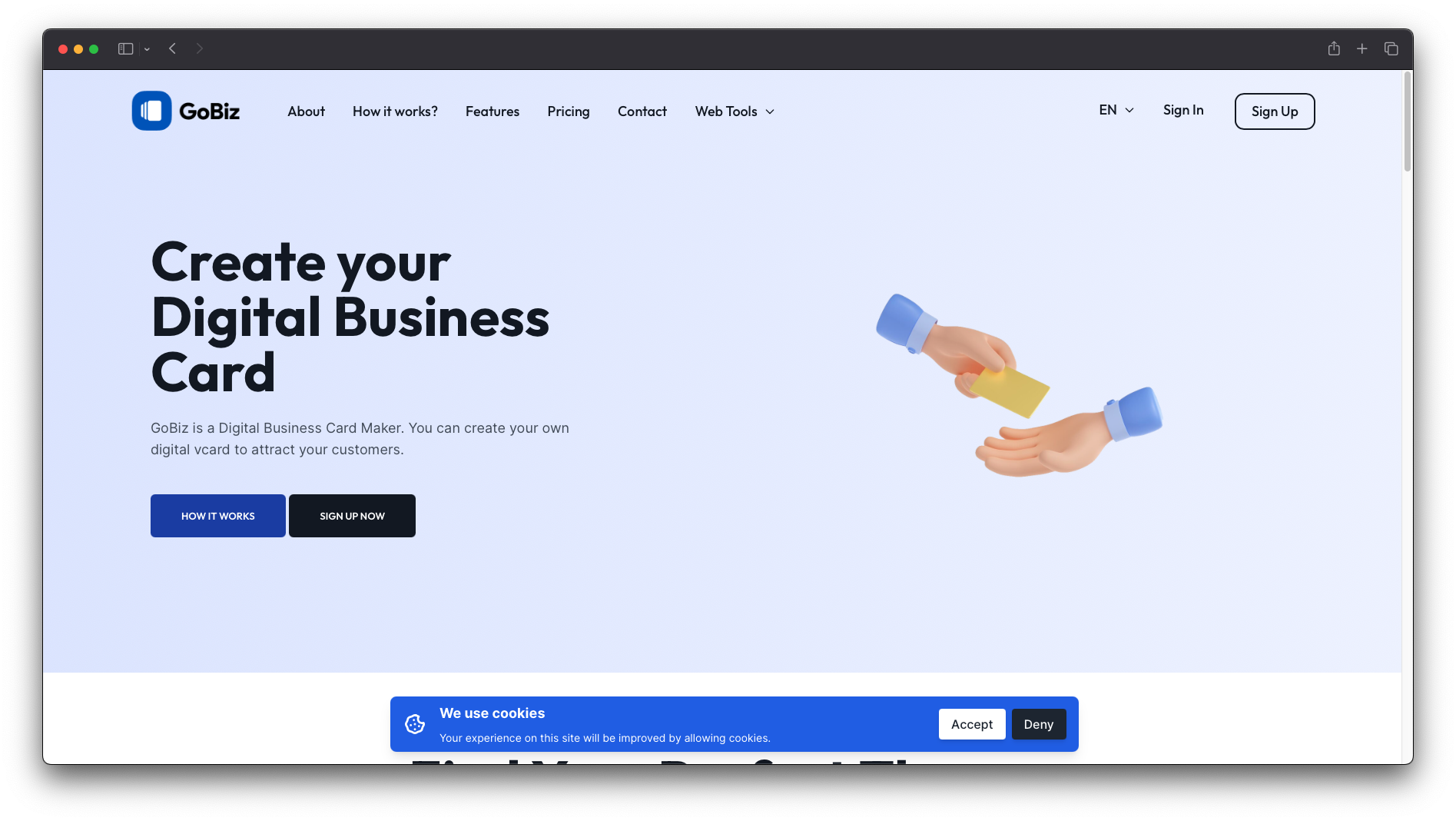
Your GoBiz application is now ready to use.
Default Administrator Login
Use the following credentials to sign in after installation:
- Login URL
https://yourdomain.com/login - Email:
[email protected] - Password:
admin@admin
Note
For security reasons, change the default administrator password immediately after your first login.