Appearance
Paypal Recurring Plugin Configuration
1. Login & SignUp
Go to PayPal. If you have a PayPal account, login; else, Signup.
2. Choose Account
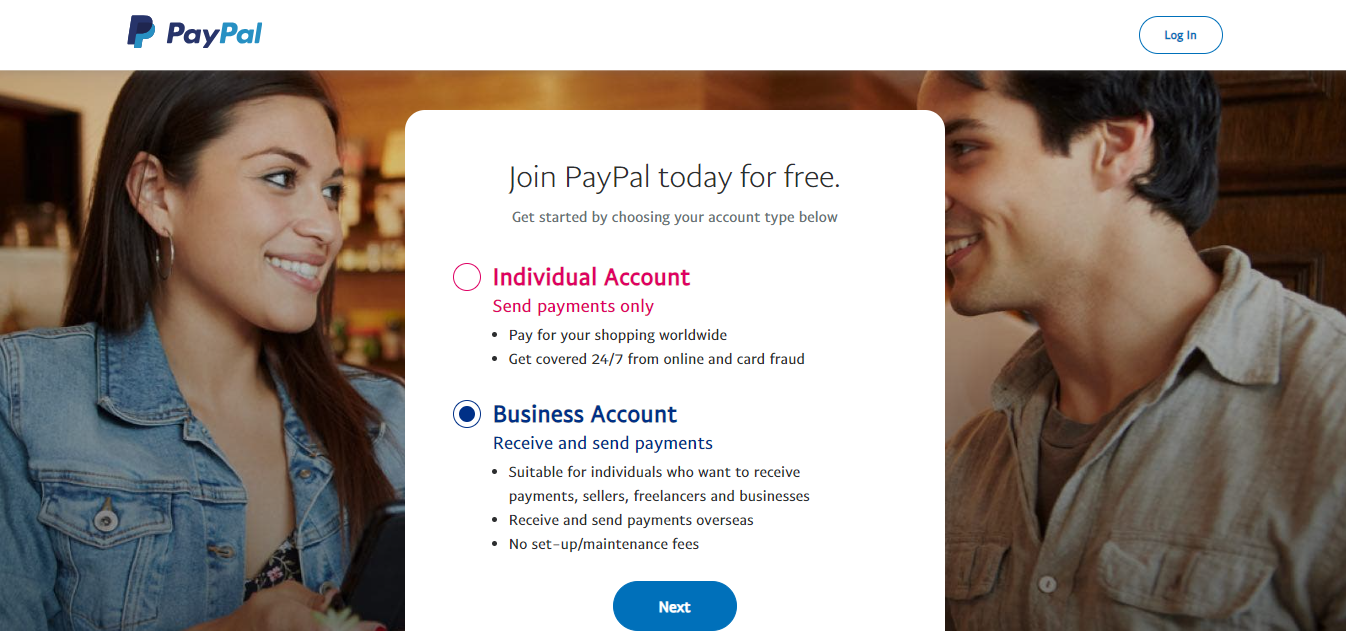
Choose either an individual or business account based on your needs, and ensure that it’s fully set up for payment processing.
3. Get Client Key & Secret Key
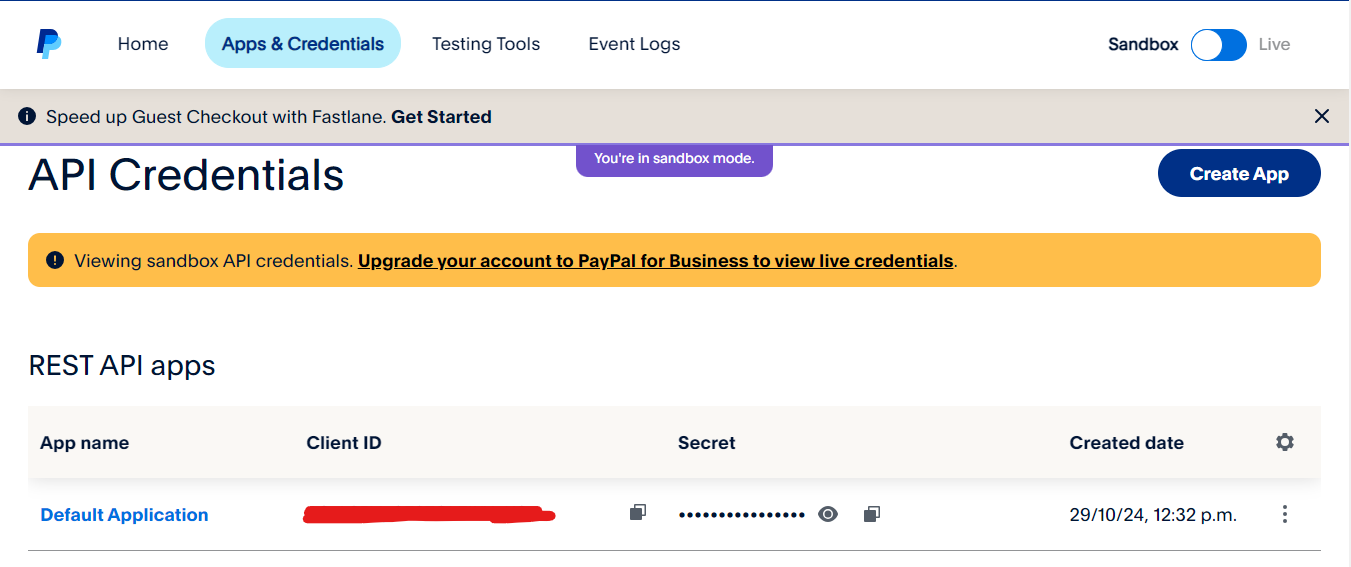
Log in to the PayPal Developer Dashboard, create a new application in either Sandbox mode for testing or Live mode for production (recommended for live), and receive a Client Key and Secret Key for API integration.
4. Paypal Recurring Settings Setup
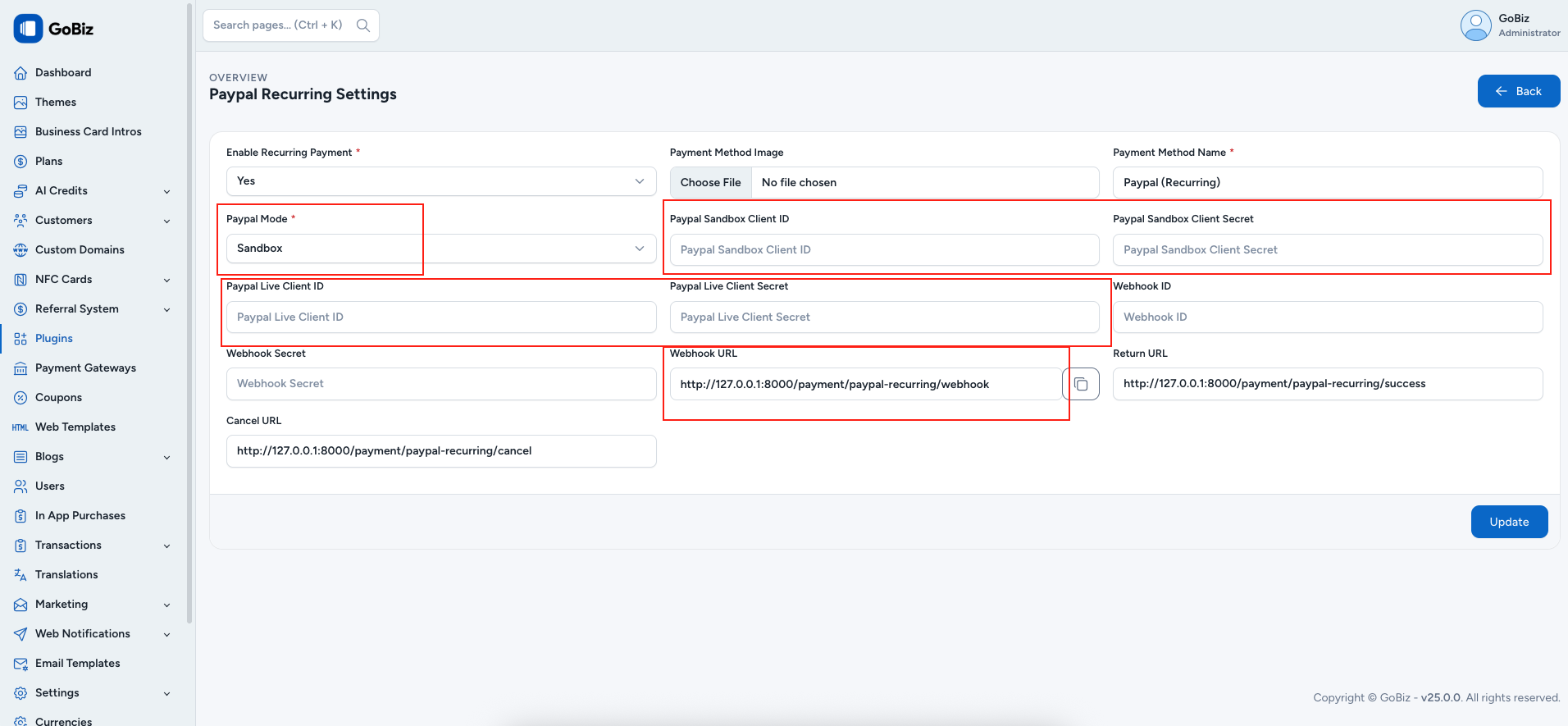
To configure the payment methods, go to: Plugins -> Paypal Recurring -> Configure in the admin panel.
On the configuration page, select Yes for Enable Recurring Payment. Then choose the PayPal Mode: select Sandbox mode for testing or Live mode for production (recommended for live websites).
If you select Sandbox, paste your PayPal Sandbox Client ID and PayPal Sandbox Client Secret. If you choose Live, add your PayPal Live Client ID and PayPal Live Client Secret.
In the Webhook URL, replace 127.0.0.1:8000 with your domain name. After completing the configuration, click Update to save the settings. eg: https://yourdomain.com/payments/paypal-recurring/webhook