
Appearance
Last update: 12 Aug 2026
The System Health Monitor plugin provides a complete overview of your server and application status. It helps you monitor resource usage, verify server requirements, and identify potential issues before they affect your website.
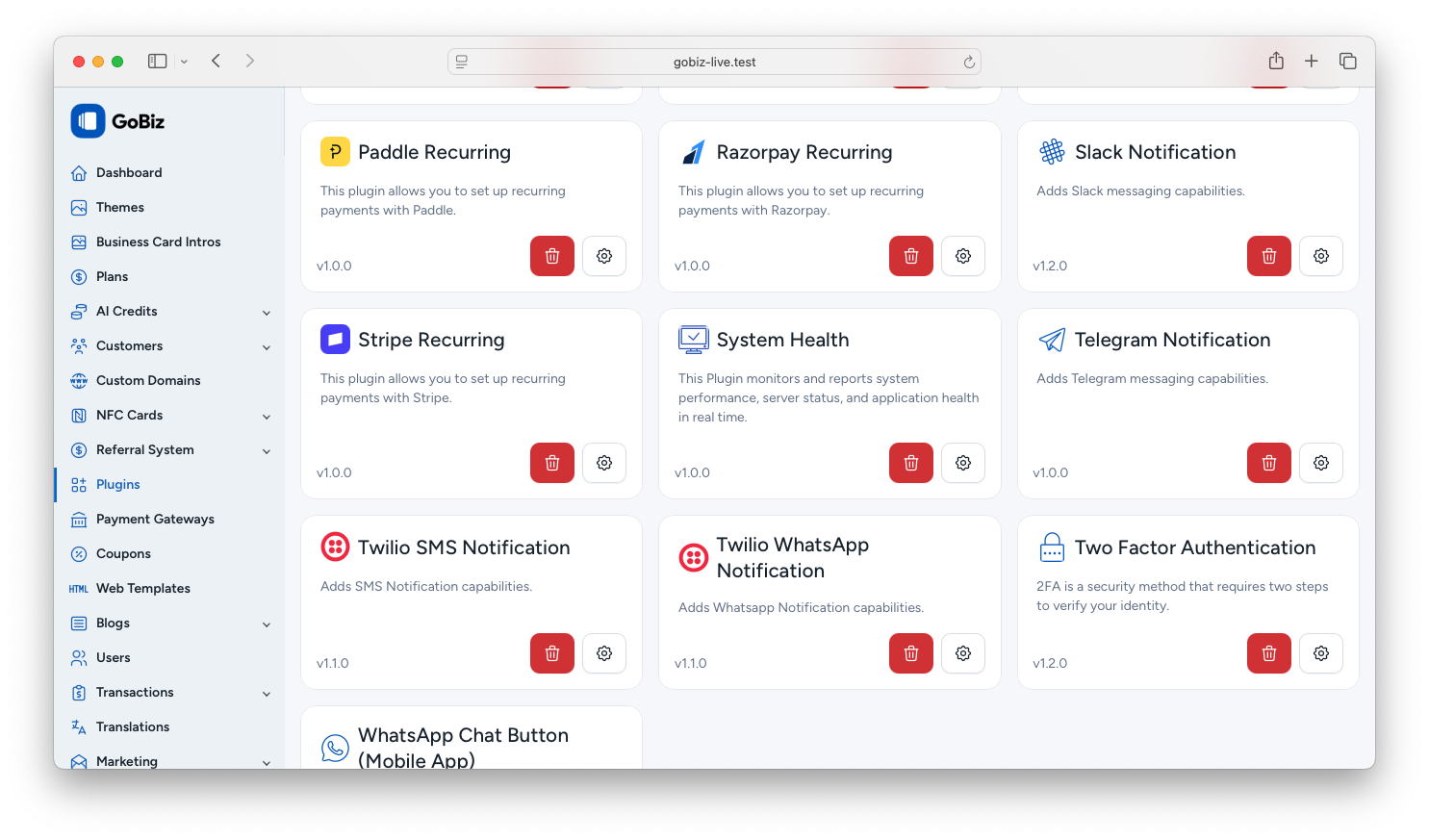
Step 1: Open the System Health Plugin
Log in to your Admin Panel and navigate to:
Plugins
Locate the System Health plugin and click the Settings icon.
Step 2: Review the System Health Report
The System Health Check page displays real-time information about your server, application, and storage usage.
Click Recheck at any time to refresh all statistics.
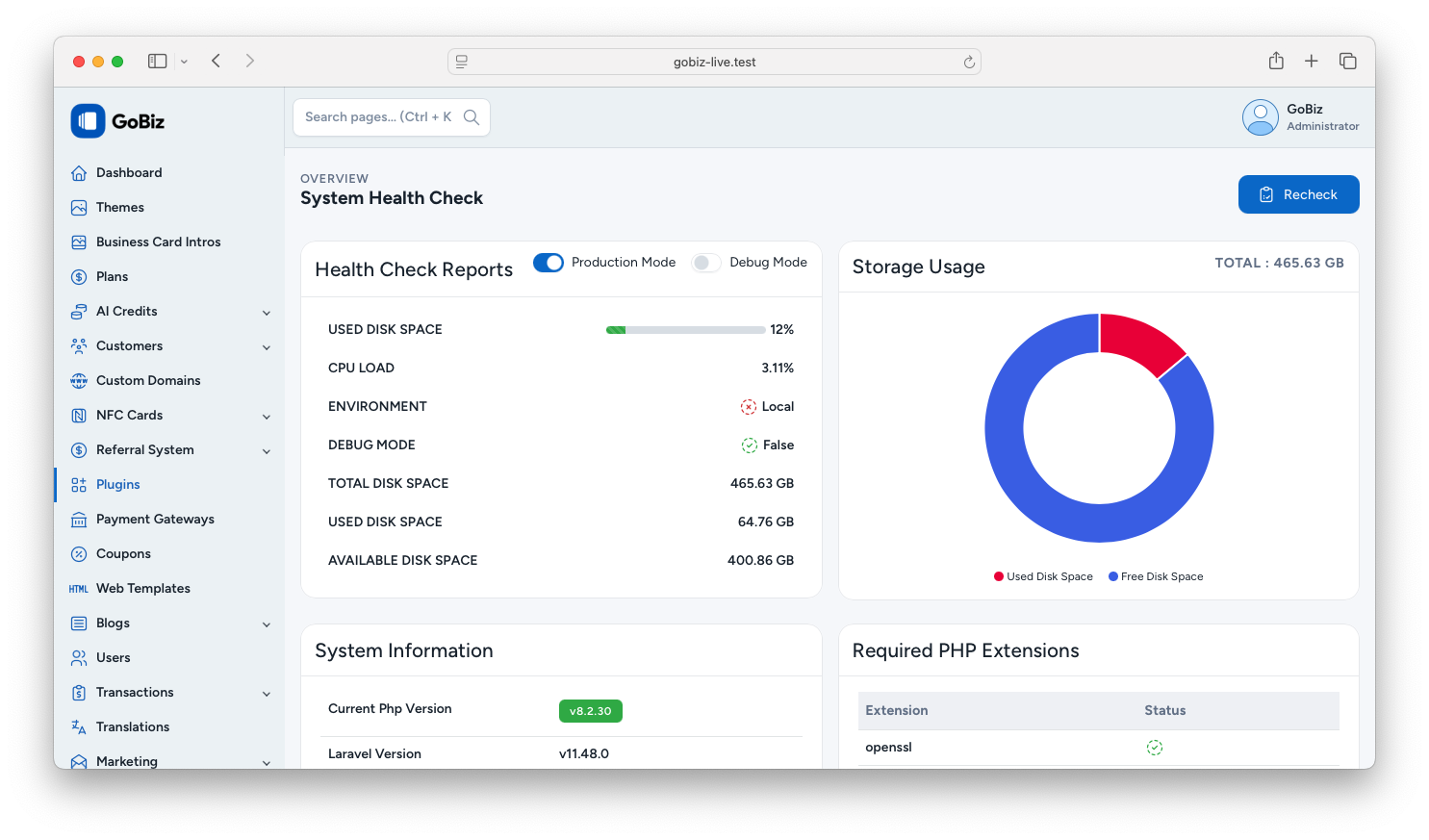
Health Check Reports
This section displays the current health status of your server and application.
The following information is available:
| Item | Description |
|---|---|
| Used Disk Space (%) | Shows the percentage of disk space currently in use. |
| CPU Load | Displays the current processor usage on your server. |
| Environment | Indicates the current application environment, such as production or local. |
| Debug Mode | Shows whether Laravel Debug Mode is enabled or disabled. |
| Total Disk Space | Displays the total storage capacity available on the server. |
| Used Disk Space | Shows the amount of storage currently being used. |
| Available Disk Space | Displays the remaining free storage available on the server. |
Storage Usage
The Storage Usage chart provides a visual representation of your server's storage utilization.
It displays:
- Total Storage Capacity
- Used Storage
- Free Storage
This makes it easy to monitor disk usage at a glance.
System Information
The System Information section provides important details about your application and server.
It includes:
| Information | Description |
|---|---|
| Current PHP Version | The PHP version currently running on the server. |
| Laravel Version | The installed Laravel framework version. |
| GoBiz Version | The current version of the GoBiz application. |
| Laravel Log File | Displays the location of the Laravel log file. |
| Laravel Log File Size | Shows the current size of the application log file. |
| Database Size | Displays the size of your application's database. |
Required PHP Extensions
The plugin automatically checks whether all required PHP extensions are installed and enabled.
The following extensions are verified:
- OpenSSL
- PDO
- GD
- Mbstring
- Tokenizer
- JSON
- cURL
- Fileinfo
- ZIP
- BCMath
- XML
- Intl
- Symlink
Each extension is marked with its current status, allowing you to quickly identify any missing requirements.
Tip: If any required PHP extension is missing or disabled, contact your hosting provider or server administrator to enable it before using all application features.
Best Practices
- Review the System Health page regularly to ensure your server is operating correctly.
- Check disk usage frequently to avoid running out of storage.
- Keep Debug Mode disabled on production websites.
- Verify that all required PHP extensions remain enabled after upgrading PHP or migrating your server.
- Use the Recheck button after making server changes to refresh the health report.