Appearance
Paddle Recurring Plugin Configuration
Follow these steps to configure the Paddle Recurring plugin and enable Paddle integration.
1. How to Configure Paddle Reccuring Plugin?
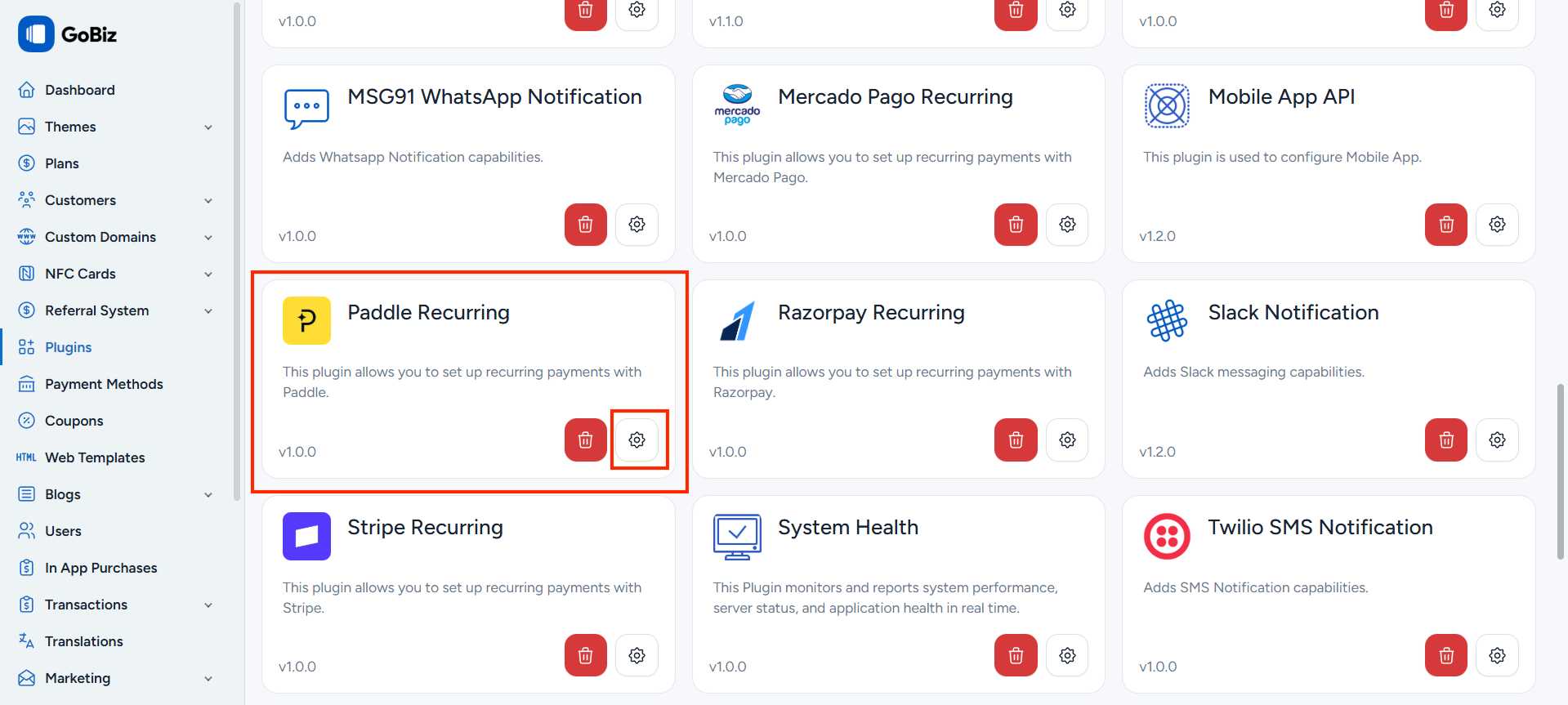
After installing the Paddle Recurring Plugin, you will be able to see it in the Plugins section. Click the Settings icon to access its configuration options.
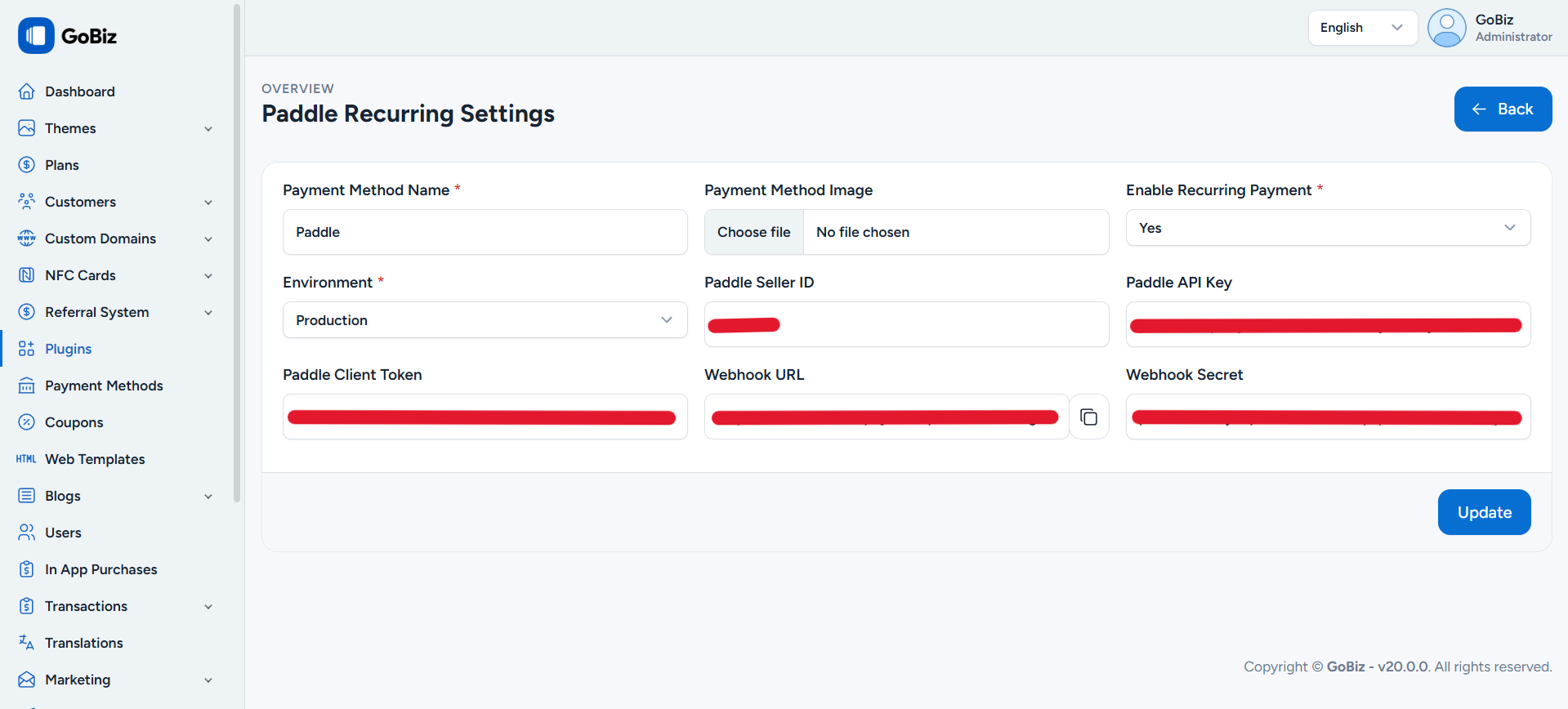
After choosing the configuration option, you will be redirected to the Paddle Recurring Configuration page, where you will be asked to enter your Paddle Seller ID, Paddle API Key, Paddle Client Token and Webhook Secret.
2. How can i get my Paddle Seller ID?
Paddle -> Click this link to go to the Paddle login page. If you don’t have an account, please create one.
After successful login, you will be redirected to the Paddle Home page.
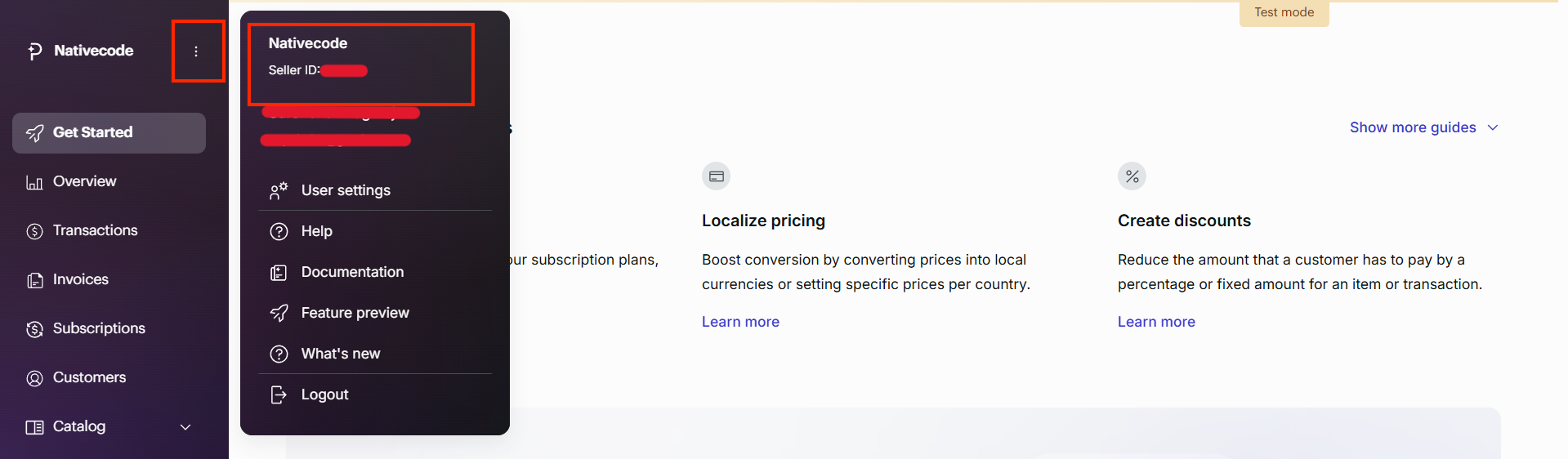
On the Paddle home page, in the sidebar, click the three-dot icon. There, you will be able to see your Seller ID.
2. How can i get my Paddle API Key?
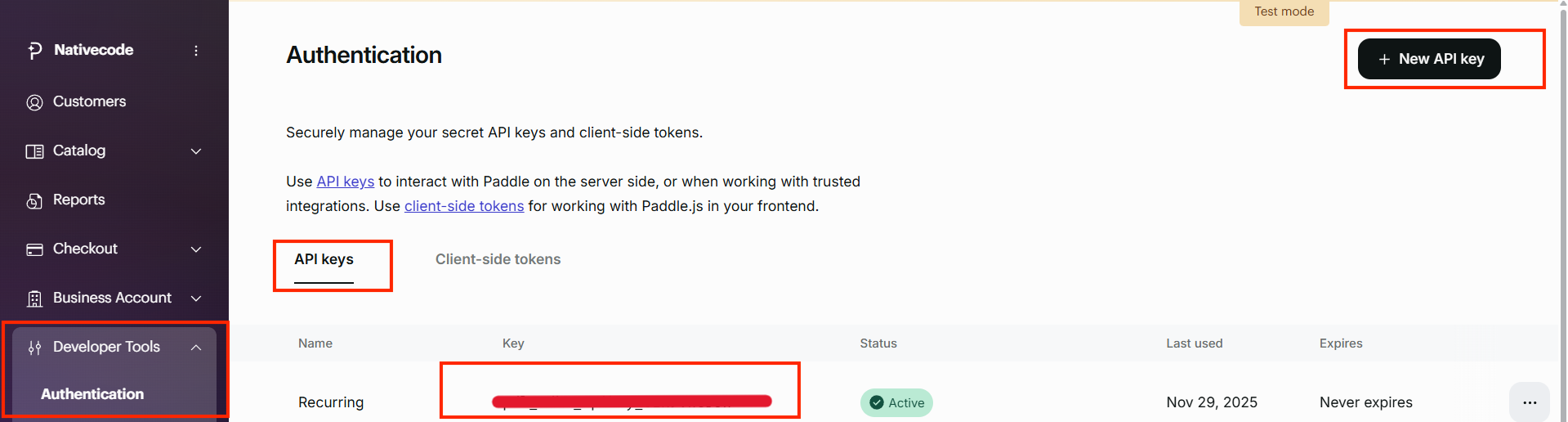
In the sidebar, navigate to Developer Tools->Authentication. In the Authentication section tap on the API Keys tab, you can able to see New API Key button on the right side of the page. Cick on it.
After clicking on the New API Key button, You will be able to see a Popup window where you have to enter API Name, API Description and Expires at.
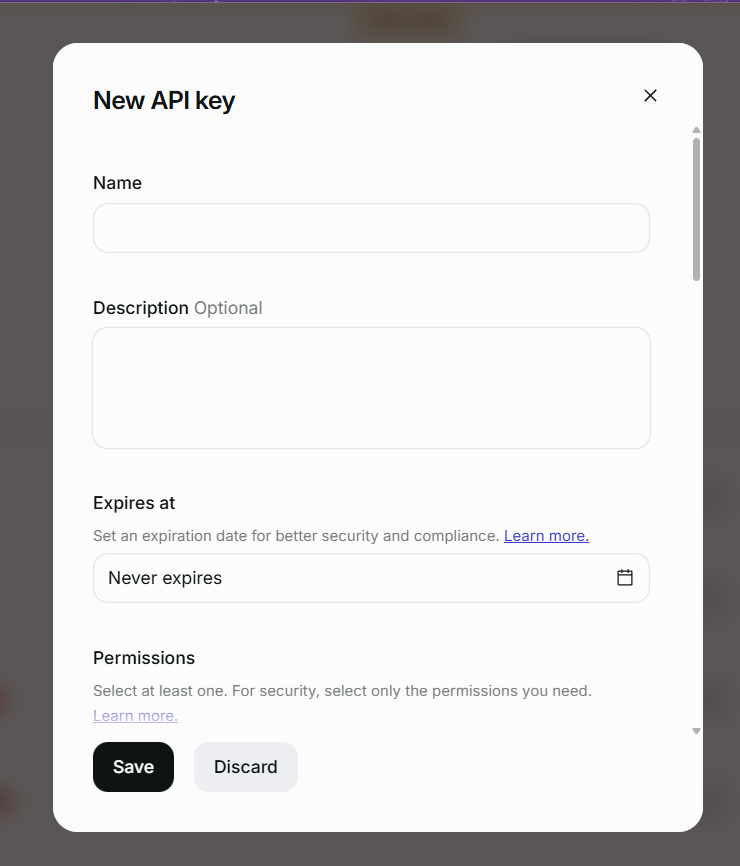
Once filled the required details, click on the Save button. Now you can able to see the API Key in the API Keys tab under the Authentication section.
3. How can i get my Paddle Client Token?
In the sidebar, navigate to Developer Tools->Authentication. In the Authentication section tap one the Client-side tokens tab, you can able to see New Client-side token button on the right side of the page. Cick on it.
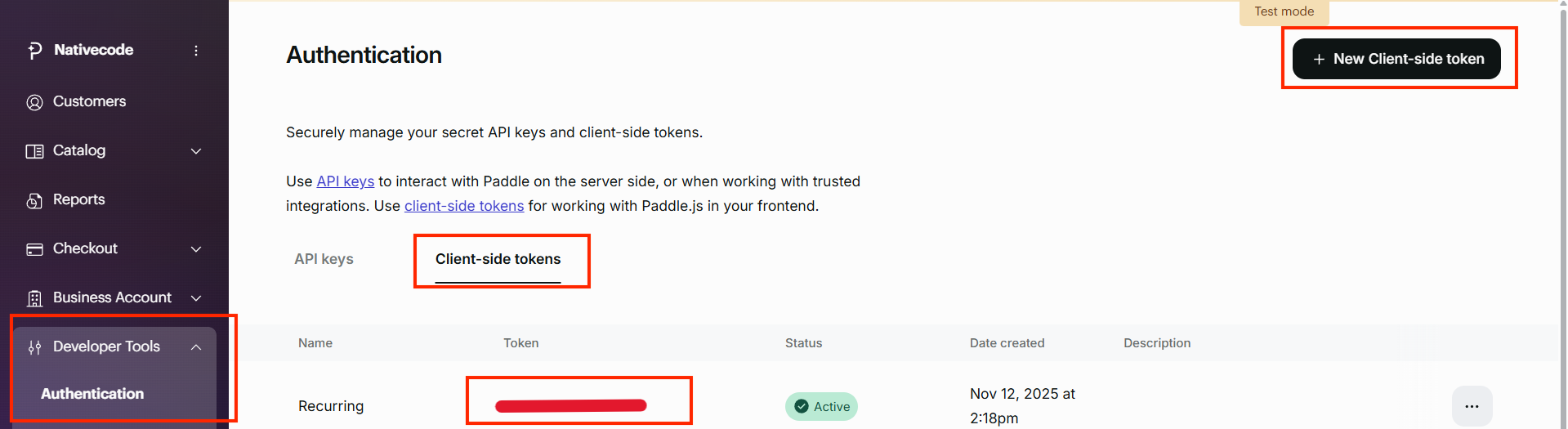
After clicking on the Client-side tokens button, You will be able to see a Popup window where you have to enter Name and Description.
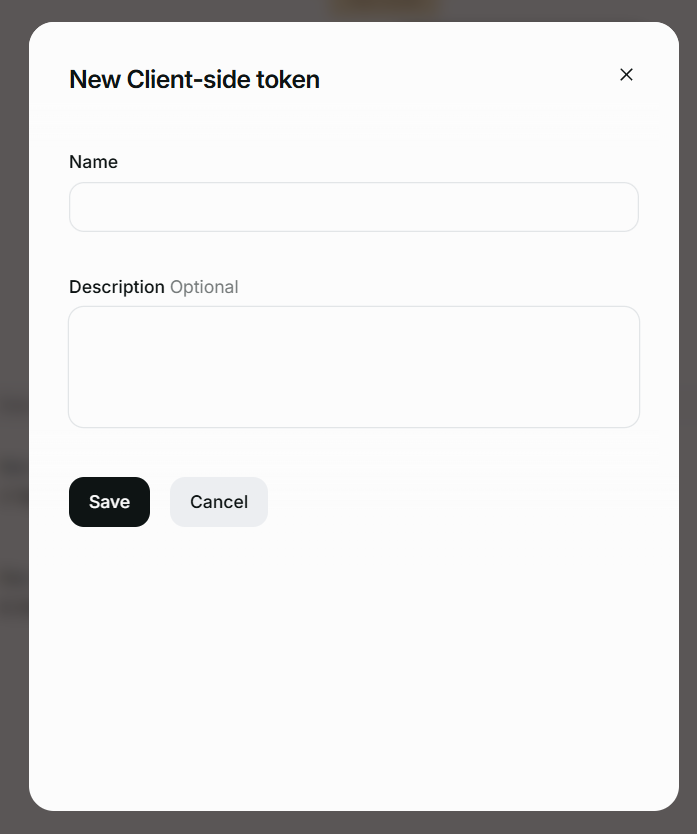
Once filled the required details, click on the Save button. Now you can able to see the Client-side tokens in the Client-side tokens tab under the Authentication section.
3. How can i get my Webhook Secret?
In the sidebar, navigate to Developer Tools->Notifiacations. Click on the New Destination button.
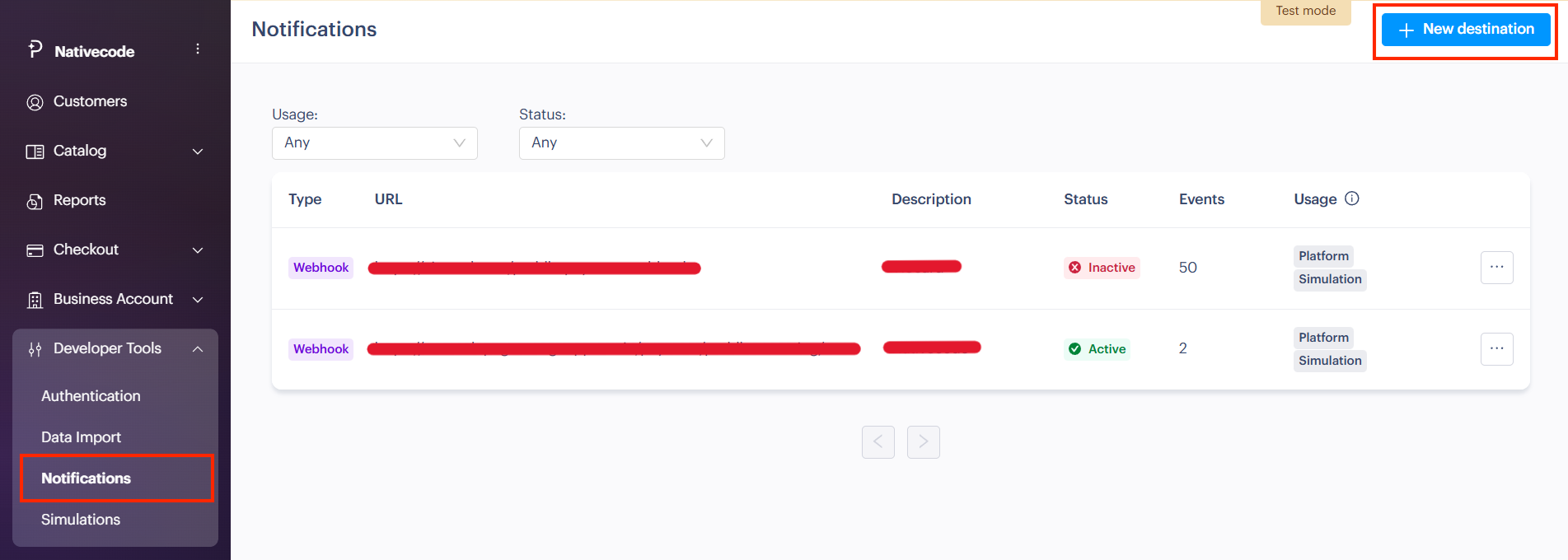
Once you click the New Destination button, a pop-up window will appear where you need to fill in the required details, as shown in the screenshot below. For the URL field, copy the URL from the Paddle Recurring plugin configuration page and paste the webhook URL into the URL field.
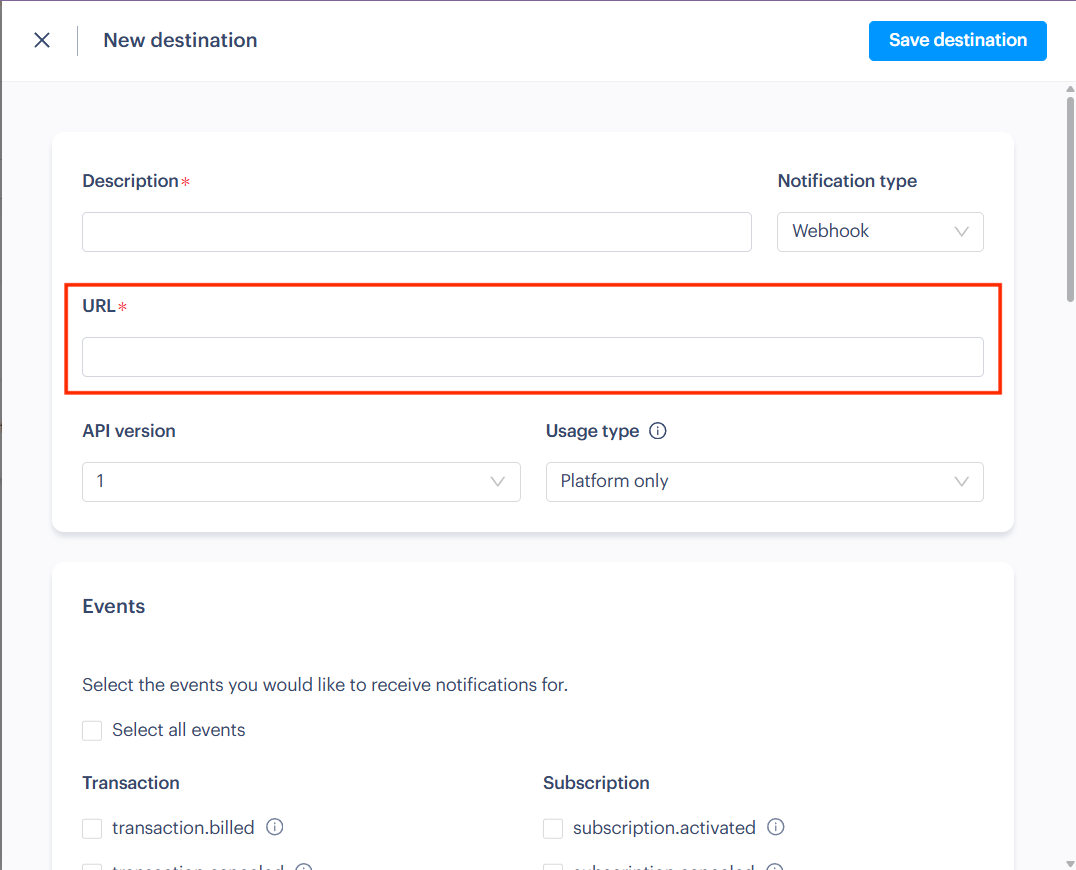
After filling in these details, you need to select the events from the checklist shown in the screenshot below.
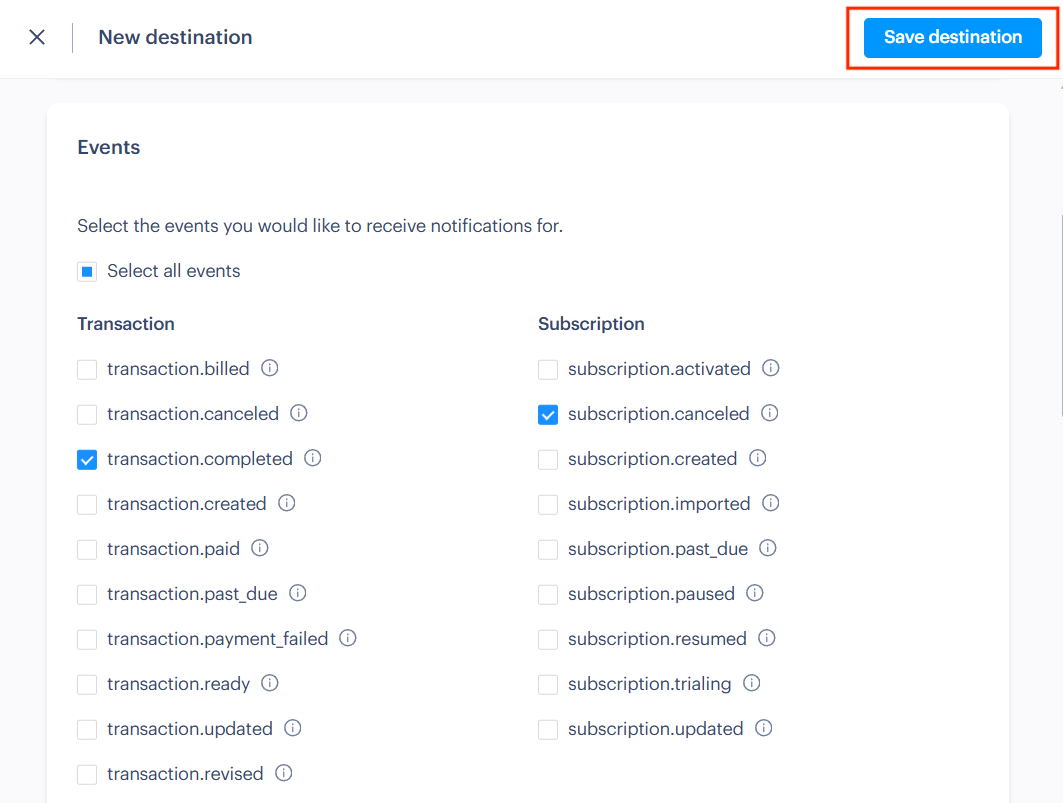
After choosing the events, click on the Save Destination button.
Once done, you will be able to see the newly created webhook in the Notifications section. Click the three dots and select the Edit Destination option.
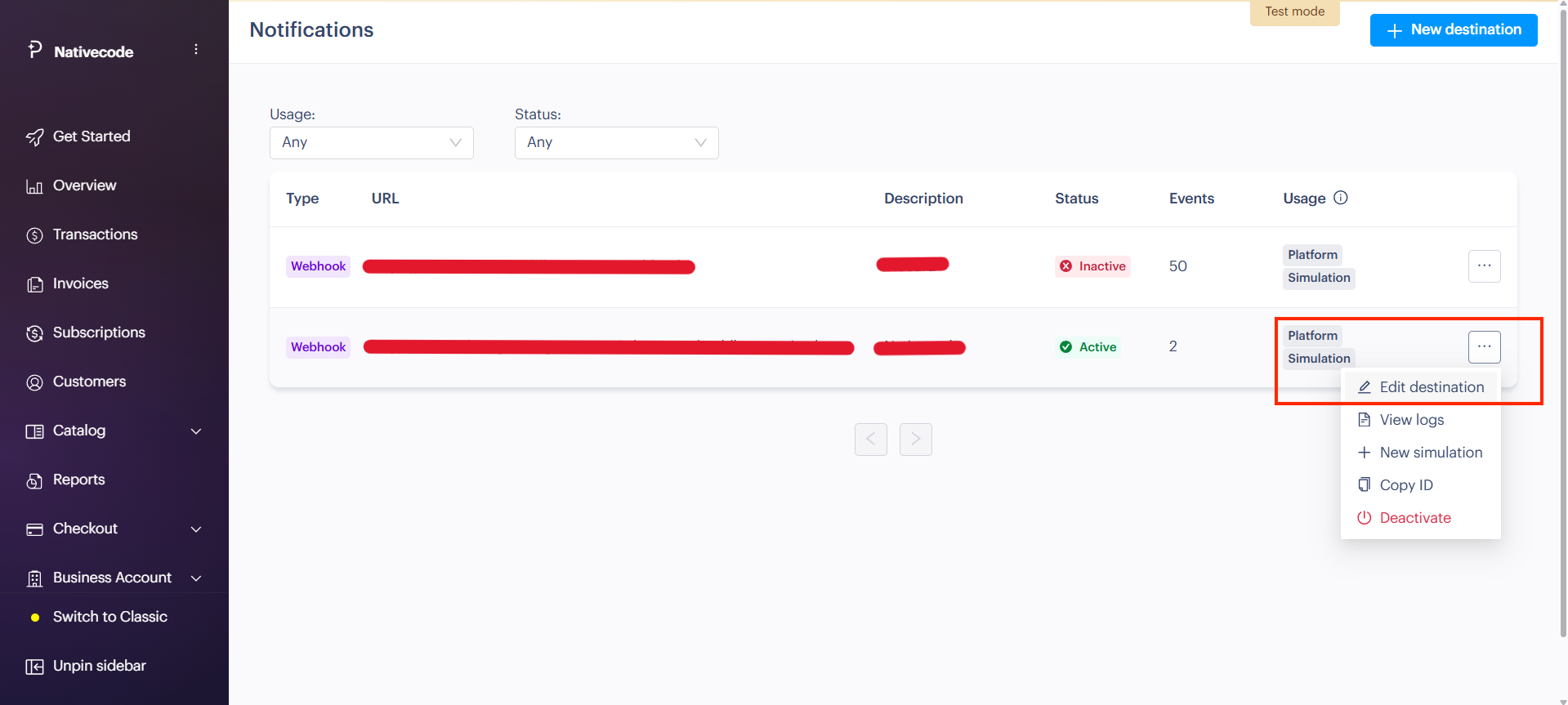
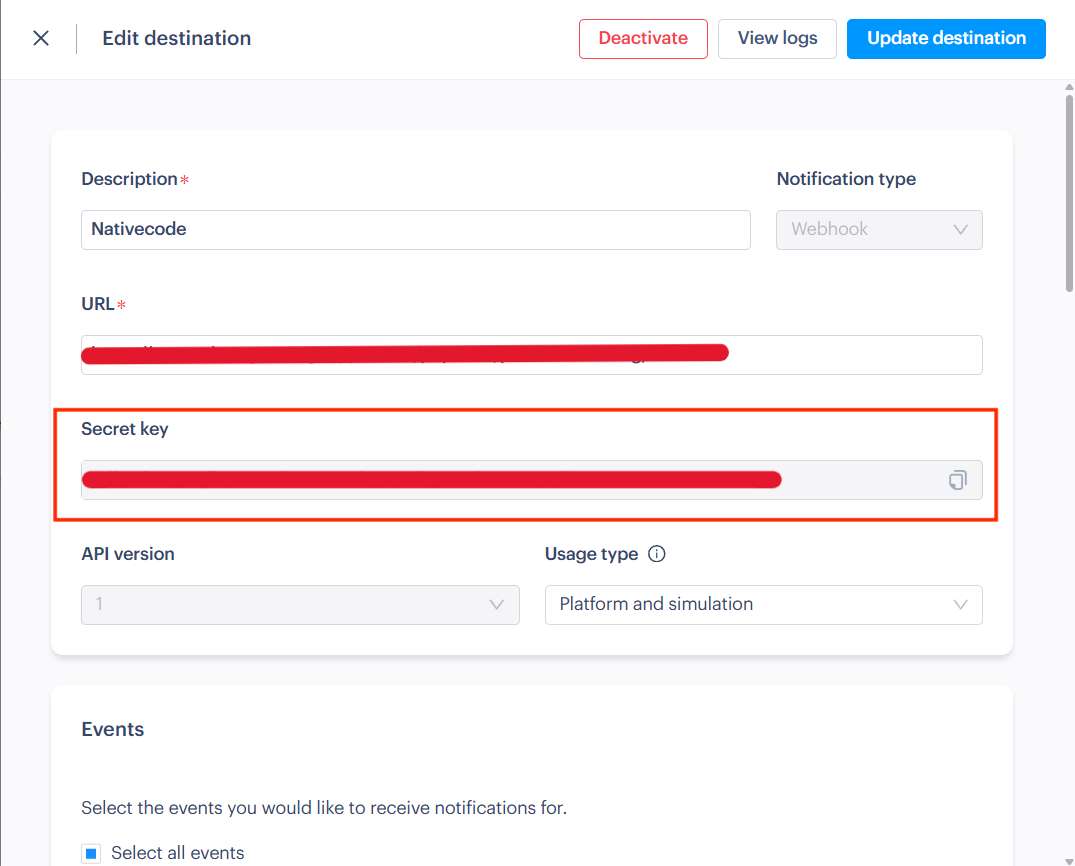
After clicking the Edit Destination option, you will be able to see the webhook details. Where you can find the Webhook Secret.
4. How to create Products
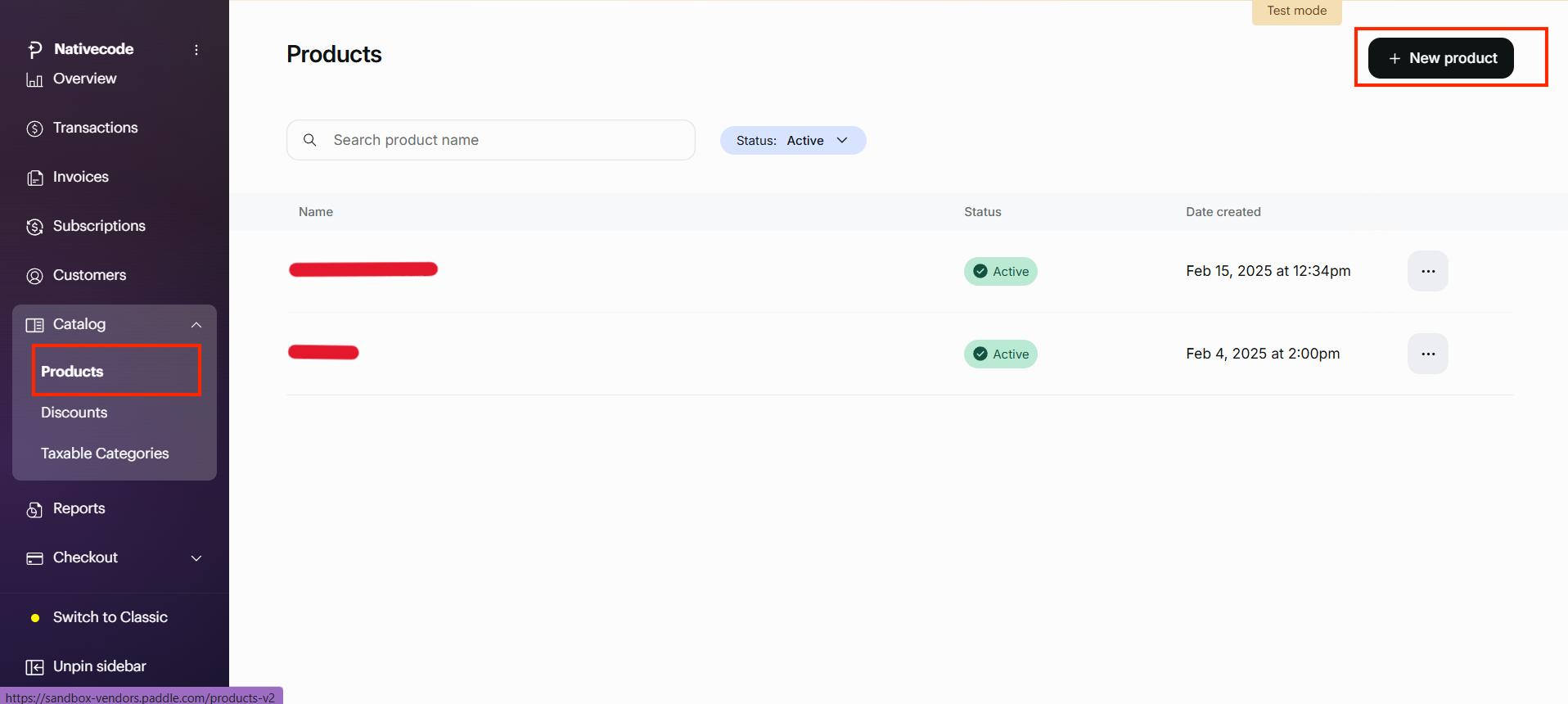
In the sidebar, navigate to Catelog->Products and click on the New Product button.
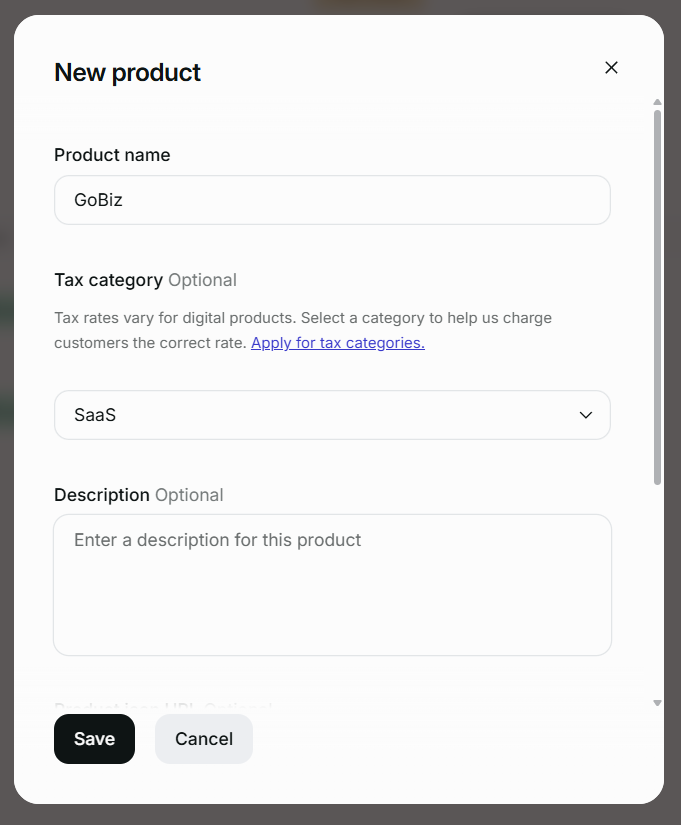
Once clicking on the New Product button, you will be able to see a pop-up window where you need to fill in the required details, as shown in the screenshot below. and click on the Save button.
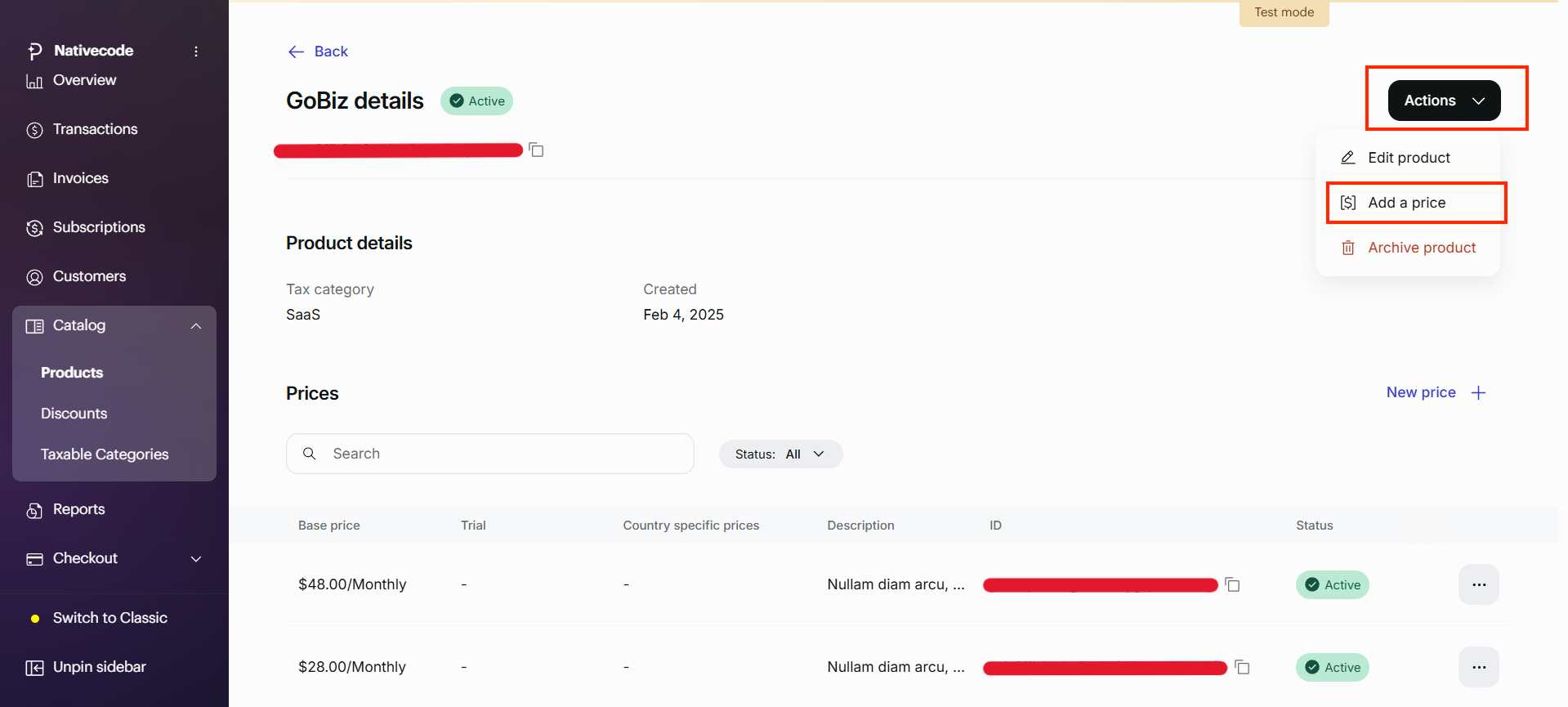
After entering the product details, you can able to see the Action dropdown on the top right corner. in the dropdown choose the Add Price option.
After clicking on the Add Price option, you will be able to see a pop-up window where you need to fill in the required details, as shown in the screenshot below.
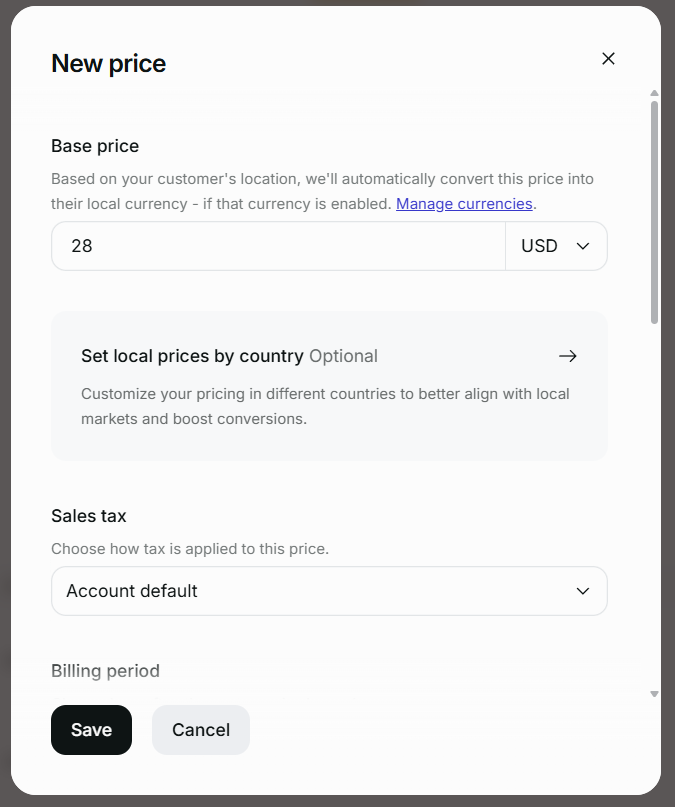
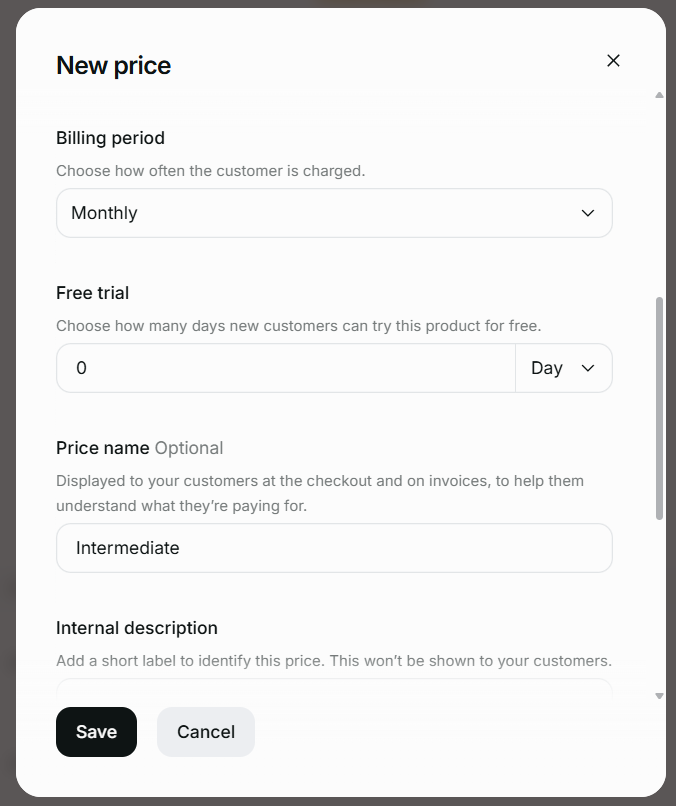
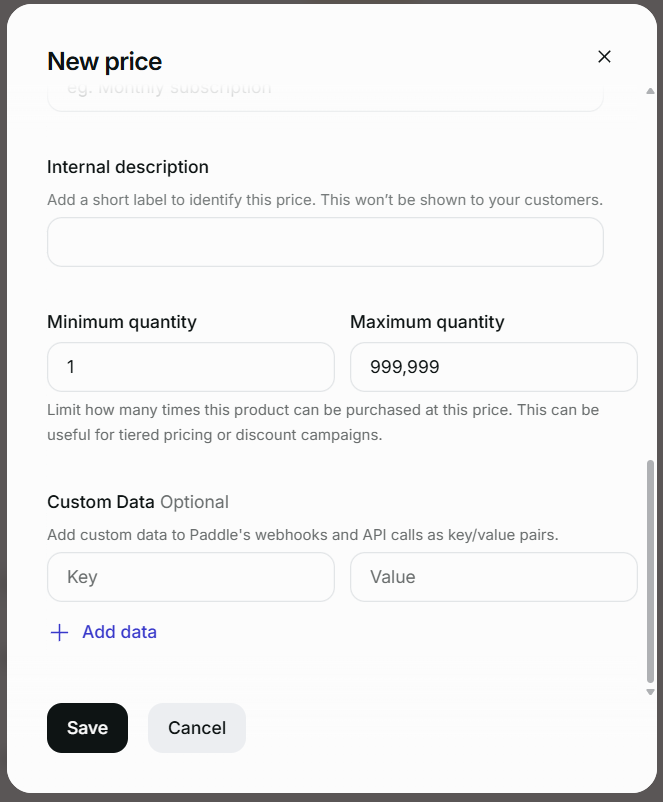
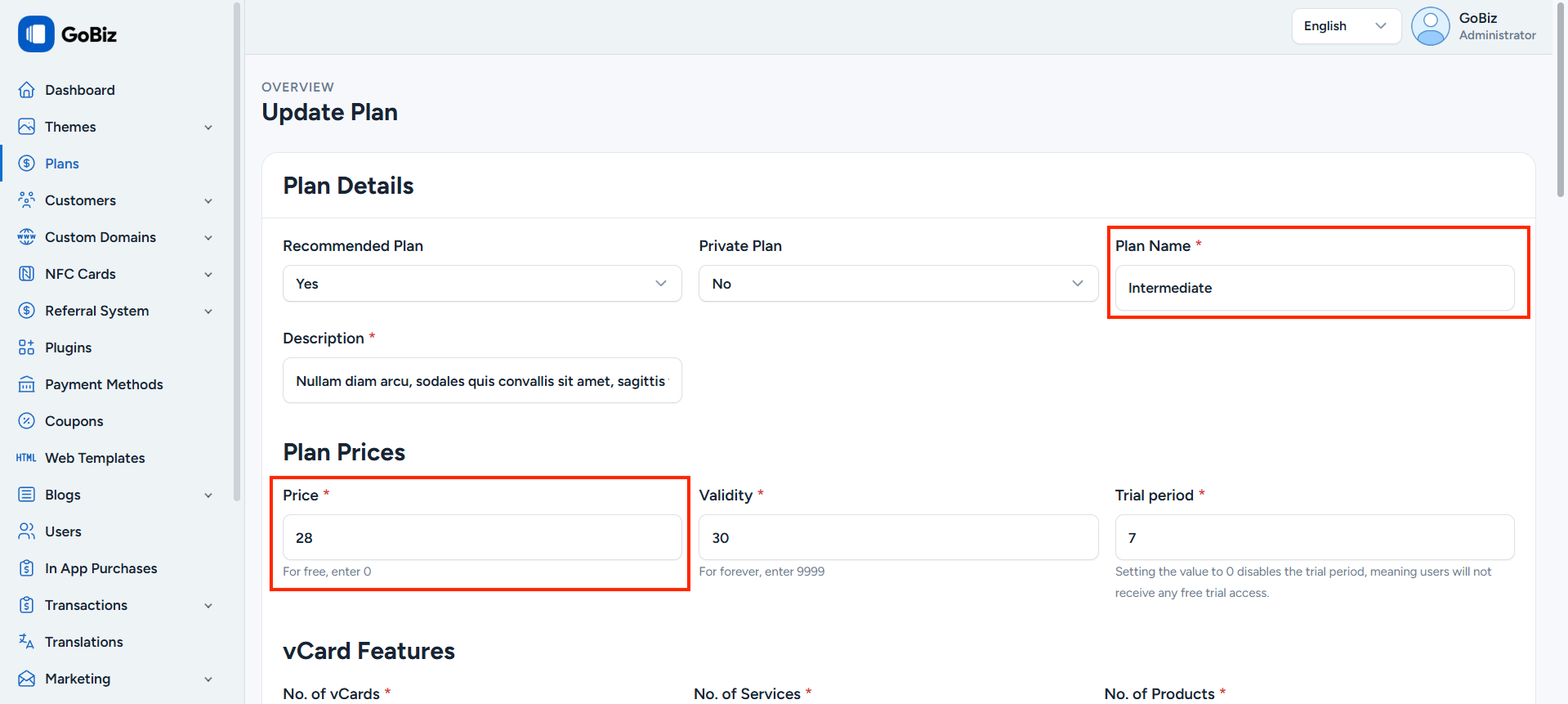
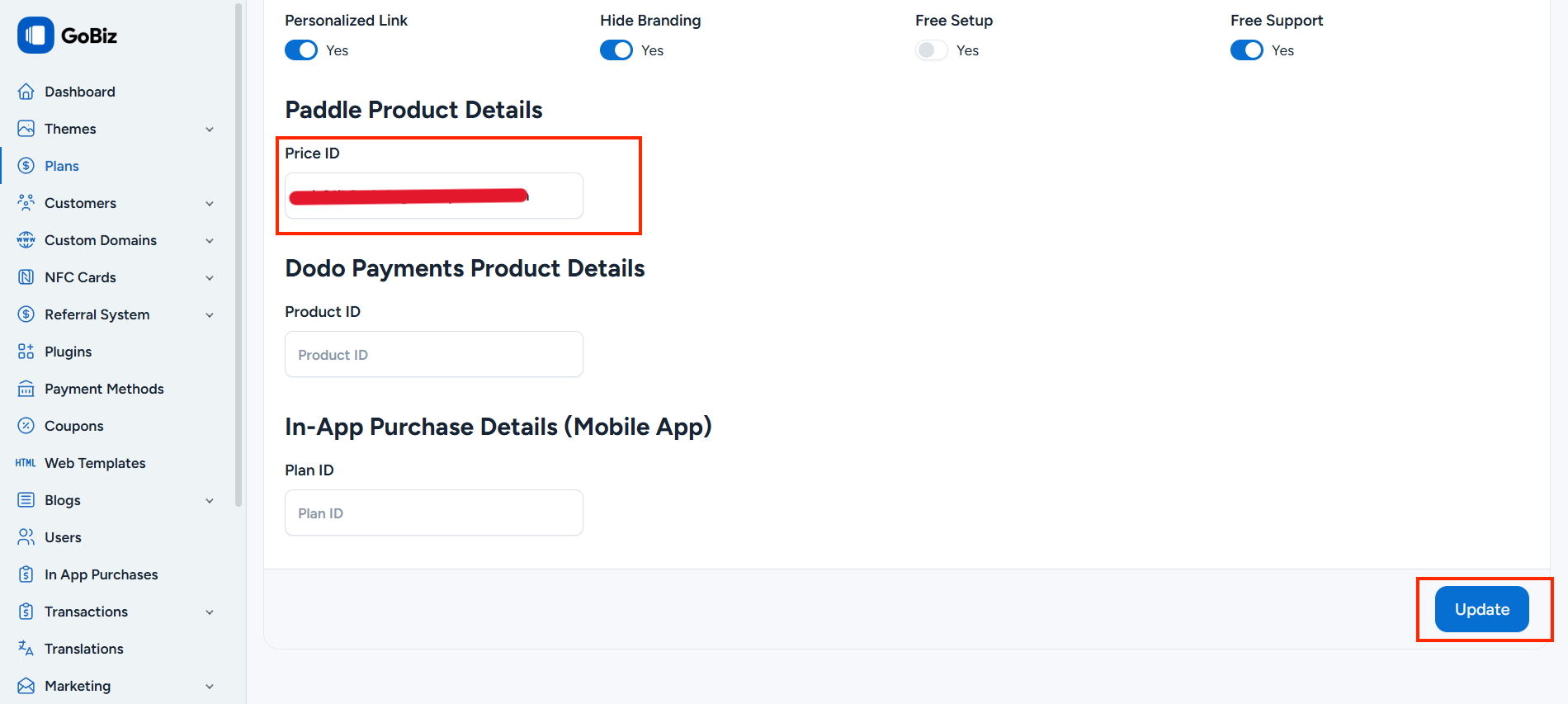
You can able to find the required details in your GoBiz Dashboard Plans section to fill the required details in paddle pricing section as shown in the screenshot below.
After filled the all the details, you can able to see the price ID like shown in the screenshot below. copy the price id from the prices section.
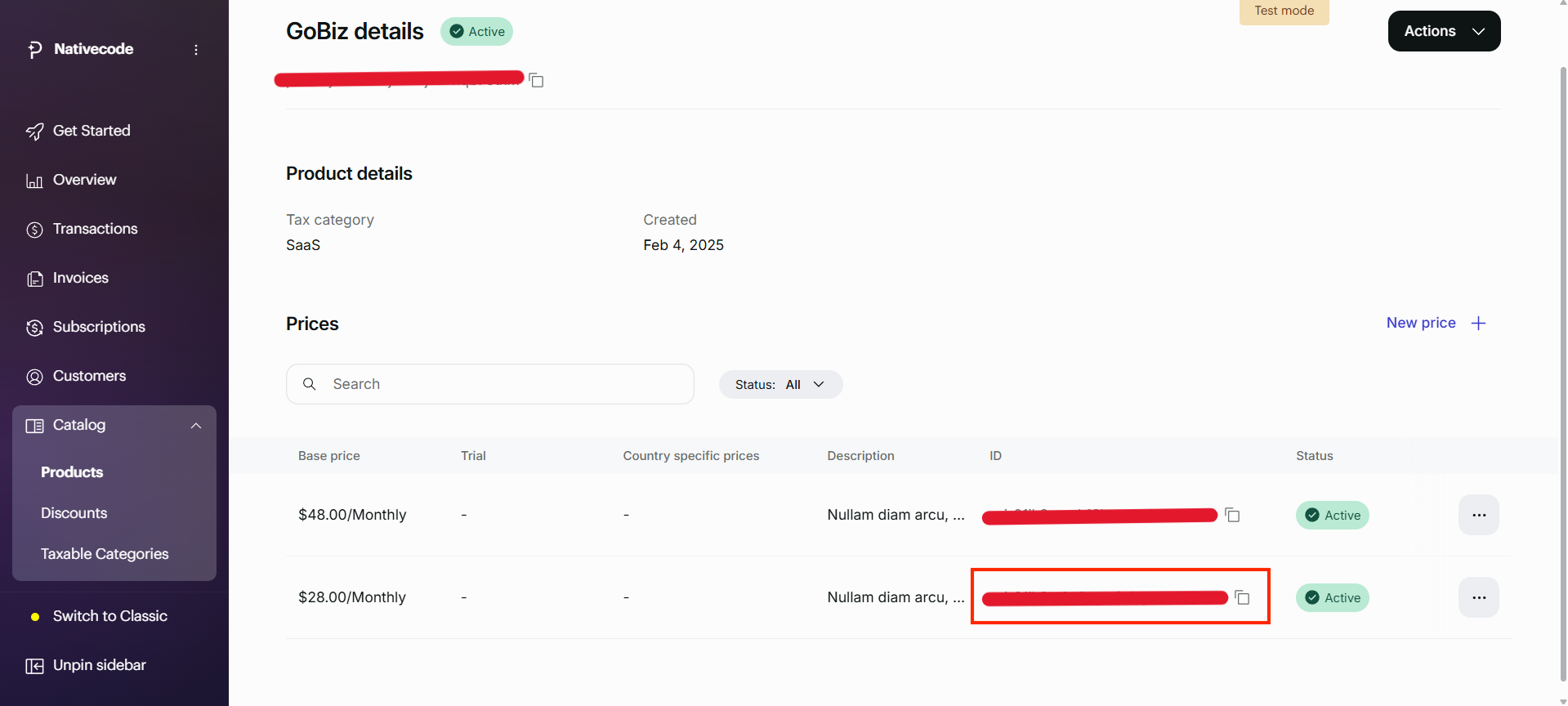
Paste the Price ID copied from Paddle into the GoBiz Dashboard → Plans section, as shown in the screenshot below, and click the Update button.
5. Update Paddle Recurring Configuration
Inside the Paddle Recurring Configuration page,Paste the Paddle Seller ID, Paddle API Key, Paddle Client Side Token. Then click on the Update button.