Appearance
Configure AI Business Card Builder with OpenAI API Key
The AI Business Card Builder allows users to quickly create professional digital business cards using AI.
Step 1: Open the OpenAI Dashboard
Go to the OpenAI API Dashboard:
https://platform.openai.com/account/api-keysClick your Profile icon in the top-right corner.

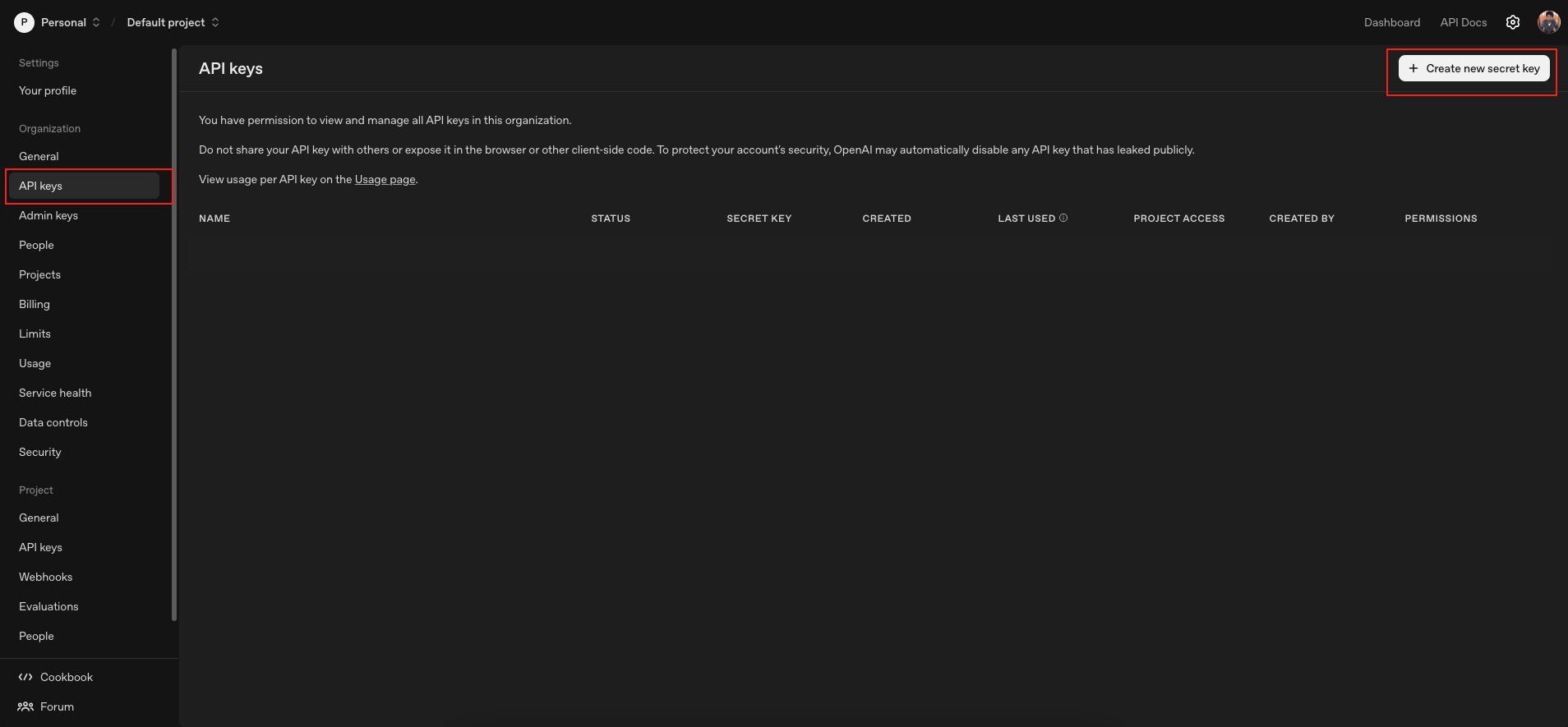
Step 2: Navigate to API Keys
- From the left sidebar, click API Keys.
- Click Create new secret key.
Step 3: Create a Secret Key
- Enter a Name for your key.
- Select the Project (for example: Default Project).
- Set Permissions if needed.
- Click Create Secret Key.
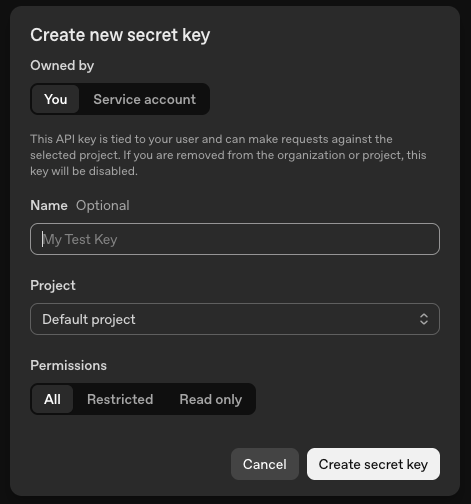
Important: Copy the API key and store it securely. You will not be able to view it again.
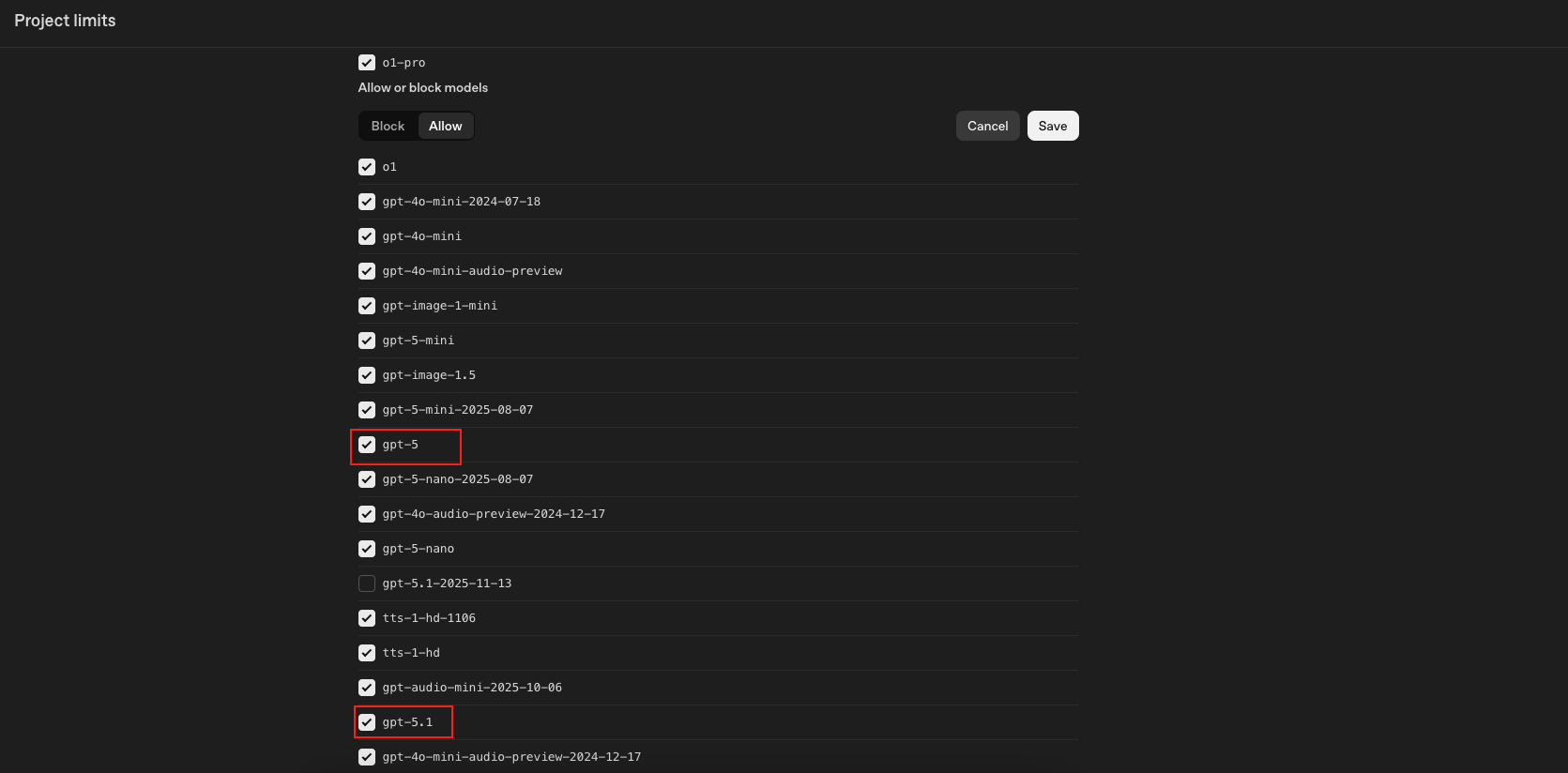
Step 4: Configure Model Limits
- Go to Limits in the sidebar.
- Click Edit under Allowed Models.
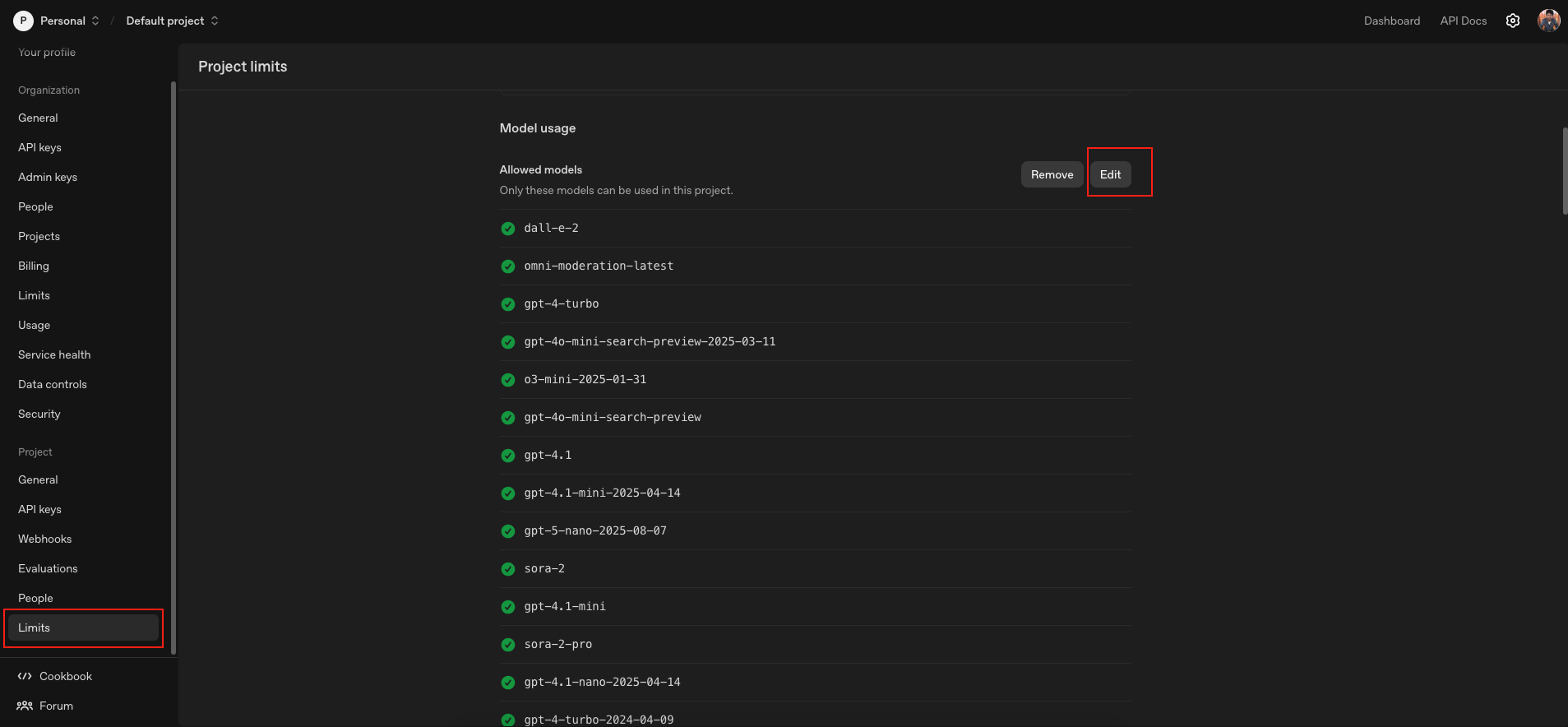
- Enable the following models:
- GPT-5.2
- GPT-5.1
- GPT-5
- GPT-4.1
- GPT-4o
- GPT-4o Mini
- Click Save.
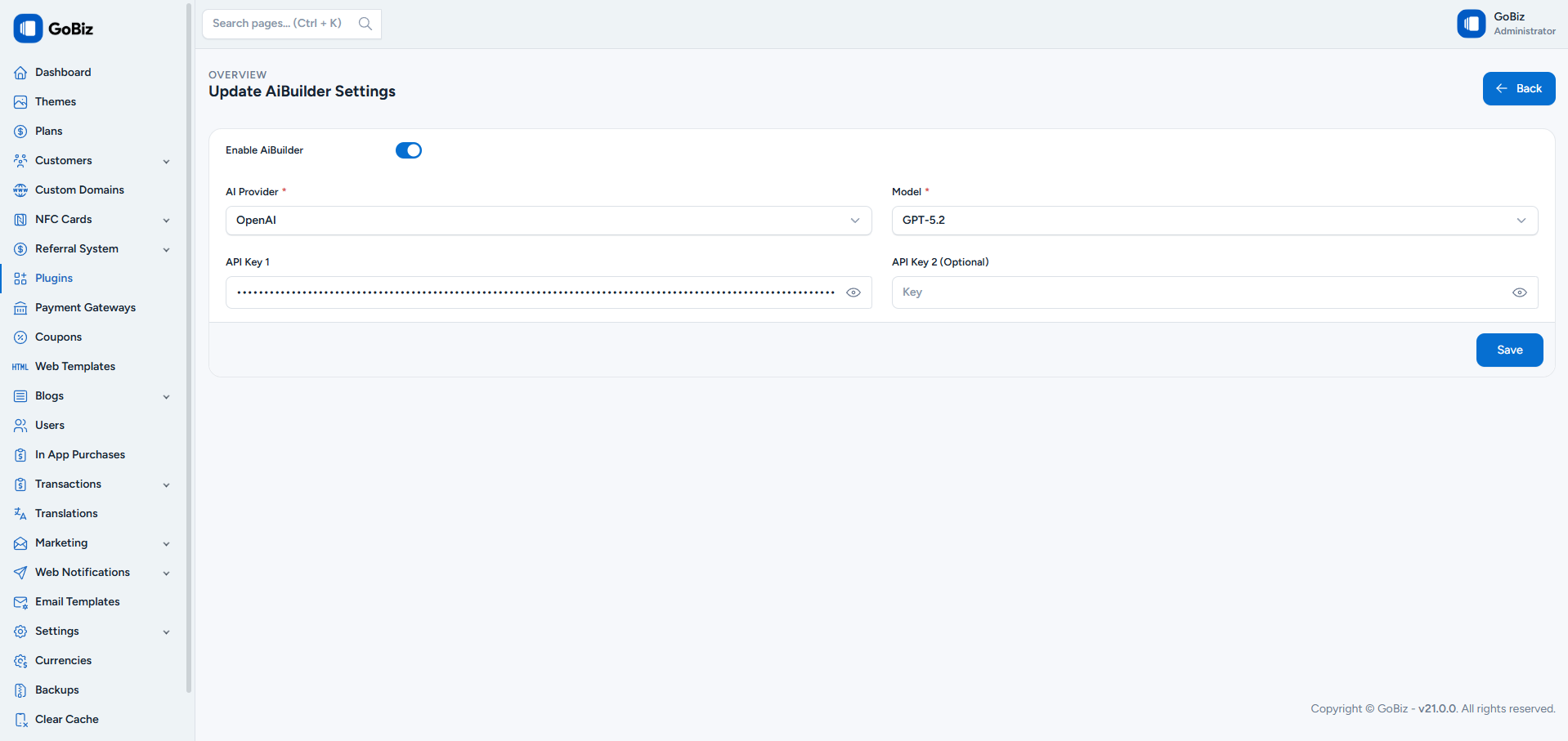
Step 5: Add API Key to AI Business Card Builder Plugin
- Open your AI Business Card Builder.
- Enable AI Builder.
- Select OpenAI as the AI Provider.
- Choose the required Model.
- Paste the API Key you created.
- Click Save.