
Appearance
GoBiz Zapier Configuration
Connect your GoBiz platform with third-party applications (Google Sheets, Mailchimp, CRM tools, etc.) without any coding knowledge.
How It Works
GoBiz Platform Event → Zapier Webhook → Your Target Application
Example: A new user registers → Zapier catches the data → Adds the contact to Google Sheets.
Whenever an event happens on your platform, such as a user registration or subscription purchase, GoBiz immediately sends the event details to Zapier in real time.
Requirements Before Starting
- A free or paid account at zapier.com.
- Super Admin login access to your GoBiz platform.
Step 1: Create a Catch Hook in Zapier
Log in to your Zapier account at zapier.com.
Click the Create button and select Zaps.
Under the Trigger block:
- Search for Webhooks by Zapier.
- Under Event, select Catch Hook.
- Click Continue.
Leave the Pick off a Child Key field blank and click Continue.
Zapier will display a generated Webhook URL.
Example:
https://hooks.zapier.com/hooks/catch/123456/abcdef/Click Copy to copy the URL to your clipboard.
Keep this Zapier tab open.
Step 2: Configure the URL in GoBiz Admin Panel
Open your browser and log in to your GoBiz Admin Panel.
Navigate to:
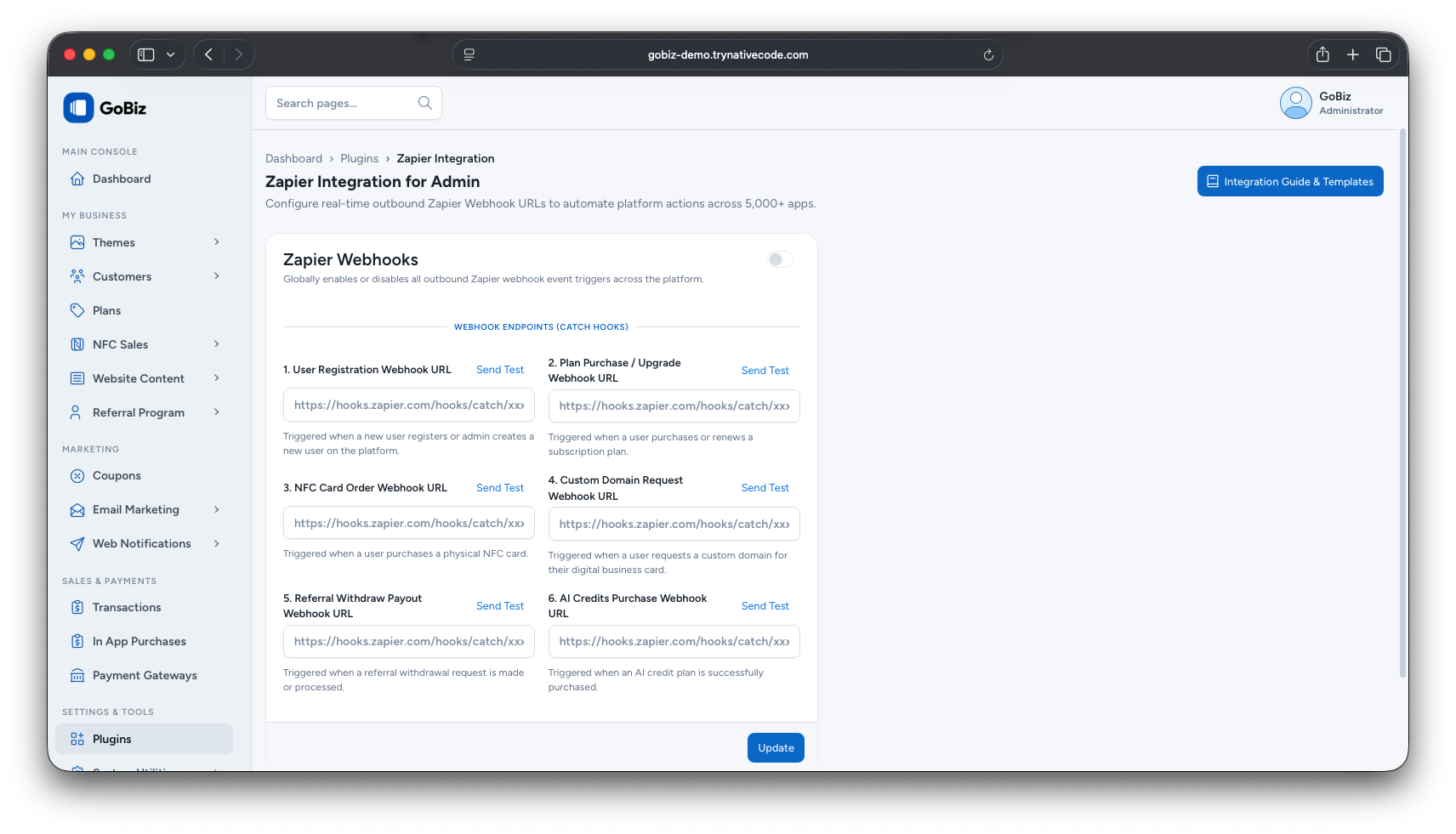
Plugins → Zapier Integration
Enable the master toggle.
Make sure the Zapier Webhooks toggle at the top right is turned ON.
Paste the copied Zapier Webhook URL into the appropriate field based on the event you want to automate.
For example:
1. User Registration Webhook URL
Click the Update button at the bottom of the page to save your settings.
Step 3: Test the Webhook Connection
- On the same Plugins → Zapier Integration page, click the Send Test link located directly above the URL field you configured.
- A success message will appear indicating that the test payload has been dispatched.
- Switch back to your Zapier browser tab.
- Click the Test trigger button.
- Zapier will confirm receipt and display the test data sent from GoBiz, such as:
- Name
- Phone
- Plan details
- Click Continue with selected record.
Step 4: Configure the Desired Action in Zapier
- Under the Action block in Zapier, search for and select the destination application you want to use.
Google Sheets
Select Create Spreadsheet Row and map the received fields:
- Name
- Phone
- Amount
Email Marketing
Select Mailchimp or your preferred email marketing tool to automatically save new leads.
- Click Publish Zap.
- Make sure the Zap status is set to ON.
Overview of Available Events and Data Fields
User Registration Webhook URL
Trigger condition: Dispatched when a new user registers on the website or when an admin creates a user manually.
Data sent:
- User ID
- Name
- Mobile Number
- Registration Date
- Billing Country
Plan Purchase / Upgrade Webhook URL
Trigger condition: Dispatched when a user purchases, upgrades, or renews a subscription plan.
Data sent:
- User Name
- Plan Name
- Amount
- Currency
- Payment Gateway
- Invoice Number
- Payment Status
NFC Card Order Webhook URL
Trigger condition: Dispatched when a user places an order for a physical NFC card.
Data sent:
- Order ID
- User Name
- Delivery Address
- Total Amount
- Order Status
Custom Domain Request Webhook URL
Trigger condition: Dispatched when a card owner submits a custom domain request for their digital business card.
Data sent:
- User Name
- Card ID
- Requested Domain Name
- Request Date
Referral Withdraw Payout Webhook URL
Trigger condition: Dispatched when an affiliate partner submits a withdrawal request for their commission balance.
Data sent:
- User Name
- Requested Amount
- Bank/Payout Details
- Request Status
AI Credits Purchase Webhook URL
Trigger condition: Dispatched when a user buys an AI content generation credit pack.
Data sent:
- User Name
- Credit Pack Name
- Paid Amount
- Currency
- Payment Method
Frequently Asked Questions and Troubleshooting
1: Zapier displays "We couldn't find a request" when testing. What should I check?
- Confirm that you clicked the Update button in the GoBiz Admin Panel after pasting the URL.
- Click the Send Test link again in GoBiz.
- Return to Zapier and click Find new records or Test trigger immediately.
2: Should I use the same Webhook URL for all 6 events?
- It is strongly recommended to create separate Zaps in Zapier for each event.
- Using separate Webhook URLs ensures that each event can perform distinct actions without conflicts, such as routing financial orders to an accounting spreadsheet and domain requests to IT support.
3: Real platform events are not arriving in Zapier.
- Check whether the master Zapier Webhooks toggle in GoBiz is switched ON.
- Ensure that the specific Zap inside your Zapier account is published and switched ON.