
Appearance
Coinbase Plugin Configuration
Follow these steps to configure the Coinbase plugin (One Time Payment) and enable Coinbase integration.
1. How to Configure Coinbase Plugin?
After installing the Coinbase Plugin, you will be able to see it in the Plugins section. Click the Settings icon to access its configuration options.
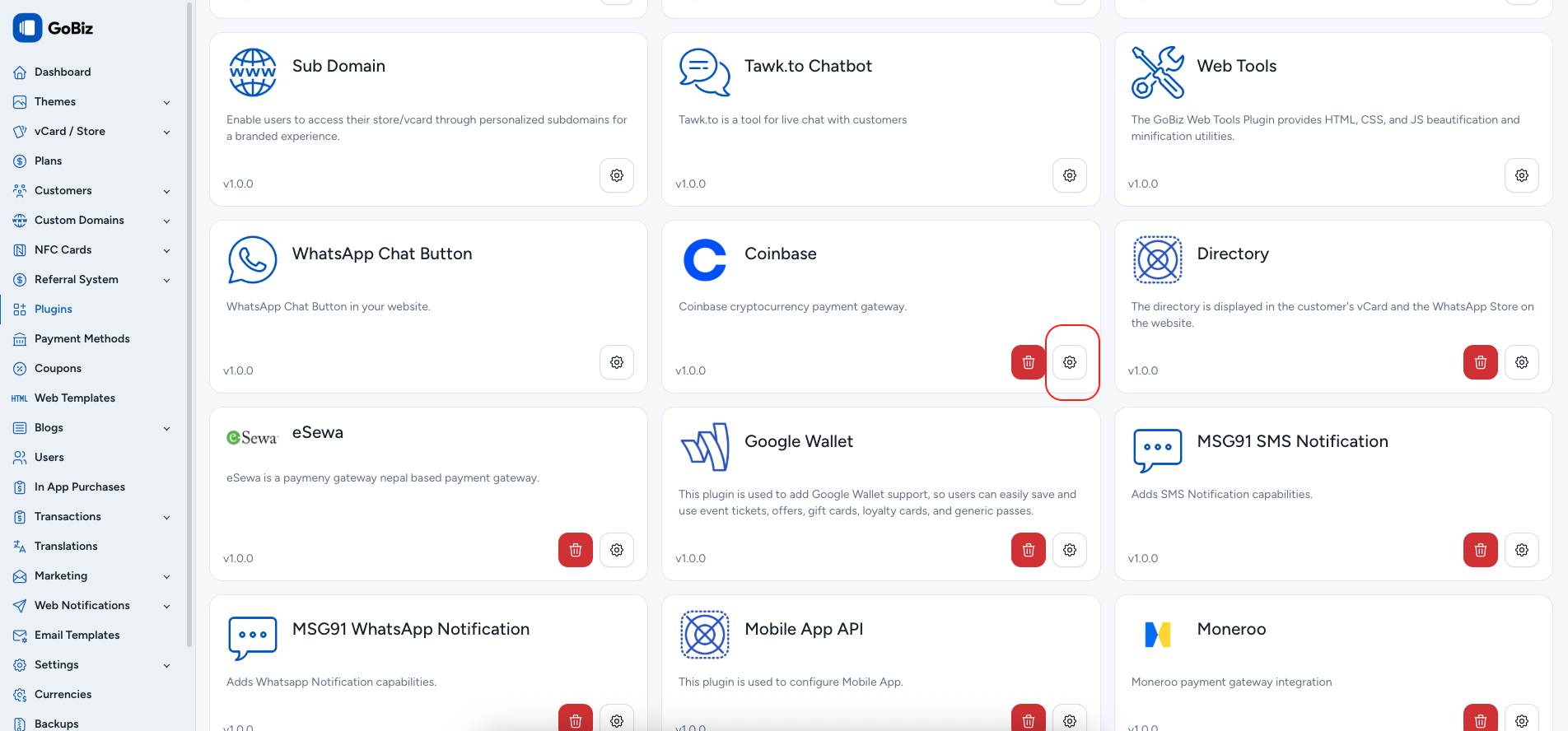
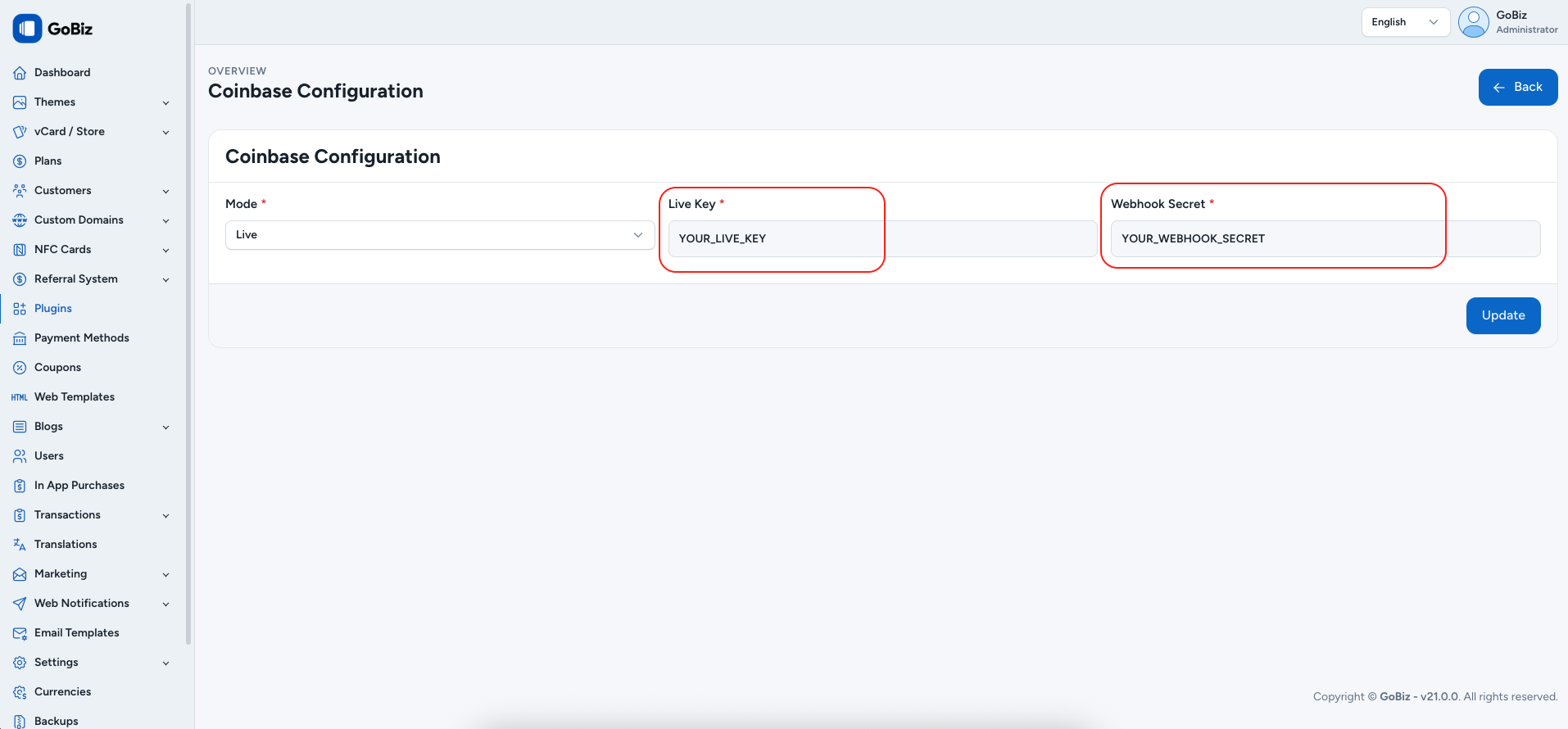
After choosing the configuration option, you will be redirected to the Coinbase Configuration page, where you will be asked to enter your Coinbase Live Keyand Webhook Secret.
2. How can i get my Live Key and Webhook Secret?
Coinbase -> Click this link to go to the Coinbase login page. If you don’t have an account, please create one.
Live Key
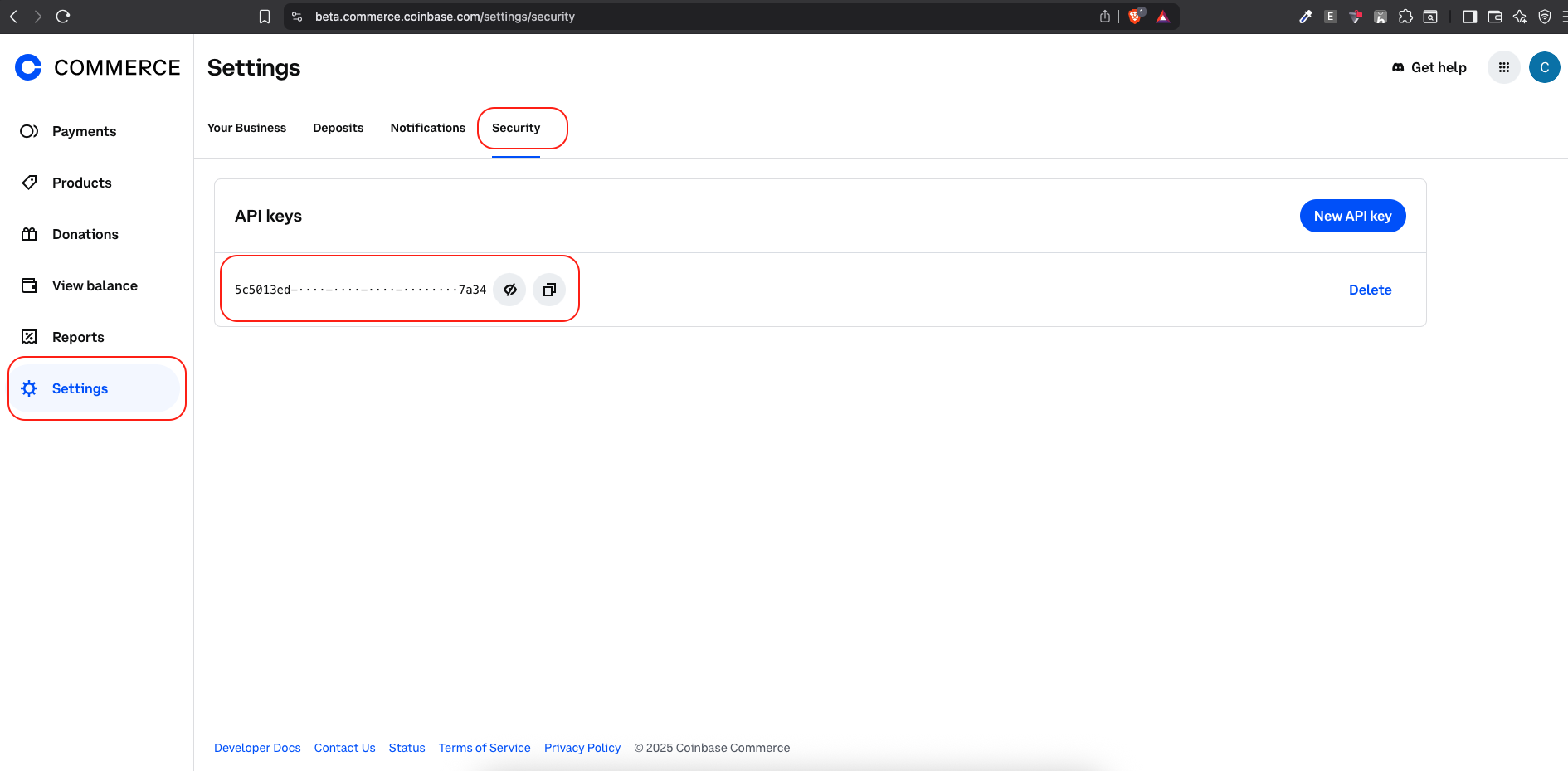
After successful login, you will be redirected to the Coinbase dashboard. Click on the Settings option from the sidebar. Navigate to Security. Where you can find the API Keys.
Webhook Secret
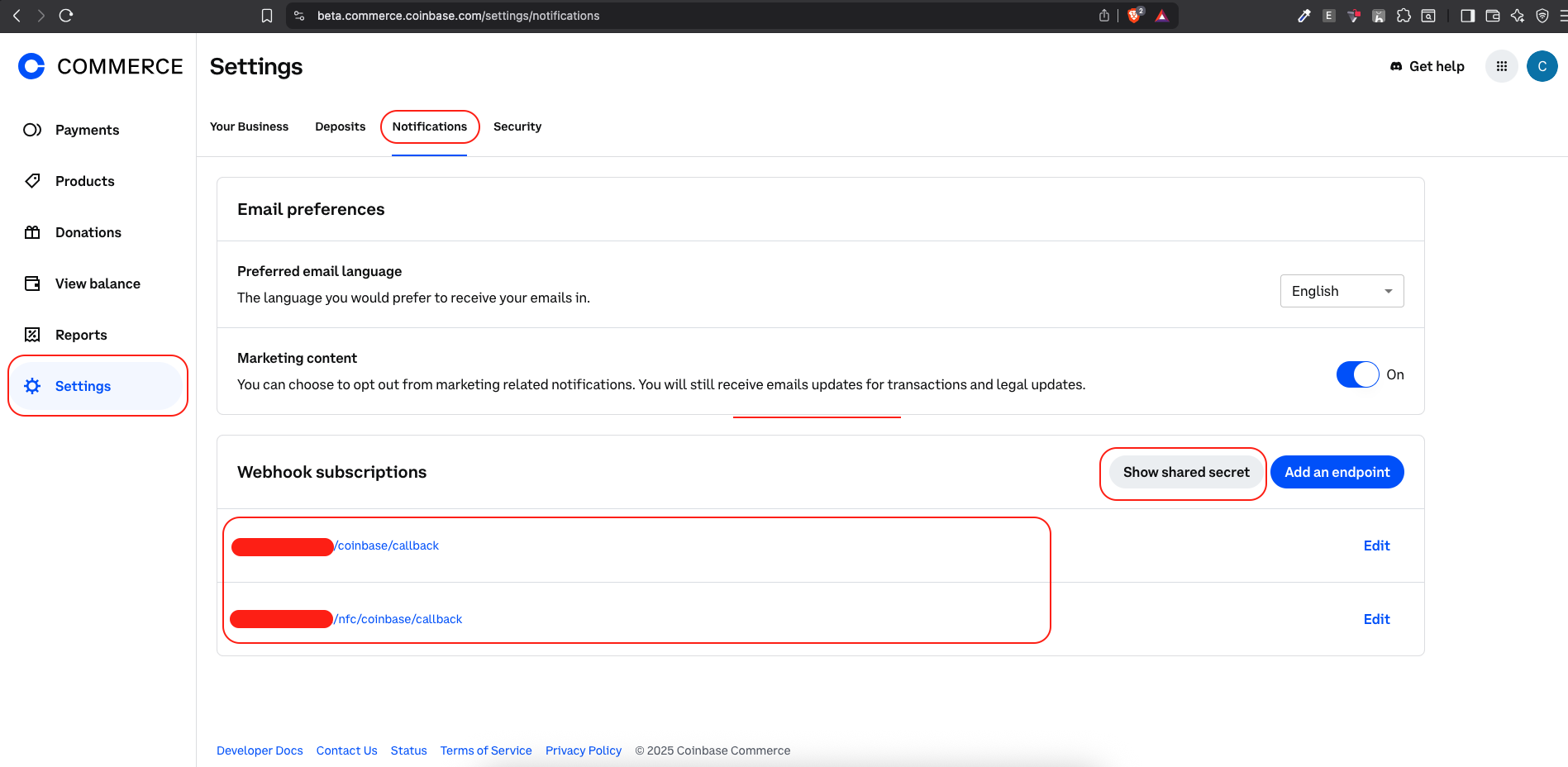
Navigate to Settings -> Notifications. You can able to see Show shared secret button, Click on it.
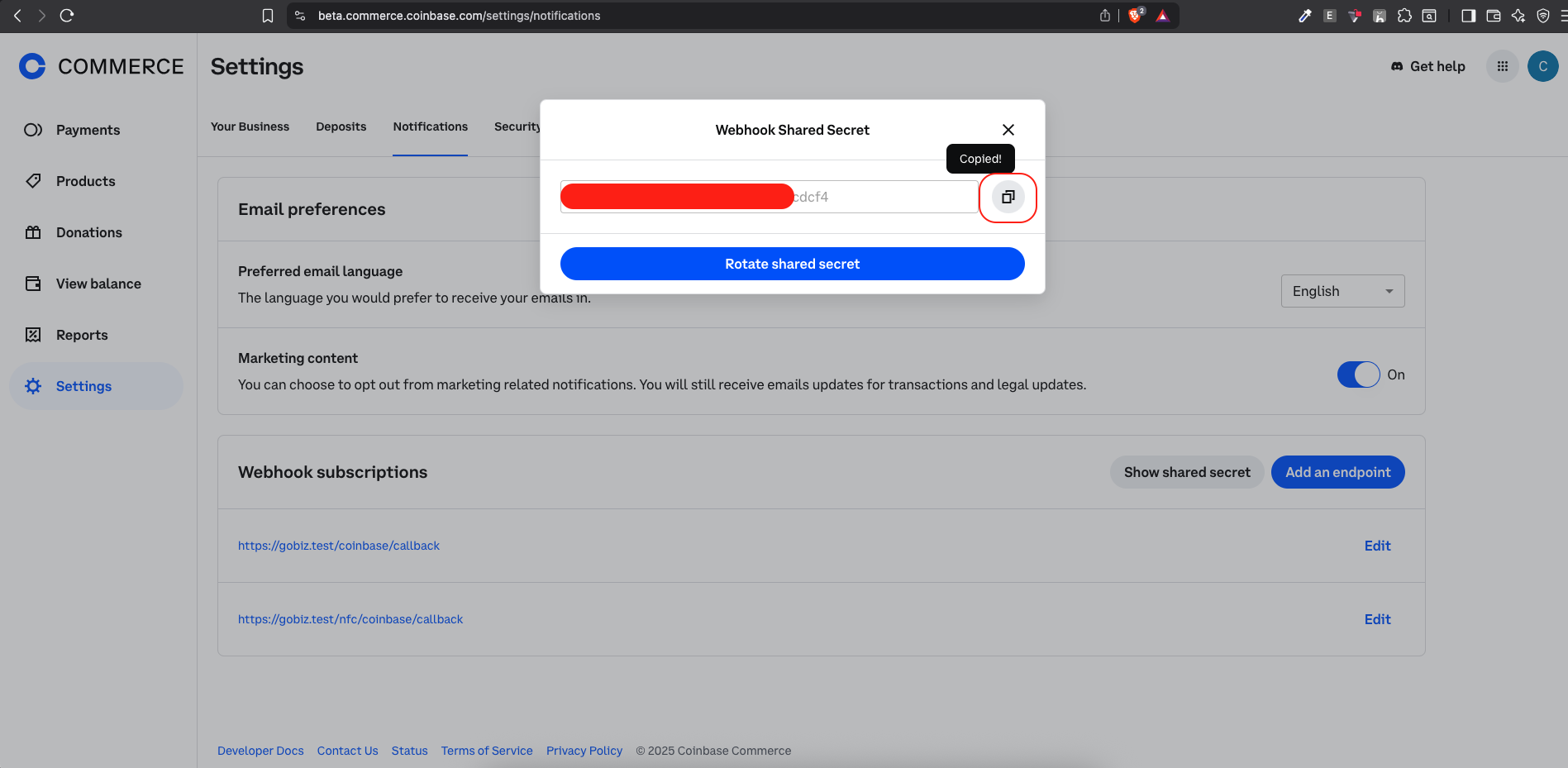
After clicking on the button, You will be able to see Popup window where you can copy the Webhook Secret.
3. Update Coinbase Configuration
Inside the Coinbase Configuration page, Now paste the Live Key and Webhook Secret. Then click on the Update button.
4. Update Webhook Subscription
In coinbase dashboard, Navigate to Settings -> Notifications. where you can find the Webhook Subscription section. In the section, You can able to see Add an endpoint after the Show Shared Secret button. Click on it, after clicking that now you can able to see an popup where you need to add your domain name before the /coinbase/callback and /nfc/coinbase/callback.