Appearance
How to Configure Paystack?
Last update: 12 Aug 2026
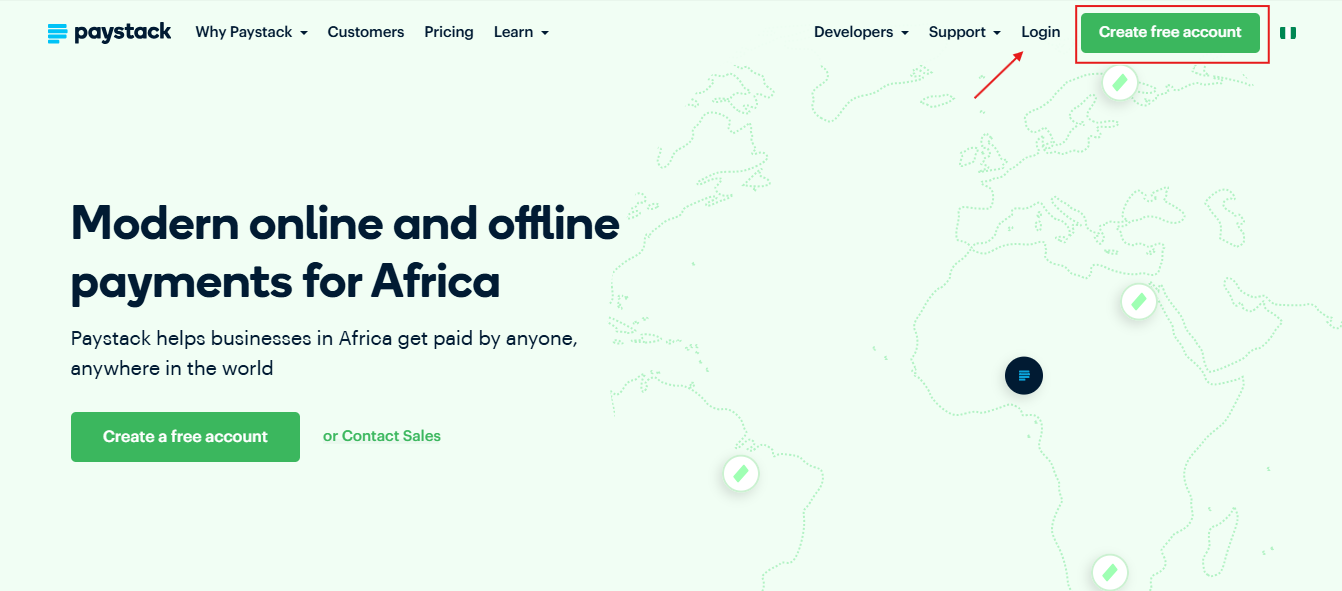
1. Sign In to Paystack
Go to Paystack.
If you already have a Paystack account, sign in. Otherwise, create a new account.
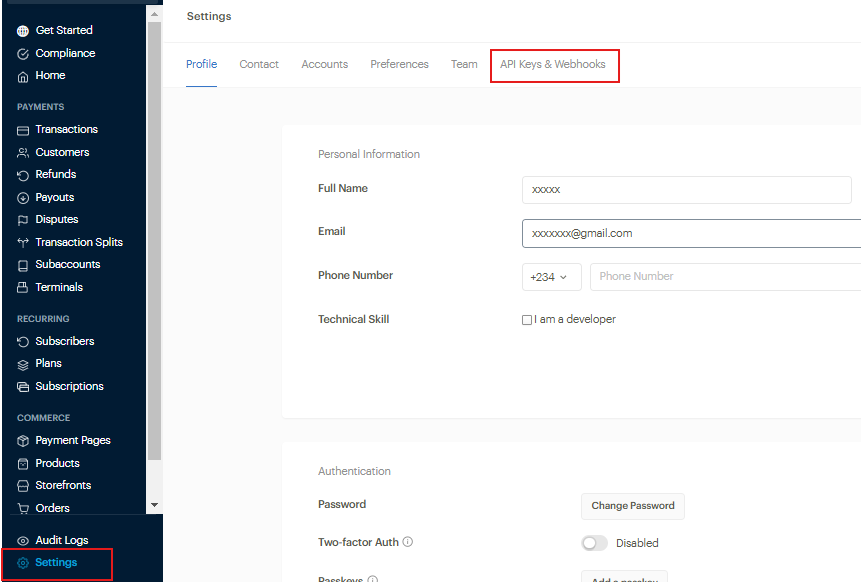
2. Open the API Keys & Webhooks Page
Log in to your Paystack Dashboard, navigate to Settings, and open the API Keys & Webhooks tab.
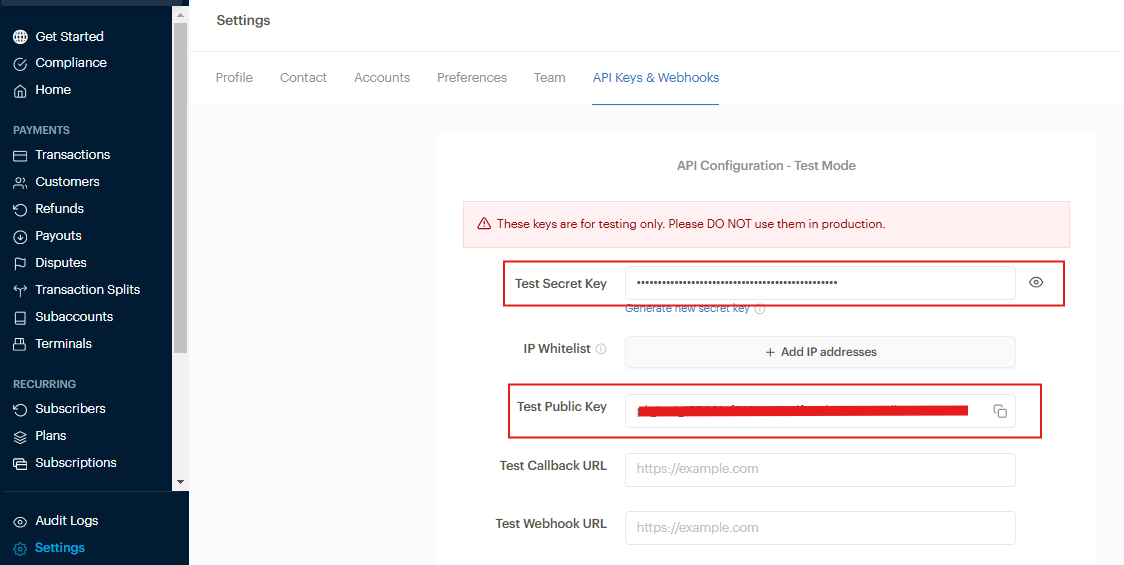
3. Get the Public Key and Secret Key
Copy your Public Key and Secret Key from the API Keys & Webhooks page.
Then, set the following URL as both the Callback URL and Webhook URL:
text
https://yourdomain.com/paystack-payment/callbackNote
Replace
yourdomain.comwith your actual domain name.
4. Configure Paystack in the Admin Panel
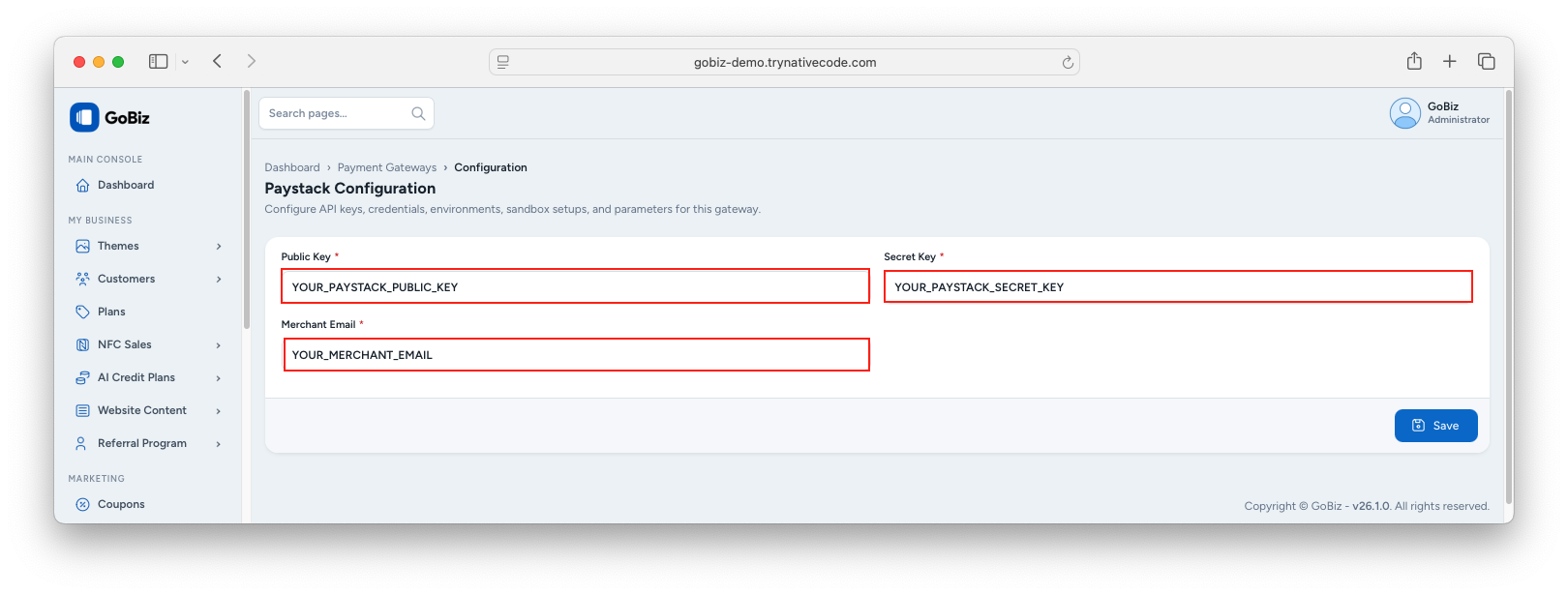
Log in to your GoBiz Admin Panel and navigate to:
Payment Gateways -> Paystack -> Configure
Enter the following details:
- Public Key
- Secret Key
- Merchant Email (your registered Paystack email address)
Click Update to save the configuration.