
Appearance
How to Configure Google reCAPTCHA?
Last update: 30 Jan 2026
1. Create a Google reCAPTCHA
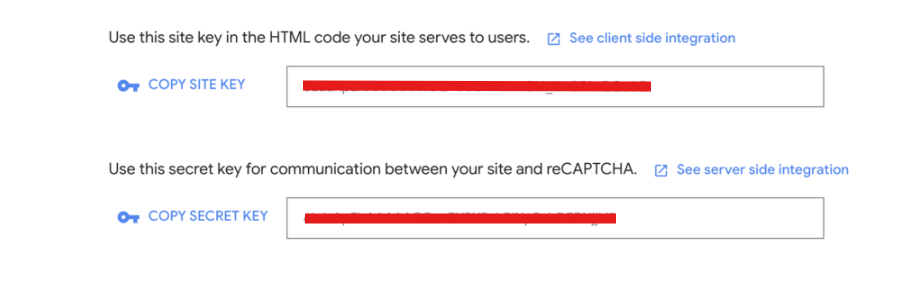
First, visit the Google reCAPTCHA Console and create a reCAPTCHA v2 Checkbox. After creating it, copy your Site Key and Secret Key.
2. Update the Site Key and Secret Key from the Admin Panel
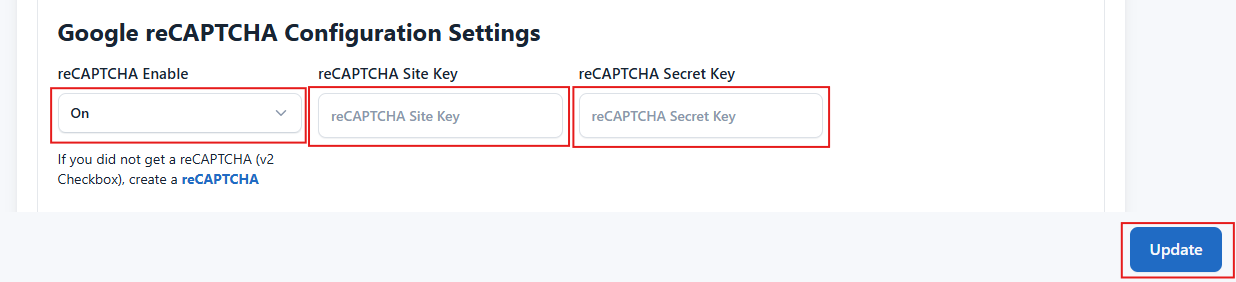
Navigate to:
Plugins -> Google reCAPTCHA
Enter your Site Key and Secret Key, enable Google reCAPTCHA, and then click Update Changes.
Disable Google reCAPTCHA
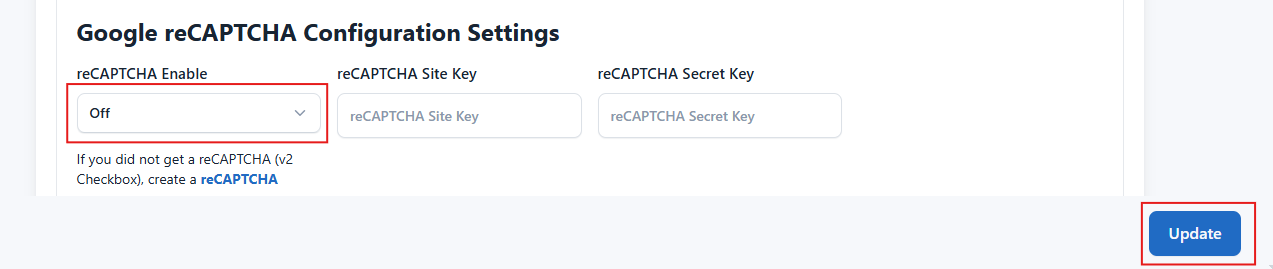
If you do not want to use Google reCAPTCHA, navigate to:
Plugins -> Google reCAPTCHA
Set Google reCAPTCHA to OFF and save the changes.
Configure Google reCAPTCHA for a Customer Domain
If your users are using custom domains, follow the guide below to configure Google reCAPTCHA for their domains.