Appearance
Cashfree Recurring Plugin Configuration
Configure Cashfree Recurring Plugin
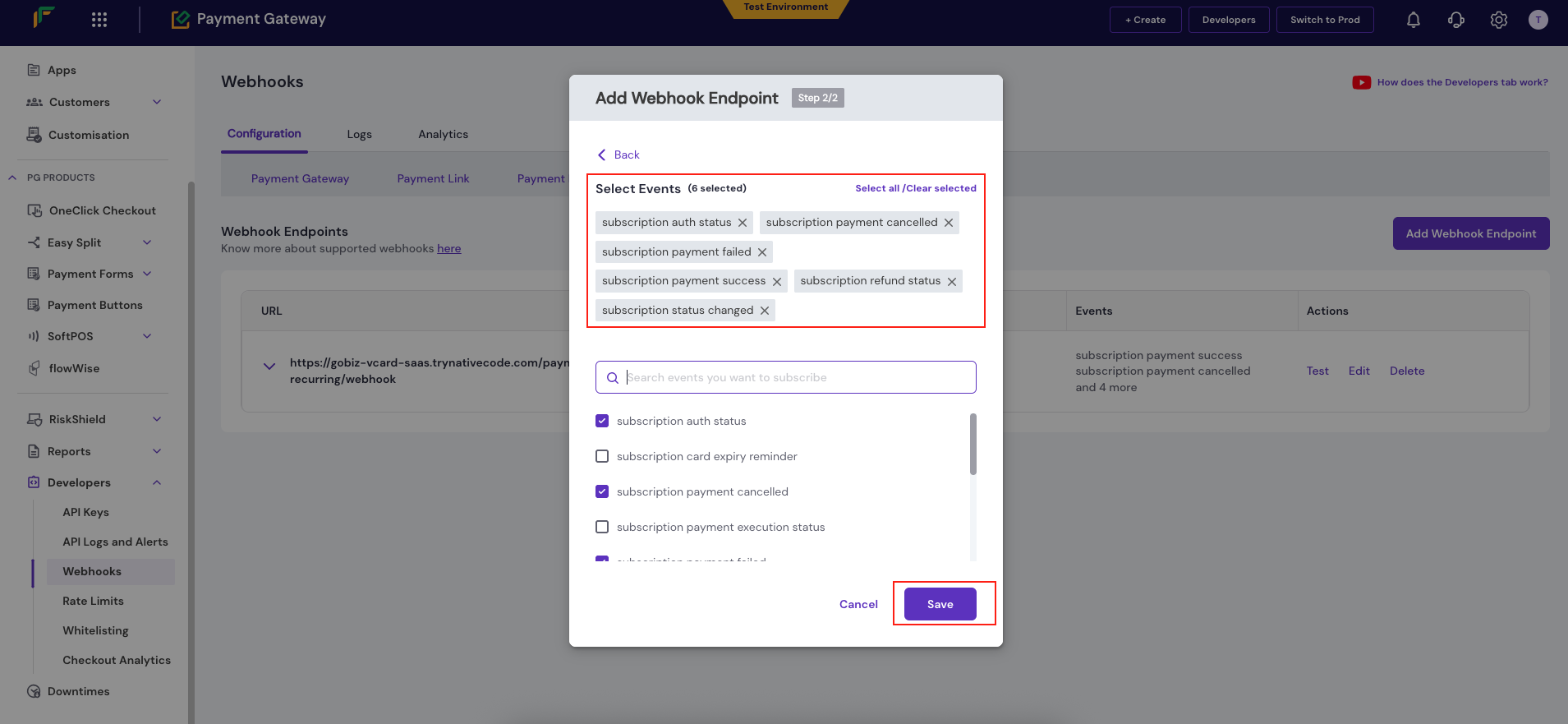
go to Plugins -> Cashfree Recurring -> Configure in the admin panel.
On the configuration page, select Yes in Enable Recurring Payment. Then choose the Cashfree mode: select Sandbox mode for testing or Live mode for production. After selecting the mode, enter your Cashfree App ID and Cashfree Secret Key in the respective fields. In the Webhook URL, replace 127.0.0.1 with your actual domain name. eg: https://yourdomain.com/payments/cashfree-recurring/webhook
How to Generate API keys
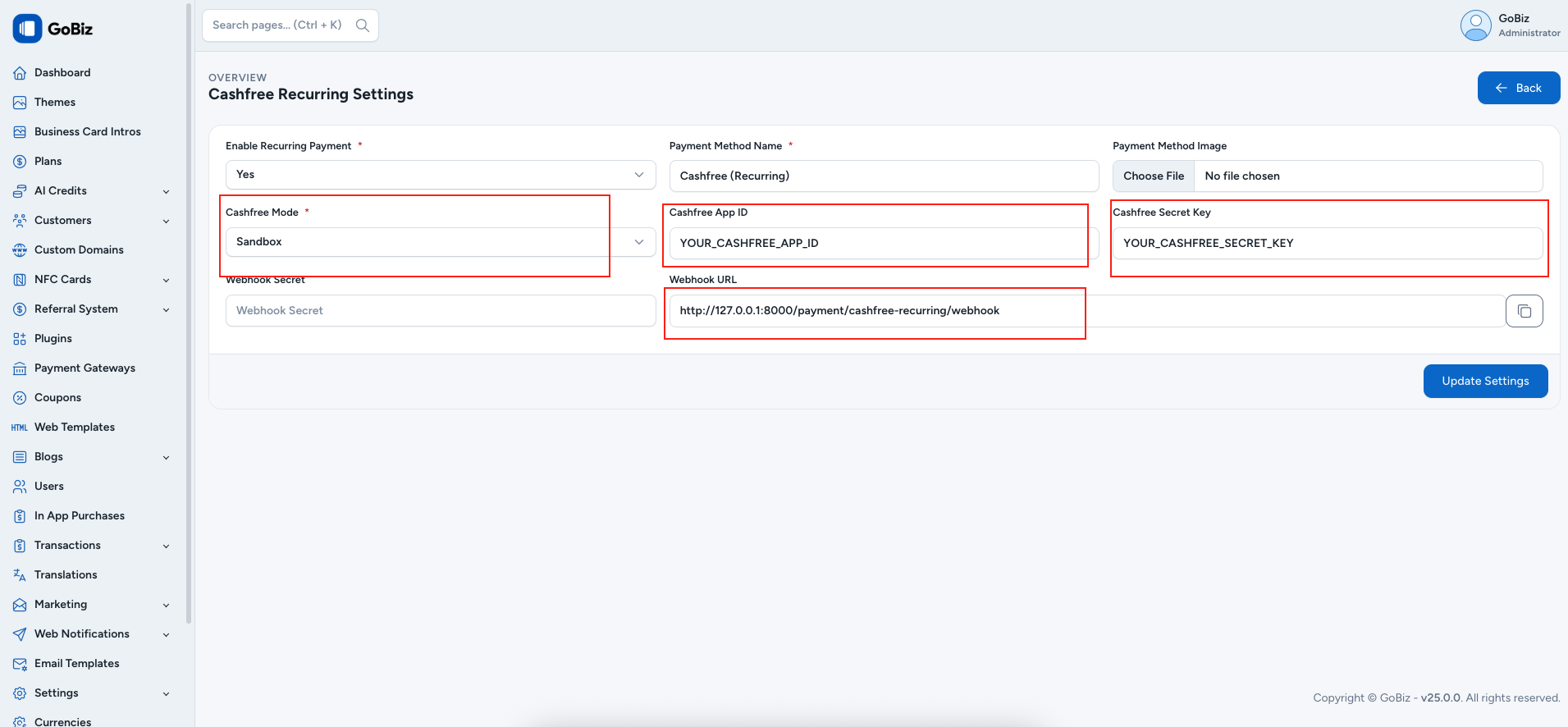
Follow the below steps to generate your API key for Payment Gateway.
Go to Payment Gateway Dashboard > and click on Developers icon in the right navigation or click Developers on the top right of the Merchant Dashboard.
Click API Keys under Payment Gateway. In the test environment, Cashfree auto-generates your API keys. In the production environment, click Generate API Keys and complete the 2FA authentication to generate the keys.
Once generated, the dashboard shows the API keys in a masked format. To view the full set of keys, click the icon and select View API Key. In the production environment, you would be required to do 2FA authentication to view the keys. You must securely store your api keys at all times.
How to Configure Webhook in Cashfree
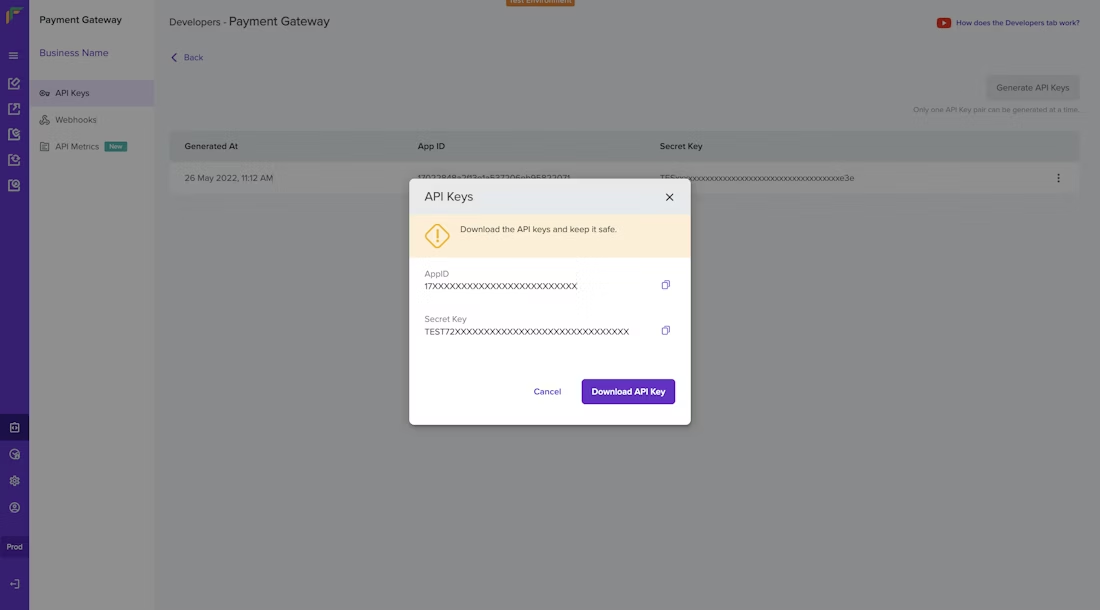
- Login to your Cashfree Dashboard.
- Navigate to:
Developers->Webhooks - Open the Subscriptions tab. Click Add
Webhook Endpoint - In the Endpoint URL field, paste your webhook URL from the admin panel. eg:
https://yourdomain.com/cashfree/webhook
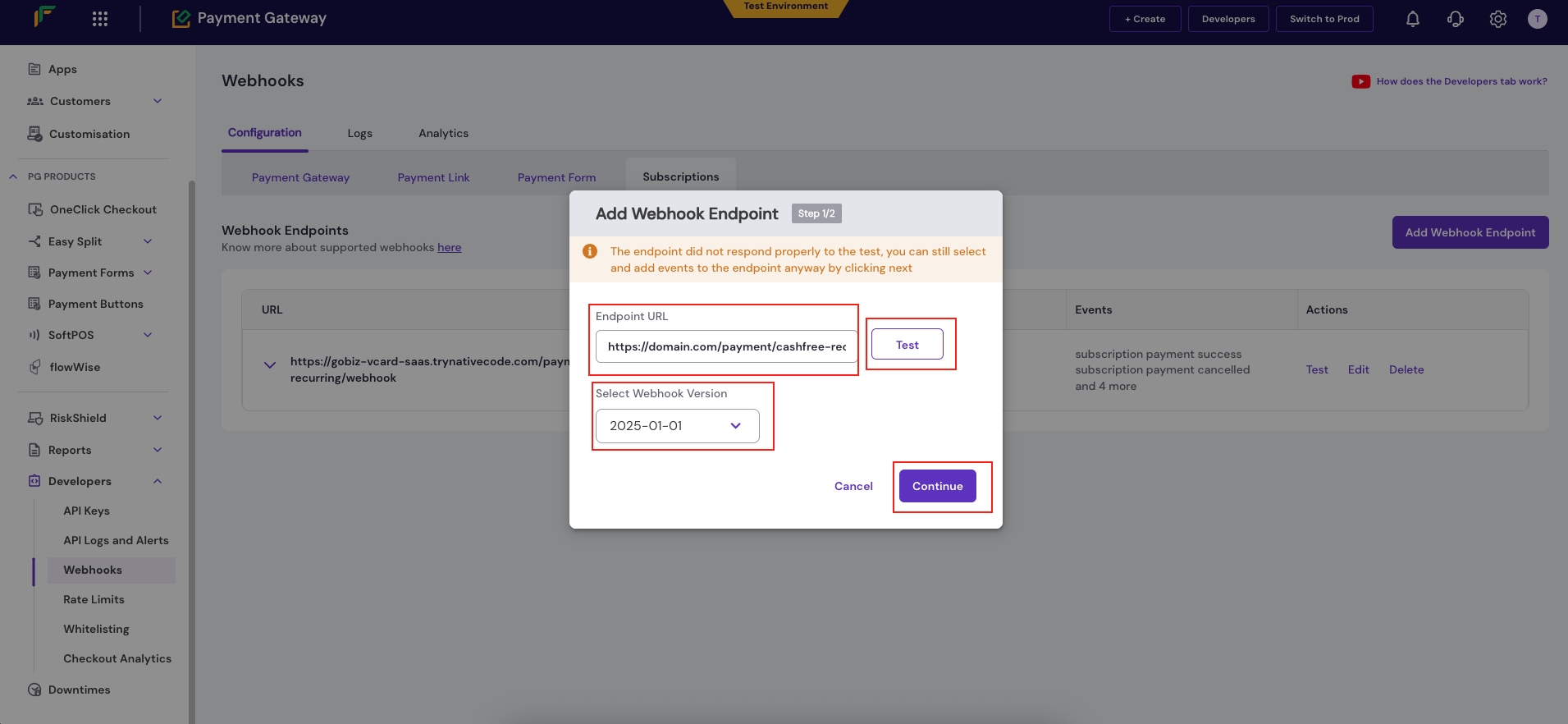
Select Webhook Events
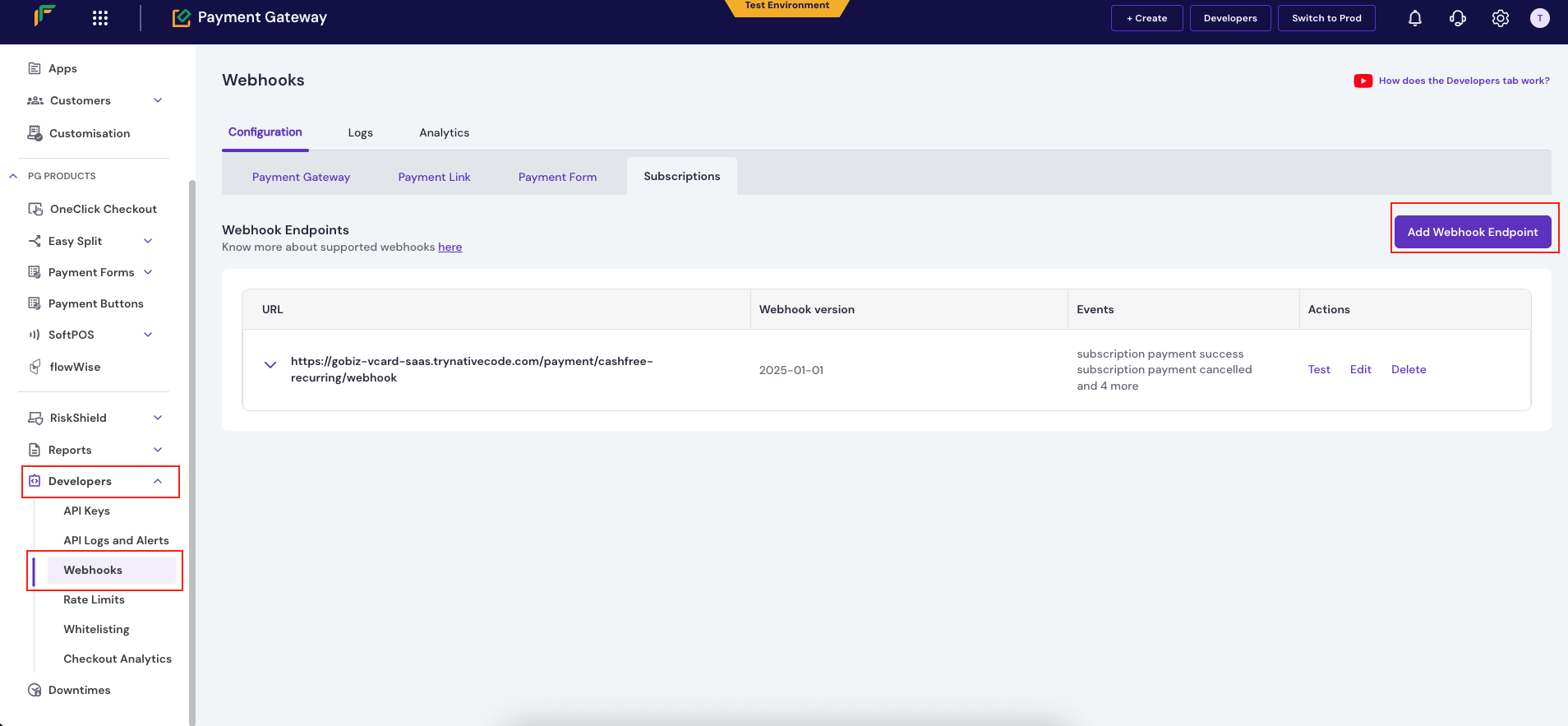
Enable the following events
text
subscription auth status
subscription payment cancelled
subscription payment failed
subscription payment success
subscription refund status
subscription status changed
Click Save to create the webhook.